Troubleshooting a Locked Credit Card Device
A credit card device can be used by several workstations, but it can handle only one transaction at a time. To manage this, the credit card terminal will become locked when in use (for example, when a workstation is using it to processing a transaction), and attempts by other workstations to use that terminal will fail and result in Meevo displaying a "device in use" message. Upon completion of the transaction, the terminal becomes unlocked and ready for another call.
Rarely, a credit card device can get "stuck" in a locked state. This may be the case if you observe any of the following from your credit card device:
- When checking out in the register, you receive an error message that the device is already in use. If this happens, be sure to first double-check that another workstation isn't calling on the device.
- The device reads "Pinpad error" and does not change.
- You power-cycle the device and it gets stuck on the boot screen (a screen with a series of numbers and codes, a unit number, etc.).
To unlock a credit card device
From the Merchant Account screen in Meevo, you can manually unlock a device that
appears to be locked:
- Go to Merchant Account > Devices. Locked devices will display a user name below Locked by and a date and time below Locked Date Time.
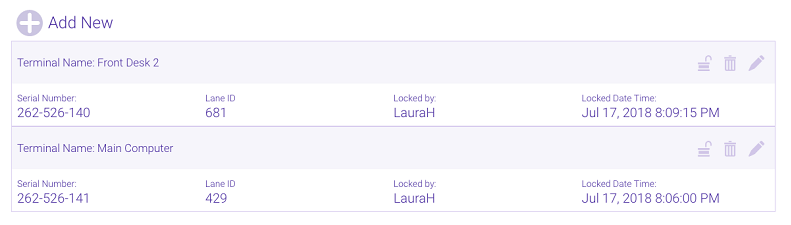
- Select the unlock icon to unlock the device.

- Select Save.
- Test the device:
- If the device reads “Pinpad error” or is already stuck on the boot screen, perform a full power cycle of the device.
- If the device is still stuck on the boot screen, remove the credit card device from the Merchant Account, perform a full power cycle of the device, and re-register the device through the Merchant Account.
- If the issue persists, contact Millennium Support.