Configuring the SalonConnect App
Go to Meevo > Integration > Salon Connect. A new browser tab opens on the setup page.
To configure the look-and-feel of the app
The first step to setting up the SalonConnect app is to configure the app's logo, background, and icons.
- On Step 1, follow the on-screen instructions to upload and resize your logo. When ready, select Next.
- On Step 2, select a background from the list. After you make a selection, the preview image on the right updates with the new background. When ready, select Next.
Tip: Darker backgrounds may obscure some of the app's icons and text. Be sure to check the preview image on the right and verify that the color scheme is acceptable. On the next step, you can select a scheme that makes your icons more visible.
- On Step 3, select your Icons from the list. Check the preview image on the right to verify the icons and their readability. When finished, select Next.
- Finally, Step 4 involves setting up scratch off prizes and enabling push notifications. To enable push notifications, toggle the switch to On (shown below).
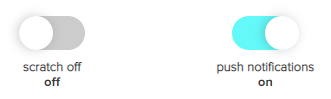
For details on setting up scratch-offs, see Configuring and Enabling the Scratch Off Feature.
- Select Finish to save your changes.