Insights Advisor: Performance Dashboards
Part of MeevoIQ’s Insights Advisor, Performance Dashboards bring your business’s most important KPIs and performance metrics together in one place. Instead of collecting information from multiple reports, you can quickly track results, compare performance across periods and locations, and explore the details behind changes in your metrics.
Unlike Meevo’s existing Advanced Dashboards, Performance Dashboards focus on a curated set of essential metrics and make it easier to move from a high-level view of performance to more focused insights.
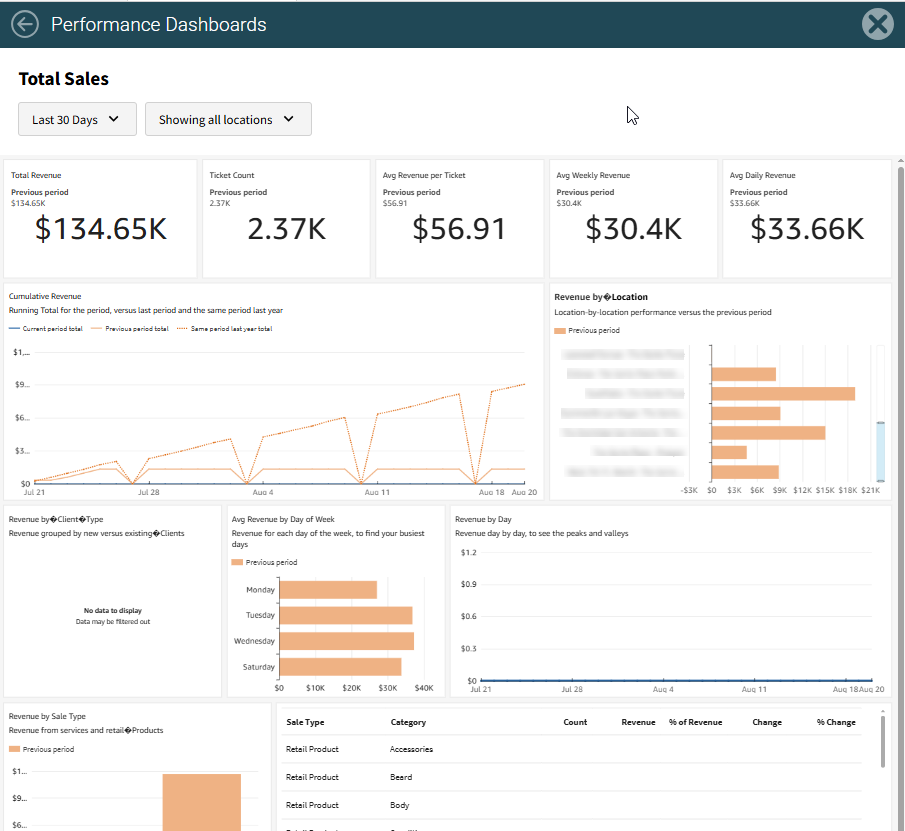
Available Performance Dashboards
- Total Sales: Track service and retail sales to understand performance across time, locations, client types, and top-selling categories.
- Payments: Track payments collected to reconcile financial performance and monitor cash flow.
- Service Sales: Track service sales to analyze trends, visit behavior, and identify top-performing or under performing services.
- Retail Sales: Track retail sales and attach rates to evaluate product performance and upsell success.
- Liability Sales & Redemptions: Track liability sales and redemptions to analyze trends, visit behavior, and identify opportunities for growth.
- Appointment Bookings: Track appointment details to understand booking trends, service demand and optimize availability.
- Client Behavior: Track client details and demographics to understand guest behavior, support segmentation, and improve retention.
Giving Employees Access to Performance Dashboards
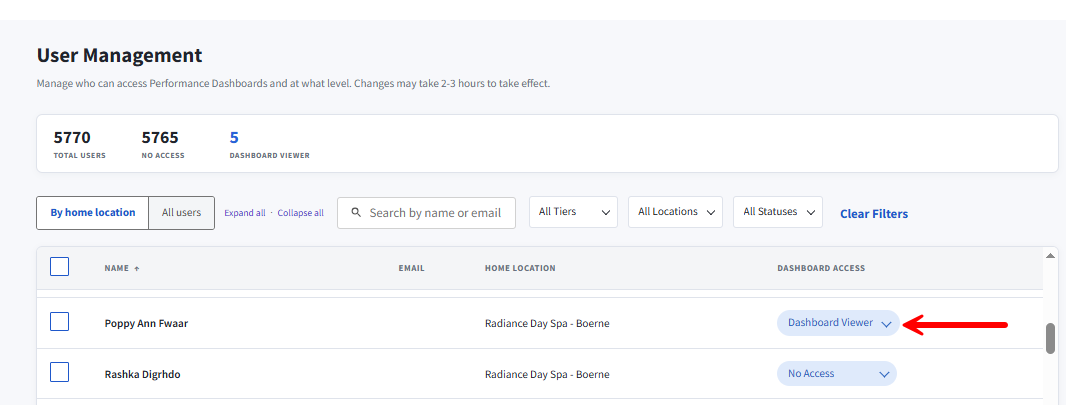
Getting an employee started with Performance Dashboards is simple: assign them Dashboard Viewer access in User Management. This is the setting that turns Performance Dashboards on for the employee.
That is all most businesses need to do. Businesses that want to restrict specific dashboards, or prevent a location’s data from being viewed elsewhere, can use the configurations described under Additional Levels of Security.
Important Details on Access
Below are a few important details to understand before granting access to Performance Dashboards:
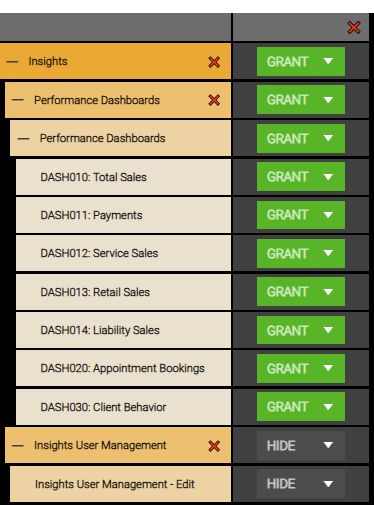
- In Security Administration, all Performance Dashboard security keys are set to Grant for every Security Role by default. However, an employee cannot open any dashboards until they are assigned Dashboard Viewer access in User Management.
- In multi-location scenarios:
- Employees can view data from any location they have access to. Location access is configured on the Security tab of the employee profile in Central Office, and the employee must have a Security Role assigned for that location.
- Every location opens the same User Management screen and sees the same employee access assignments. Because this screen controls access across the business, the Insights User Management security keys are set to Hide by default. Change the appropriate keys to Grant only for Security Roles that should be able to manage employee access.
- The default security keys for Performance Dashboards and the User Management screen are shown below:
Assigning Dashboard Viewer access
Employees have No Access to Performance Dashboards by default. Access is assigned to each employee individually.
Note: Changes may take 2–3 hours to take effect.
To give an employee access:
- Open User Management.
- Locate the employee. You can:
- Select By home location to group employees by their Home Location.
- Select All users to view employees together.
- Search by employee name or email address.
- Filter the list by tier, location, or status.
- Under Dashboard Access, select Dashboard Viewer.
Additional Levels of Security for Multi-Location Businesses
Assigning Dashboard Viewer gives an employee access to Performance Dashboards. Meevo then applies two additional levels of security to determine which locations and dashboards the employee can use.
Location Access
An employee can only view data from locations they can access. Location access is configured on the Security tab of the employee profile in Central Office.
Locations the employee cannot access do not appear in Performance Dashboard location filters and are not included in dashboard results.
Dashboard Access by Security Role
Each Performance Dashboard has its own security key for each Security Role. Dashboard security keys are set to Grant for all Security Roles by default.
In a multi-location business, an employee may have different Security Roles at different locations. The security key for a particular dashboard determines:
- Whether the employee can see and open the dashboard while working at that location.
- Whether that location appears in the dashboard’s location filters and results when the employee opens the dashboard elsewhere.
The table below explains how each dashboard security-key setting affects dashboard access and location data:
| Security Key Setting | When the dashboard is viewed at the location | When the dashboard is viewed from another location |
|---|---|---|
| Grant | Users with the role can see and open the dashboard. | The location appears in the dashboard's location filters, and its data can be included. |
| Deny | Users with the role see the dashboard but cannot open it. | The location is excluded from the dashboard's location filters and results. |
| Hide | Users with the role do not see the dashboard. | The location is excluded from the dashboard's location filters and results. |
The difference between Deny and Hide is what the employee sees while working at that location. Deny leaves the dashboard visible but unavailable, while Hide removes it. Both settings exclude that location when the employee opens the dashboard from another location.
Example: Different Roles at Different Locations
An employee has access to both Tallahassee and Miami locations, but is assigned a different Security Role at each location:
- At Tallahassee, the employee has the Admin role, which has Grant access to the Payments dashboard.
- At Miami, the employee has the Front Desk role, which has Hide access to the Payments dashboard.
As a result of this setup:
- The employee can open the Payments dashboard while working in Tallahassee. Tallahassee appears in the dashboard’s location picker, but Miami does not, and Miami data is not included in the results.
- The Payments dashboard is also hidden while the employee is working in Miami.
Full Access Users
Full Access users bypass the role-based dashboard settings in Security Administration.
- A user with Full Access to all locations can access data for all locations.
- A user with Full Access at a specific location can access that location’s data, along with data for any additional locations configured on the Security tab of their employee profile.