Marketing Advisor: Upsell Opportunities
Some of the best revenue opportunities may already exist within your client base but be difficult to identify manually. Upsell Opportunities, the first offering within Meevo’s AI-powered Marketing Advisor, helps you identify clients who may benefit from additional services and create targeted offers for them.
You can review AI-generated suggestions based on your business’s service sales or create your own Upsell Opportunities from scratch. Once an offer is created and available, it can appear:
- To front desk staff while booking an eligible client in the New Appointment Book
- Under Limited-time offers when an eligible client is signed into New Online Booking
The offer price is displayed wherever the opportunity appears. Promotional codes and separate discount configurations are not required.
Important: Upsell Opportunities appear only in the New Appointment Book and New Online Booking. They are not presented to anonymous clients using Online Booking.
More on Audiences and Upsell Creation
Each Upsell Opportunity promotes one service to a defined Audience of clients. Audiences are based on client activity and service history, allowing you to direct offers to clients for whom the promoted service may be relevant.
For example, you could create an Audience of clients who have received a color service but have never purchased a blowout service. You could then offer those clients a blowout during their next booking. This targeted approach allows you to promote relevant services to selected clients instead of presenting the same offer to everyone.
You can create an Upsell Opportunity in two ways:
- Create one manually: Select an existing Audience or create a new one, then define the offer details.
- Use an AI Suggestion: Review an opportunity identified by Marketing Advisor and use its recommended Audience and offer details as the starting point.
Manually Creating an Upsell Opportunity
In Meevo, go to Management > Upsell Opportunities.
When you create an Upsell Opportunity manually, you complete two main steps:
- Select an Audience: Use an existing Audience or create a new one. When creating an Audience, MeevoIQ provides AI guidance to help you define the clients you want to target based on their behavior and service history.
- Create the offer: Build the service offer that will be presented to eligible clients in the selected Audience. Creating an opportunity manually gives you control over the Audience and offer while still providing AI guidance where it can help.
Creating an Audience
If you need to create an Audience as a target for your Upsell Opportunity, use our MeevoIQ Co-Builder to define the Audience:
- Select Audiences from the left navigation pane.
- On the Overview page, select Create audience.
- In the MeevoIQ Co-Builder, describe the clients you want to include. For example, you can identify services they have purchased and services they have not purchased. Continue messaging with MeevoIQ as needed to refine the Audience.
- Review the Audience summary in the pane on the right. The summary displays the generated Audience name and the criteria clients must meet, such as Has purchased and Has not purchased. To discard the current criteria and begin again, select Start over.
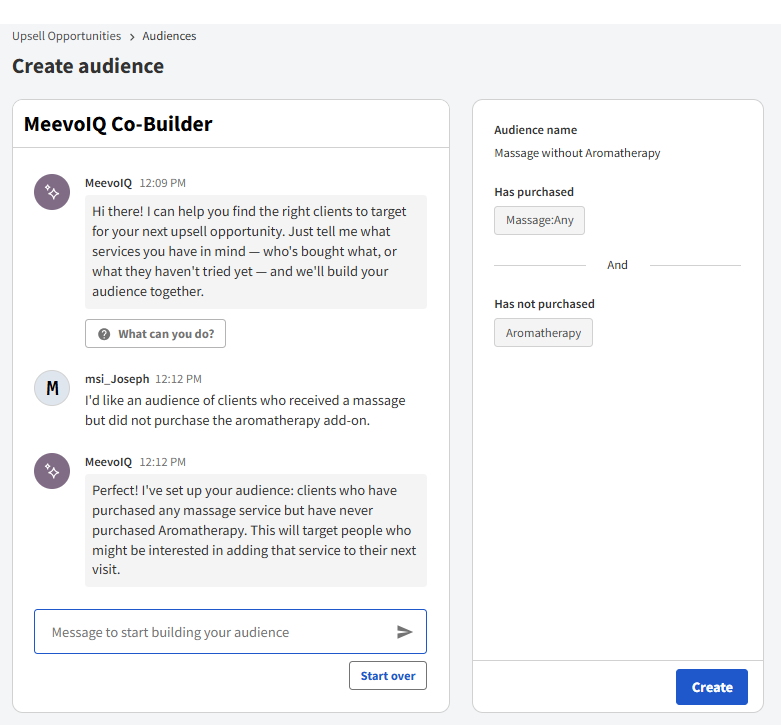
- When the summary reflects the Audience you want to target, select Create. The Audience can then be selected when you manually build an Upsell Opportunity.
Creating an Upsell Opportunity
Before creating an offer, make sure the Audience you want to target is available. You can select an existing Audience or create a new Audience with the MeevoIQ Co-Builder.
- Select Offers from the left navigation pane.
- From the Overview page, select Create offer.
- Under General, configure how the offer is identified and presented:
- Name: Enter a name used to identify the offer.
- Display name: Enter the name displayed when the offer appears to the Front Desk or clients.
- Show in: Choose where the offer can appear. You can select Book an appointment, Online Booking, or both.
- Short description for Employees: Enter a brief explanation that employees can use when discussing the offer with a client.
- Long description for Employees: Enter any additional information employees may need.
- Rank: Enter a number from 1 through 99,999 to determine the offer’s priority. The lower the number, the higher the priority.
- Under Discount information, configure the offer:
- Select the dates when the offer begins and ends, or leave the offer without a start or end date to run it perpetually.
- Specify when the offer can be redeemed.
- Enter the Discount percentage.
- Choose whether the discount applies to all services or select Add services to identify specific services.
- If applicable, indicate whether the offer can be combined with other discounts or price adjustments.
- If applicable, choose whether commission is calculated using the full service amount.
- Under Targeting rules, define who can use the offer:
- Audience: Select the Audience that should receive the offer.
- Minimum purchase quantity: Enter the minimum quantity required for the offer.
- Usage limit type: Select how often eligible clients can use the offer.
- Review the configuration, then click Create to create the offer. After it is created, the offer appears on the Offers Overview page with its status, start and end dates, and rank.
Creating an Upsell Opportunity Using AI Suggestions
Marketing Advisor analyzes the previous 12 months of service sales and the current month-to-date activity for your business or location. Based on that information, it suggests Upsell Opportunities that you can review and choose to create for the following month.
AI Suggestions do not become available offers automatically. You must review the recommendation and select Create offer to begin creating the Upsell Opportunity.
- Select AI Suggestions from the left navigation pane.
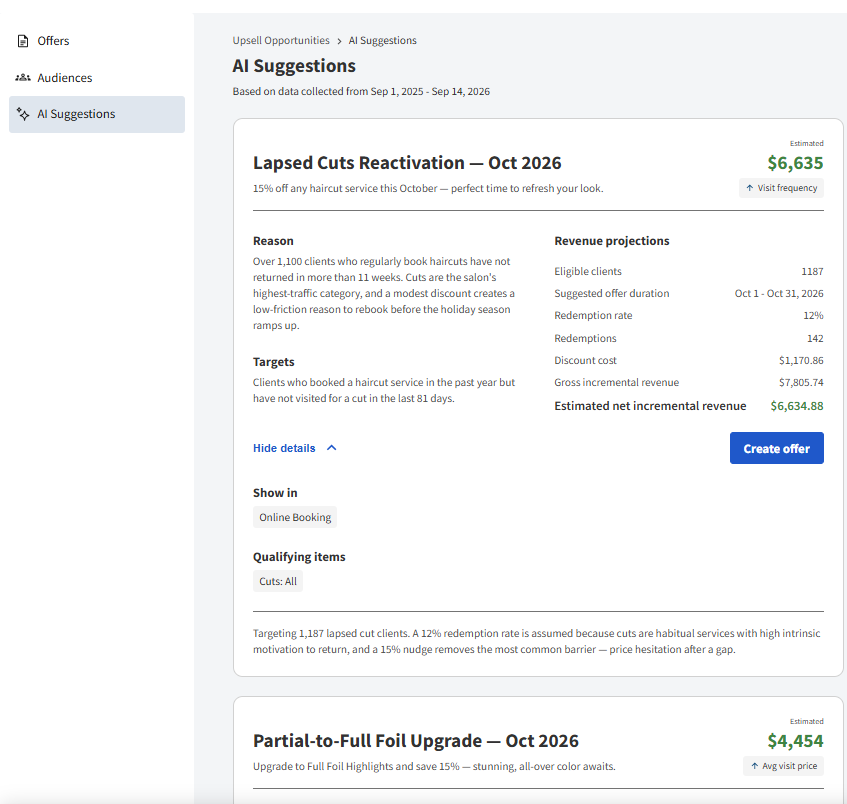
- Review the date range shown at the top of the page. This identifies the business activity Marketing Advisor analyzed when generating the suggestions.
- Review the summary of an AI Suggestion, including its:
- Recommended offer and discount
- Target Audience
- Reason for the recommendation
- Estimated net incremental revenue
- Business metric the offer is intended to improve, such as visit frequency or average visit price 4
- Expand the suggestion’s details to review:
- Revenue projections, including the number of eligible clients, suggested offer duration, projected redemption rate, estimated redemptions, discount cost, and projected incremental revenue
- Show in, which identifies where the offer is intended to appear
- Qualifying items, which identify the services included in the recommendation
- The reasoning and assumptions used to calculate the projected redemption rate
- When you want to proceed with the recommendation, select Create offer.
- Review the Audience and offer configuration created from the suggestion, make any necessary adjustments, and complete the offer creation process.
Note: Projected revenue, redemption rates, and other projected results are estimates and are not guaranteed.
Data requirements for AI Suggestions
Marketing Advisor requires sufficient service history to generate meaningful suggestions. A service must have at least:
- 10 paid transactions
- 20 paying clients
Services that do not meet both requirements are excluded from AI analysis. This helps prevent refunds, test entries, membership billing records, and other catalog items with limited activity from being recommended as offers.
New or low-volume services may not appear in AI Suggestions until they have accumulated sufficient history. You can still create an Upsell Opportunity manually when appropriate.
AI Suggestions for multi-location businesses
For multi-location businesses, AI Suggestions are generated at the Central Office level. Marketing Advisor combines activity across locations when evaluating performance and identifying potential opportunities.
Central Office can review a suggestion and select the locations where the resulting offer will be available.
How business data is protected
Client names and other personally identifiable information are removed from the information used by the AI. Your client data is not used to train the AI or provided to other systems.
Recommendations become more relevant over time
As your business builds offer history, Marketing Advisor can consider existing offers and their past performance when generating future AI Suggestions. This helps recommendations become more tailored to the offers that have been effective for your business.
Where Upsell Opportunities Appear
Once an Upsell Opportunity is created and available, it can appear during booking for clients who belong to its selected Audience.
Wherever the opportunity appears, the offered service and price are displayed upfront. The client or employee can add the service directly to the appointment without entering a promotional code.
Important: Upsell Opportunities appear only in the New Appointment Book and New Online Booking. They do not appear in the existing Appointment Book or Online Booking.
In New Online Booking
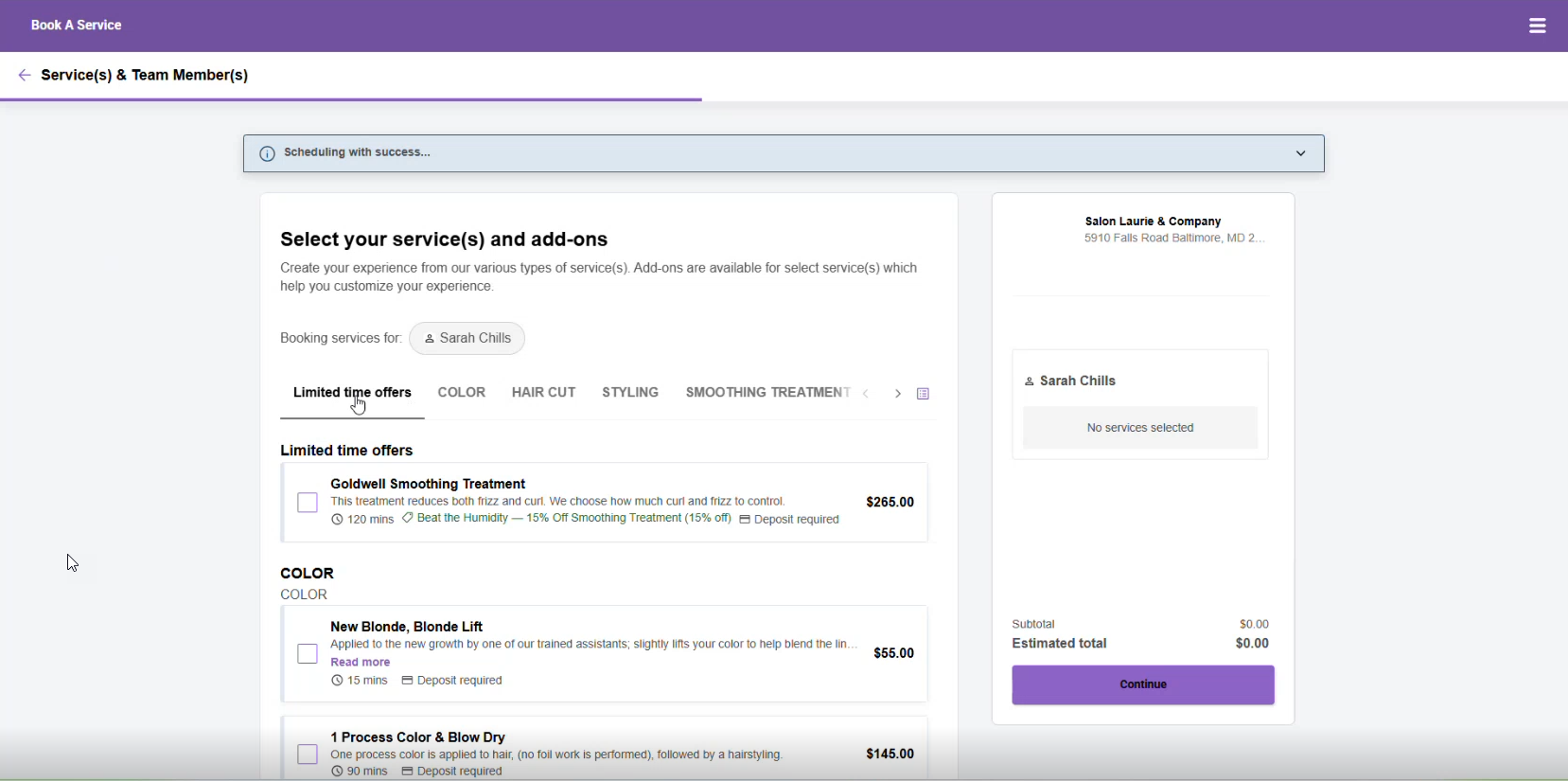
When an eligible client signs in and books online, available Upsell Opportunities appear under Limited time offers. The client can review the offered service and price, then add the service to the appointment.
Upsell Opportunities are not presented to clients who continue through Online Booking anonymously.
In the New Appointment Book
When an employee books an appointment for an eligible client, available Upsell Opportunities appear during the booking process. The employee can review the offered service and price with the client and add the service to the appointment.
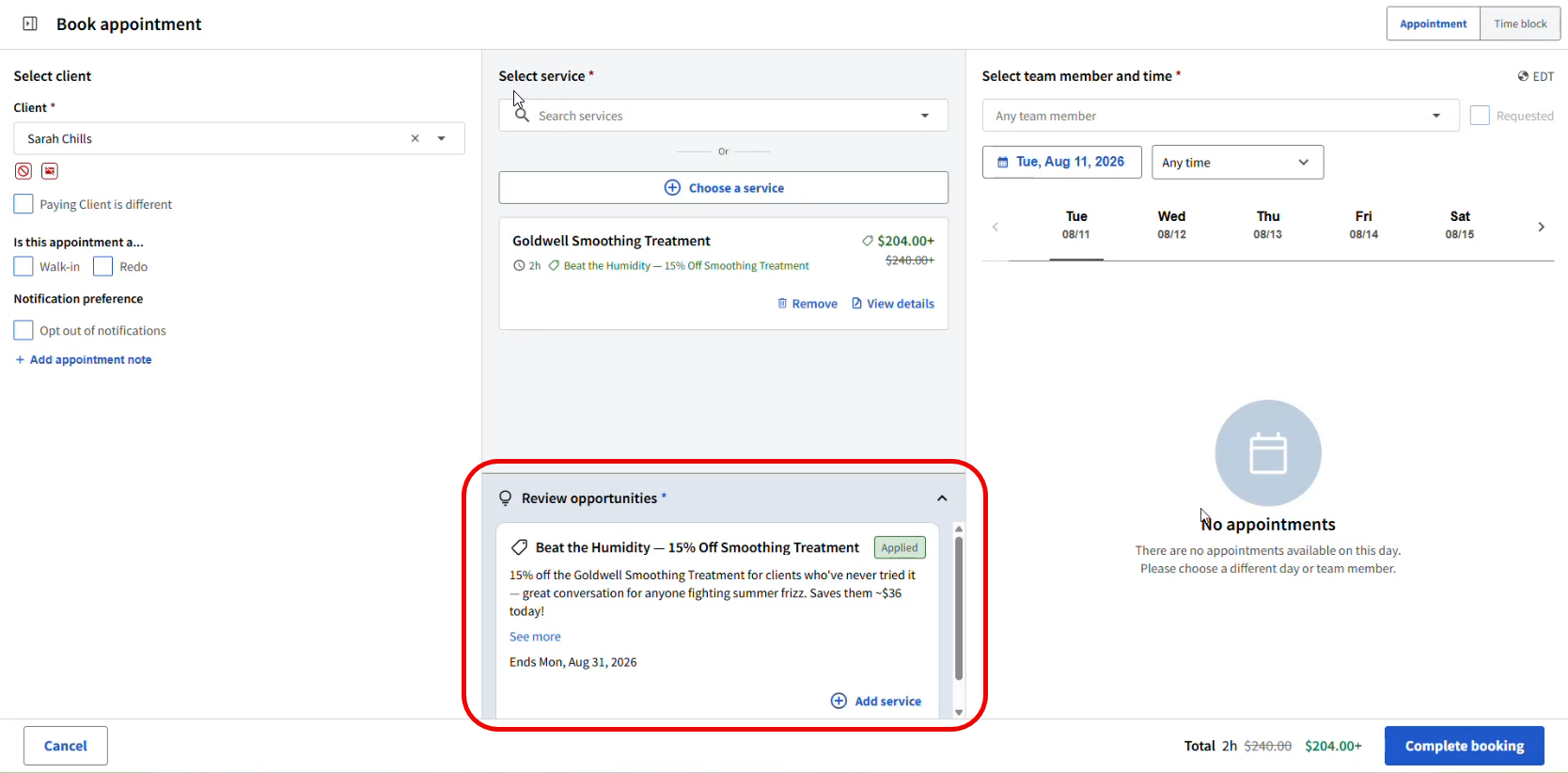
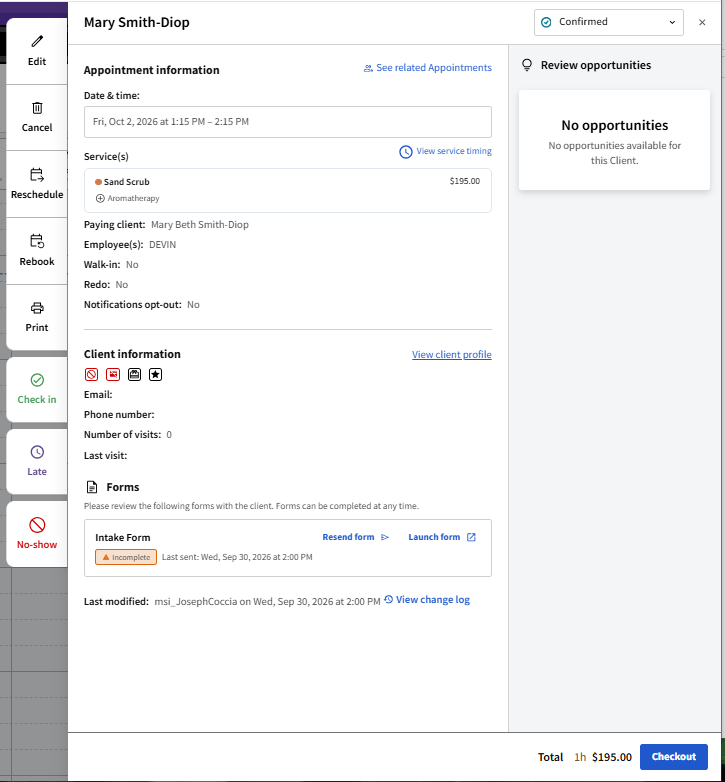
Upsell Opportunities also appear in the far-right pane of the appointment details pane in New Appointment Book. The details pane slides out when a booked appointment is selected from the Appointment Book.