Creating Review Notifications
Review Notifications allow you to receive emails with reviews that match your predefined criteria, such as a particular star rating, reviews that contain certain content, or reviews from a particular site. In addition to Review Notifications, you can also create Analytics Notifications.
To create a Review Notification
- Go to Meevo > Marketing > Online Presence Management or type onlinepresencemgmt into the Convobar.
- Select Reputation Management > Response.
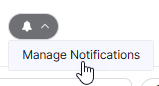
- Select Manage Notifications from the "bell" drop-down.
- On the Notifications page, select +Add Custom Notification on the top of the page.
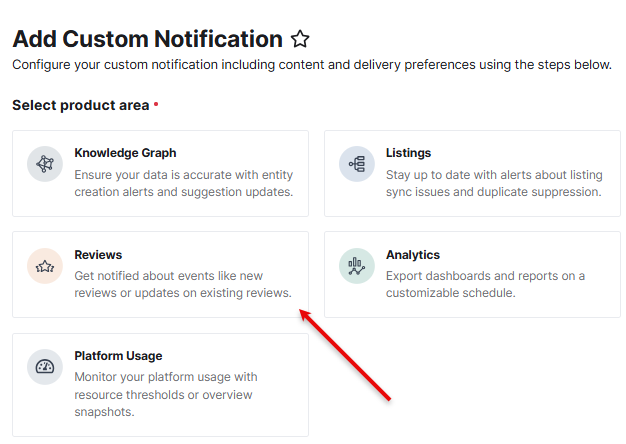
- Below Select product area, select Reviews.
- Additional options appear at the bottom of the screen. Under Select notification content:
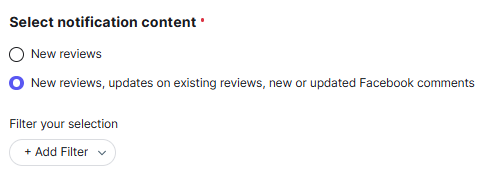
- New reviews matching all of: Select this option to receive notifications about new reviews only.
- New reviews, updates on existing reviews, new or updated Facebook comments matching all of: Select this option to receive notifications about new and existing reviews, as well as new or updated Facebook comments.
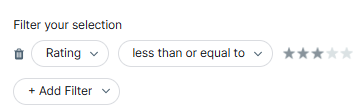
- Next, select the criteria that determines when a notification should be sent. Select Add Filter and make your selections as needed. For example, to receive notifications for any rating less than or equal to three stars, you'd make these selections:
- Under Select recipients, choose who is to receive the notifications.
- Owner refers to the user assigned as the owner of the location.
- All Users includes everyone, unless you Exclude Specific Users.
- Specific User Roles sends the notification to any user with the selected role. As with All Users, you can choose to exclude specific roles.
- Specific Users and/or Email Addresses: This option allows you to specify users and email addresses as your recipients.
- Next, choose how the information is delivered under Select delivery method(s):
- In-Platform: Notifications are delivered within the Yext platform and accessible via the "bell" icon at the bottom of the left navigation pane.
- Email: Notifications are delivered to the specified email addresses.
- If you chose Email, select Configure Email Settings and follow the steps below.
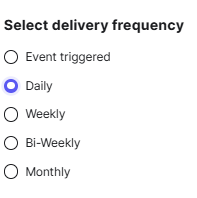
- Choose how often to send the notifications under Select delivery frequency of the email being sent. Note that if you select Event triggered, you will receive a notification when the review is detected by Online Presence Management, which may be some time after the review is left on the publisher site.
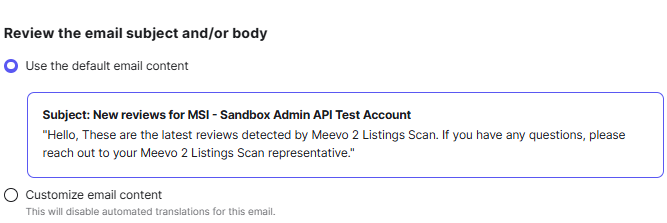
- Next, Review the email subject and/or body and make any changes as needed.
- Finally, choose the format of the review content:
- Put content in the email: The first 25 items are listed in the email, with any additional items being attached as a spreadsheet.
- Attach as spreadsheet: All review information is delivered as a spreadsheet that is attached to the email.
- When finished configuring the email, select Save.
- Finally, name the notification, and select Save when finished.
To edit, delete, or opt out of Review Notifications
- Go to Meevo > Marketing > Online Presence Management or type onlinepresencemgmt into the Convobar.
- Select Reputation Management > Response.
- Select Manage Notifications from the "bell" drop-down.
- On the Notifications page, find the row of the notification you wish to modify:
- To edit or delete the notification details, select the notification and edit/delete as needed.
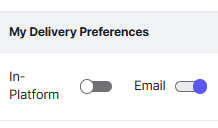
- To opt-out of a notification, select the toggle for the delivery method.