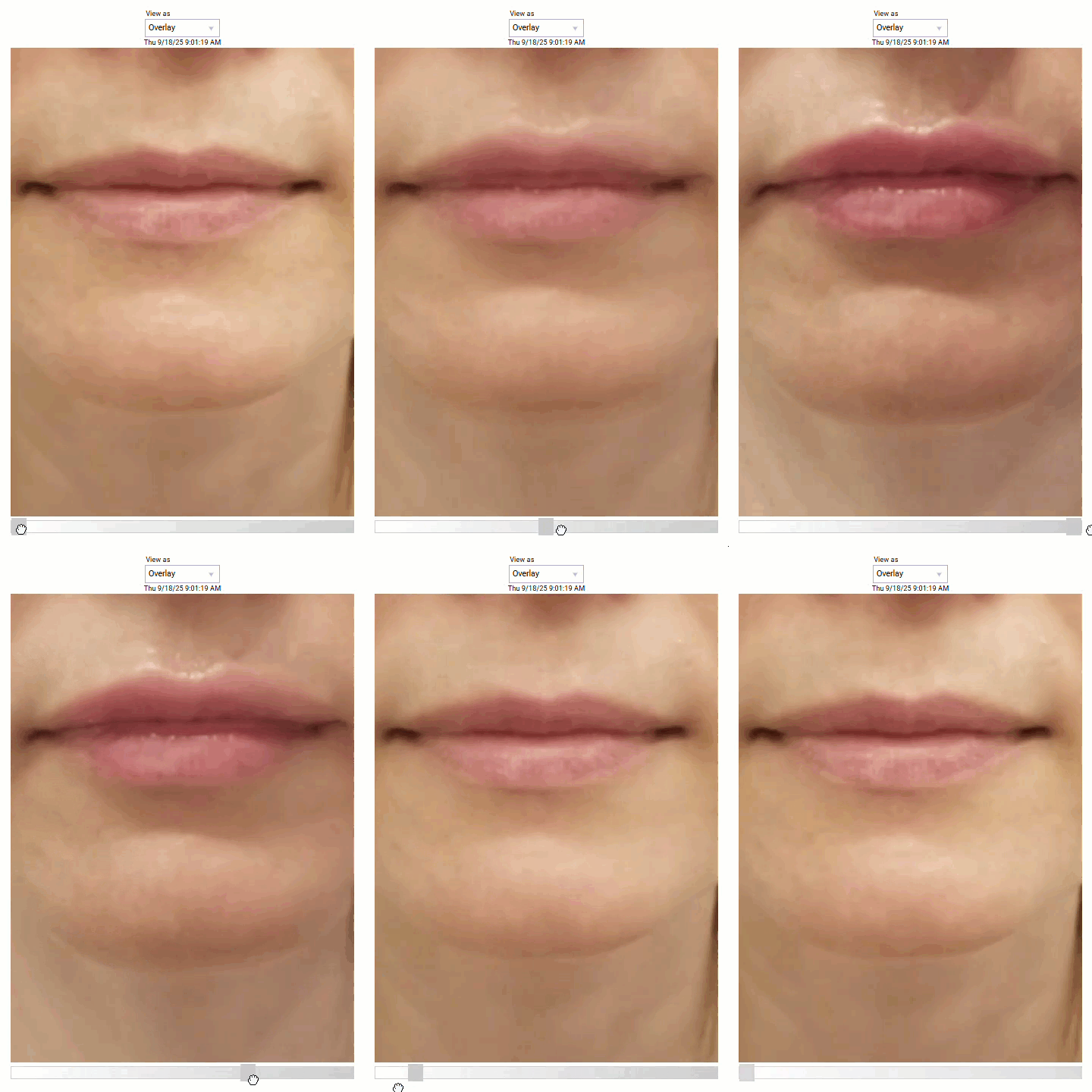
Client Image Gallery: Using the Slider and Overlay
Before-and-after photos are an essential tool for providers to showcase results. Meevo offers a Before & After upload option for the Client Image Gallery, which provides you with a side-by-side view of the two images.
We've expanded on the "Before & After" functionality with two interactive comparison options that allow you to:
- Drag a slider left or right to reveal more of the “before” or “after” image.
- Apply a fade effect to overlay images that smoothly transitions from “before” to “after.”
These enhancements provide medspas with a polished, professional way to display client progress, making it easier to highlight the value of treatments during consultations and follow-ups.
Note: These features are available only within MeevoMD, our subscription designed specifically for medspas.
To apply a slider or overlay to Before & After images
To use the slider or overlay, you'll first need to upload Before & After images as described in this article. Once those images are uploaded, you can continue with the steps below.
- Navigate to the Image Gallery tab of the desired client's profile.
- Select the thumbnail of an existing Before & After image.
- Under the View as drop-down, select Slider or Overlay.
- Next, crop the side-by-side images so that they are the same size (if necessary).
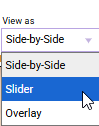
- Select View in Overlay mode or View in Slider mode.
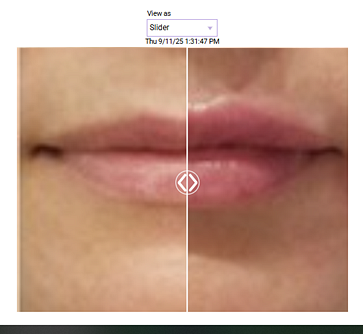
Slider mode
The Slider view lets you drag an arrow left or right to reveal more or less of each image, making it easy to compare changes in a clear and interactive way.
Overlay mode
The Overlay view stacks the images on top of each other. You can drag the transparency slider left or right to apply a fade effect, allowing you to smoothly transition between “before” and “after” for easy comparison.