Getting Started with 2-Way SMS
In today’s world, clients expect fast, convenient communication. But when calls go unanswered or voicemail tags pile up, you risk frustration and lost revenue.
Meevo’s 2-Way SMS keeps you connected in real-time by transforming your landline business phone number into a powerful texting tool. Clients can text your number directly, and you respond instantly through the 2-Way SMS tab in Meevo Messenger.
No more phone tag. No more missed opportunities. Just efficient, friendly, real-time communication!
Frequently Asked Questions
What are the benefits to using 2-Way SMS?
Texting makes everything easier!
- Confirm or reschedule appointments
- Answer questions quickly
- Receive images from clients (for example, for consultations or follow-ups)
- Get notified if a client is running late
- Use Quick Responses to reply instantly with pre-set answers to common questions
The result? Happier clients, a more efficient team, and more booked appointments...all with less effort.
Note: Both inbound and outbound messages will count towards your monthly SMS usage.
Can I switch from Capacity (Textel) to 2-Way SMS?
Yes! Please note that there will be a temporary period where Capacity is inactive and 2-Way SMS is "receive-only:"
- Within 24 hours of verifying your phone number (completing Section 3), your Capacity integration will stop working because your business landline will be reassigned to 2-Way SMS.
- At that point, you can receive incoming messages in the 2-Way SMS tab of Meevo Messenger.
- You will not be able to send outbound messages until Section 2 has been fully completed and approved, which may take up to 14 days.
Will enabling 2-Way SMS impact any other Meevo functionality?
Yes. When you first enable the 2-Way SMS integration, you will not be able to send one-way SMS messages from Client Find.
Once your 2-Way SMS applications are fully approved (completing Section 2 for registration and Section 3 for phone number verification), selecting the "send text message" button from Client Find will bring you to the 2-Way SMS tab in Meevo Messenger for two-way text messaging.
Enabling 2-Way SMS in Meevo
- Single Location businesses: Enable 2-Way SMS in the MeevoXchange under Business Boosters.
- Multi-location businesses: Contact your MSI Sales Rep to get 2-Way SMS enabled in your location. The feature must be enabled within each location that will be using the feature.
- When 2-Way SMS is added to Meevo:
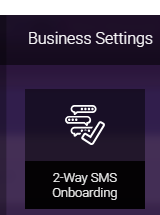
- A 2-Way SMS Onboarding tile appears in the Business Settings menu. This tile launches an application that you'll fill out to convert your business phone number into one that is "textable."
- A 2-Way SMS tab appears in Meevo Messenger; this is where you text back-and-forth with clients.
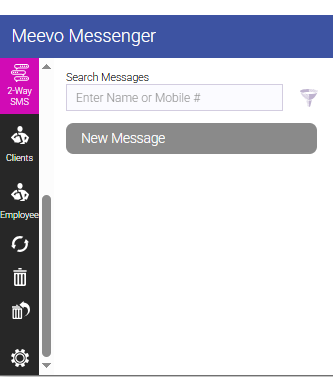
- A 2-Way SMS tab appears within Meevo Messenger Settings, where you can configure options like text bubble colors, auto-replies, quick responses, and more.
- A 2-Way SMS Onboarding tile appears in the Business Settings menu. This tile launches an application that you'll fill out to convert your business phone number into one that is "textable."
Applying for a 2-Way SMS Hosted Number
To use 2-Way SMS, you’ll first need to allocate a landline number that will become your official “textable” business number. This is the number clients will use to send and receive SMS messages with your business.
You will apply for this number through the 2-Way SMS Onboarding screen in Meevo.
What you'll need
- Your EIN (Taxpayer ID)
Important: Only businesses with an EIN can use this integration; Sole Proprietors that do not have an EIN will be unable to use this integration.
- The legal business name and address as listed with the IRS
- A landline number you want to use for texting (usually your business number)
Important: Meevo 2-Way SMS fully supports porting your existing business landline into a text-enabled line. If your business uses a VoIP phone system, compatibility varies by carrier. Our Implementation team will verify your number's eligibility during onboarding and ensure you have a supported path to get up and running with 2-Way SMS.”
- A Privacy Policy on your business web site, like the example below
- A Terms & Conditions on your business web site, like the example below
Example Privacy Policy
No mobile information will be shared with third parties/affiliates for marketing/promotional purposes. Information sharing to subcontractors in support services, such as customer service, is permitted. All other use case categories exclude text messaging originator opt-in data and consent; this information will not be shared with any third parties.
Example Terms & Conditions
- Program Description: By subscribing, you agree to receive recurring automated promotional and personalized marketing text messages (e.g., describe: appointment reminders/cart alerts) from [Your business name]
- Opt-Out: You can cancel the SMS service at any time. Just reply "STOP"
- Help: Text "HELP" for assistance or email [Your business email]
- Cost & Frequency: Message and data rates may apply. Message frequency varies.
- Privacy: Your mobile information will not be shared with third parties for marketing or promotional purposes.
Filling out the application
Note: The phone number verification step (Step 8 below) is no longer required. Although you'll still see a message indicating that a verification call will be placed to your hosted phone number, no call is made. Simply continue through the prompts to complete the setup.
- Go to Meevo > Business Settings > 2-Way SMS Onboarding or type smsonboarding into the Convobar.
- Under General Information, fill in details about the business and identify a business contact (owner or decision maker).
- Under Registration to Send SMS Messages, fill out additional information about the business, including your business industry, EIN/Tax ID, and website URL.
- Contact Phone Number format: +15555555555
- When finished, click Continue.
- On the last step, Hosted Number, enter your business phone number. This is the number that clients will use to text your business. You can also add additional emails that you'd like to be CC'ed on any communications related to 2-Way SMS.
- This integration requires a traditional landline. Internet-based phone systems (VoIP) are not supported.
- Hosted Number format: +15555555555
- Click View Summary.
- When you're ready to apply, click Submit.
- A pop-up message appears informing you that a phone call will be made to the Hosted Number.
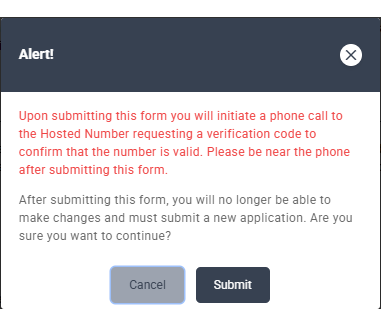
- No call is actually made to your Hosted Number, so you can simply click Submit. The Verify Hosted Number page appears.
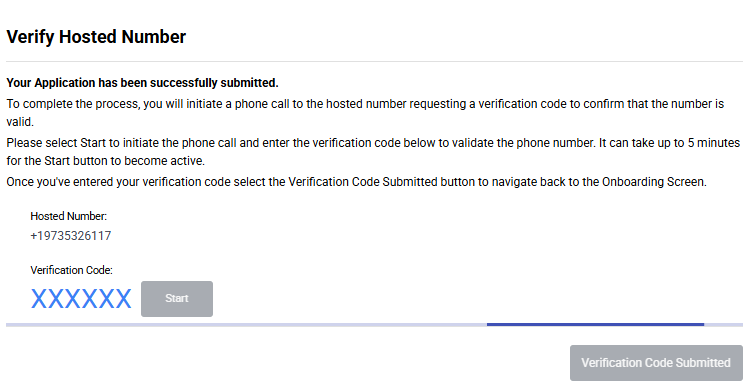
- Click Verification Code Submitted to return to the application.
- A Hosted Letter of Authorization (LOA) is emailed to the business contact you registered in the General Information step. Open that email and follow the instructions to sign the LOA.
- You will receive one more "confirmation" email after signing the LOA.
- If the link in the email expires before you have a chance to sign the LOA, please reach out to your CSM and ask for another email link to be sent.
- Back on the application page, a status is listed above each section to keep you up-to-date on where your application stands:
- Section 2 (SMS Registration) can take up to 14 days for approval.
- Section 3 (Hosted Number Verification) usually processes in 24 hours.
Note: Once Section 3 is processed and listed as Complete, you will be able to receive messages through Meevo Messenger. Outgoing messages can continue to be sent through Client Find until Section 2 is Complete. Once both application sections are complete, you'll be able to use 2-way messaging in Meevo Messenger.
What's Next?
Explore more articles to help you get the most out of 2-Way SMS:
- 2-Way SMS: Options and Notifications: Learn how to manage message alerts, set up Auto and Quick Replies, and adjust the colors of message bubbles.
- Using Meevo Messenger: A guide to sending and receiving 2-Way SMS messages through Meevo Messenger.
- Meevo Messenger Notifications: Details on the ways Meevo Messenger alerts employees to new messages.
- Using Auto Replies in Meevo Messenger: Automatically respond to client messages during off-hours or busy times.
- Using Quick Responses in Meevo Messenger: Save time with pre-written replies to common questions and requests.