Connecting Meevo 2 to RUN
Important: The Meevo 2 Connector for RUN Powered by ADP is required for the RUN Integration, but it can only be purchased after at least one payroll period in RUN is completed. If you cannot purchase the Meevo 2 Connector in the ADP Marketplace for any reason, contact ADP for assistance.
To connect Meevo 2 to RUN Powered by ADP:
- Open the ADP Settings screen by typing adp into the Convobar, or go to Meevo > Integrations > RUN Integration.
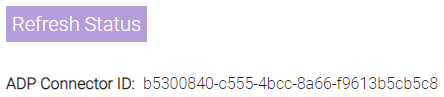
- On the Main tab, take note of the ADP Connector ID, as you will need this ID to connect your Meevo 2 to RUN Powered by ADP during the purchase process. We recommend you copy this ID from Meevo 2 to Notepad so that you can paste it where applicable in the ADP Marketplace.
- Select Edit.
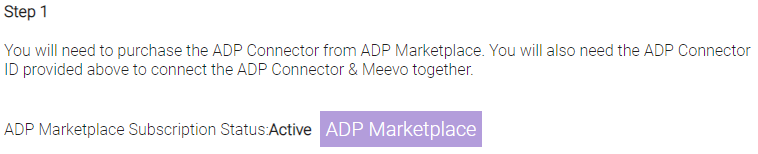
- Under Step 1, the ADP Marketplace Subscription Status reads Inactive because you haven't purchased the Meevo 2 Connector yet. You need to go to the ADP Marketplace to purchase the Meevo 2 Connector and activate your subscription:
- Select ADP Marketplace to open the Meevo 2 Connector for RUN Powered by ADP page in the ADP Marketplace.

- Select Buy Now to begin the purchase process.
- After selecting Continue during the purchase process, you are brought to the Additional Information step. Paste your ADP Connector ID here.
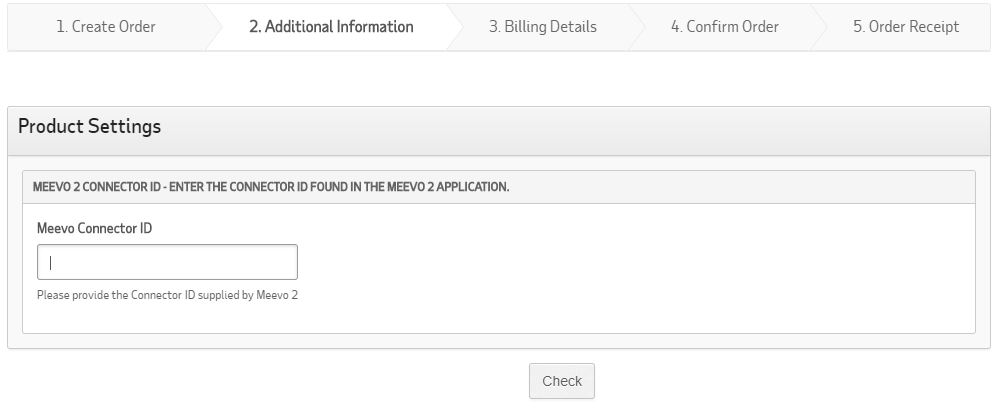
- Select Check to verify that the ID is valid, and then complete the purchase.
- Toggle back to the ADP Settings page in Meevo 2, and select Refresh Status. Under Step 1 on this page, the ADP Marketplace Subscription Status should now read Active.
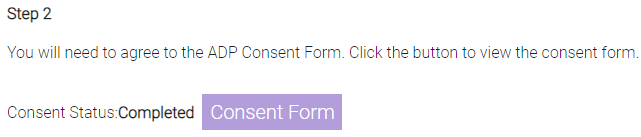
- Under Step 2, if the Consent Status reads Not Completed, you need to agree to the consent form.
- Select Consent Form.
- After agreeing to the consent form, toggle back to the ADP Settings page in Meevo 2, and select Refresh Status. Under Step 2 on this page, the Consent
Status should now read Completed.
- Select Save.
- We recommend mapping employees and earning codes before you enable the RUN integration.