Logging into Meevo BI
Once a user is granted access to Meevo BI, they will be able to log in using their existing Meevo login credentials (username and password). If this is your first time using the app, a user will need to enter the business's Company Code to connect Meevo BI. The company code is the same across Central Office and all locations.
The Company Code will always match the second part of your business's Meevo URL, which can be set by Central Office.

Note that you can connect to a different Company Code at any time from the Meevo BI login screen.
To find your Company Code
Meevo BI permits you to connect to one tenant (business) at a time.
- After you activate the Meevo Business Intelligence Business Booster, the Business Intelligence App tile will appear under the Meevo Integration menu. Select that tile.

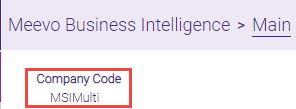
- From that screen, note your Company Code, which you will need when logging into a location through Meevo BI. This field is not case-sensitive.
To log into Meevo BI
- When you first open the app, you are brought to the Company Code screen. If you're already connected, skip to Step 4 below.
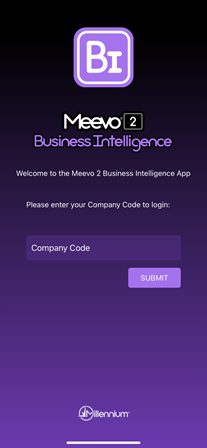
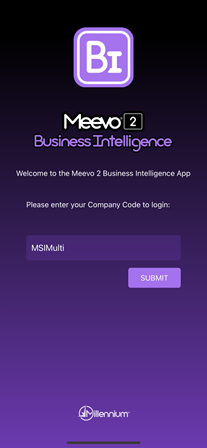
- Enter the Company Code. This field is not case-sensitive. When ready, tap Submit.
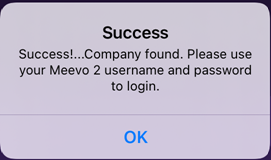
- After some time, the message below appears after a successful connection. Tap OK.
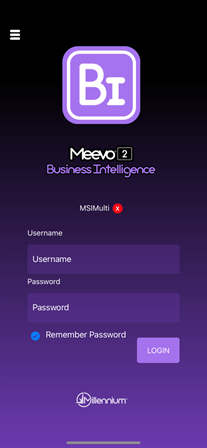
- On the login screen, verify the connected location above the Username. Enter your Meevo username and password and tap Login.
- By default, the home screen of Meevo BI displays This Week compared to Last Week to Date metrics for all locations that you have access to.
- Be sure to review the following topics for more on Meevo BI: