Scheduling a CORE Royalty Export
- Go to Meevo > Management > Royalty Export Settings.
- From the Main tab, select Schedule an export. The Report Scheduler opens on the CORE Royalty Export.
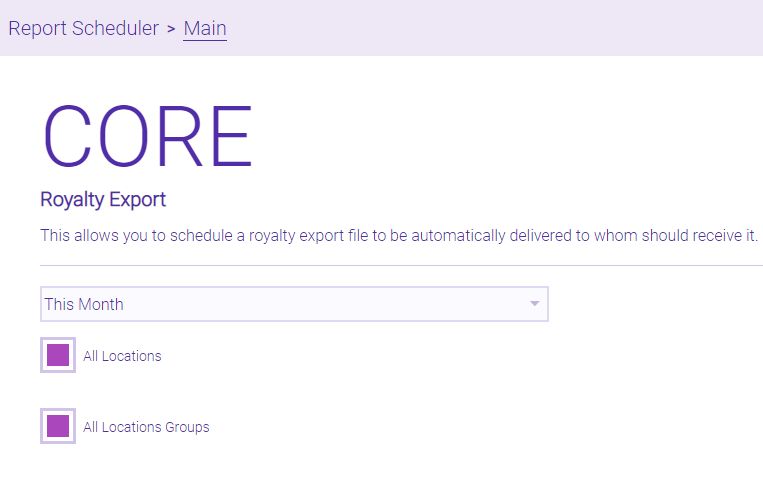
- From the drop-down, select the time-frame from which Meevo will export data. You can report onLast Week, Previous Two Weeks, This Month, and Last Month.
- All Locations: Leave this selected to report on all locations, or deselect this and use the picker to specify which locations to include.
- All Location Groups: Leave this selected to report on all Location Groups, or deselect this and use the picker to specify which Location Groups to include.
- Under Delivery Options, give this export a Schedule Name.
- Report Format: The export will be delivered in the format you choose from this list.
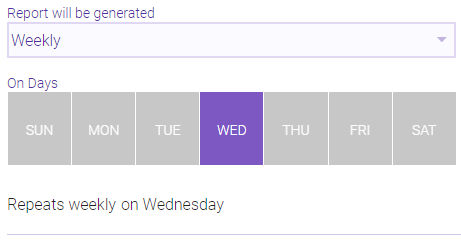
- Report will be generated: Select Weekly or Monthly.
- If you selected Weekly, choose one day from the day picker to run the export.
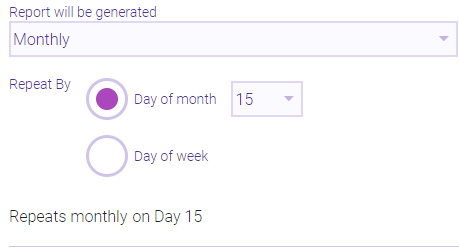
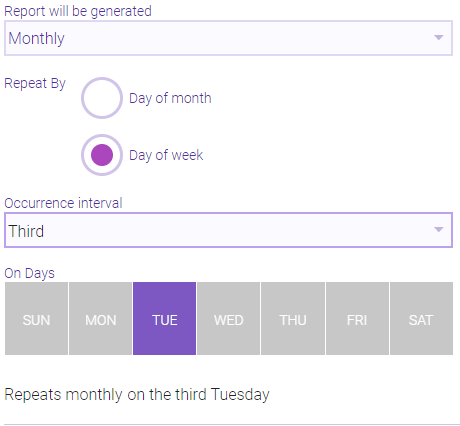
- If you selected Monthly, choose how frequently to run the export:
Day of month:
Day of week:
- Report Runs At: Select a time frame that the export will run. While the export is likely to be generated within the specified time interval, due to a number of variables (such as exports and reports that are already in the queue), there is a possibility that the export will be delivered later than the selected time range. Links to the export are always delivered shortly after the export is finished generating.
- Require security code to view report: When this option is enabled, the recipients will be unable to access the export until they each enter a unique, one-time alphanumeric PIN. This PIN is randomly and automatically generated when the recipient selects the link in the notification. See Viewing Delivered Reports for more details.
- Deliver Report To: Select which employees and users will receive links to the scheduled export. Note that there are no security limitations on this list; all employees and users appear here. Keep in mind that it is up to the recipient of the export to keep the information private.
- Custom Delivery Options: To add recipients who are not in your list of Meevo users and employees, enter a name, then an Email Address and/or SMS Number. Select Add Address to add the recipient, and repeat as many times as needed.
- When finished, select Save. Saved exports can be searched for and edited in Report Scheduler just like any other scheduled report.