Enabling and Setting Up Paging
Setting up paging involves the following steps, all of which are covered in this topic:
- Enable paging.
- Configure your paging settings.
- Assign pager numbers to your employees via their profiles.
To enable Paging
- Go to Meevo > Integration and select the Paging tile.
- Select Enable Paging to turn on Paging. When this option is selected, the Pager number field is exposed in employee profiles.
To configure Paging settings
- Pager DBA: This information is provided to you by JTECH.
- Select which events will trigger a pager alert. These pager alerts will be sent for any appointment on the current day. Future appointments do not trigger a pager alert.
- When finished, select Save.
To assign a pager to an employee
Each employee should be assigned their own pager.
- Go to Meevo > Data > Employees or type emp into the Convobar.
- Search for and select the employee.
- On the Main tab, scroll to the Pager number field. Enter the number on the pager that the employee is to use. This number should be unique and should not be on any other pagers in your business.
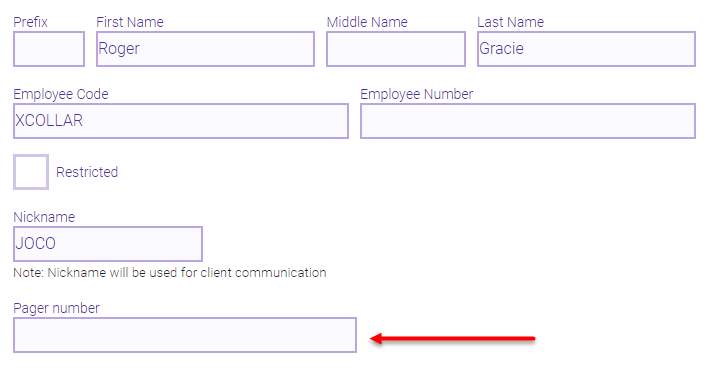
- When finished, select Save.