Deleting Data from a Previous QuickBooks Desktop Sync
When you delete data from the Sync tab, you are deleting the data in QuickBooks that Meevo sent over as a result of a sync. As a best practice, you must also go into QuickBooks and delete any deposit data for the date range you are deleting. Failure to do so will likely result in record links being broken and duplicate deposits the next time you sync Meevo to QuickBooks. Remember, data that was synced on a particular day may not have been deposited on that same day, so make sure you locate all deposits for data that was synced during the date range you are deleting.
Important: It is important that you not delete any data manually from the QuickBooks Desktop file. If you delete a mapped item, Meevo will prevent errors by automatically recreating the deleted item the next time you sync.
To delete data from a previous sync
- In the QuickBooks Desktop screen in Meevo, select the Sync tab.
- Delete Sync: Enter the From and To dates. Remember, after deletion in Meevo, you must also go into QuickBooks and delete all deposit data points associated with the date range specified here.
- When ready, select Send to Queue.
- After a few moments, you receive a successful message that the data was submitted to the queue.

- Next, select the Queue tab to verify the details of the queued deletion.
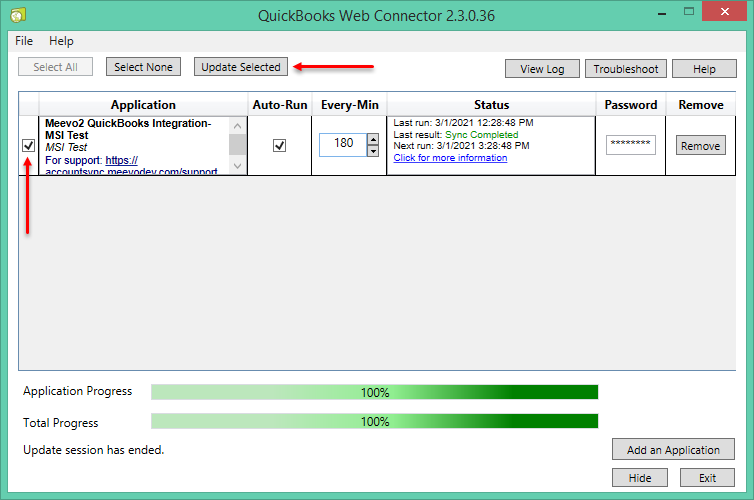
- To force the deletion immediately, open QuickBooks Web Connector, select the integration, and then select Update Selected. Otherwise, the deletion will occur the next time the service auto-runs (if it is configured to do so).
To remove a queued deletion before anything is deleted
To remove the queued deletion before the data is actually removed from QuickBooks, select the Queue tab in the QuickBooks Desktop screen in Meevo and select Delete Selected Queue Entries. You can delete any queued entries that have not yet been consumed by the QWC service.