SalonConnect: Creating an Account and Logging In
When clients create a SalonConnect account for the first time, they enter their name and email address. Meevo checks the client database to see if that email exists at the location. If it does not, Meevo creates the client profile according to the information provided in the app. If the email address already exists, Meevo does not take any action on the client's profile information.
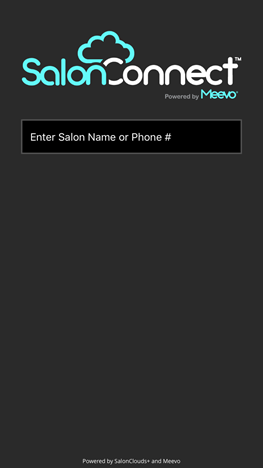
- Initially, clients are presented with the Salon selection screen. Here, clients should enter the salon name or phone number exactly how they appear in Business Information > Main in Meevo.
- After selecting the location, the SalonConnect main screen appears. Clients can browse through the app without logging in, unless they select Appointments or My Account.
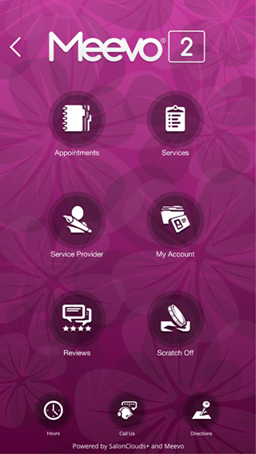
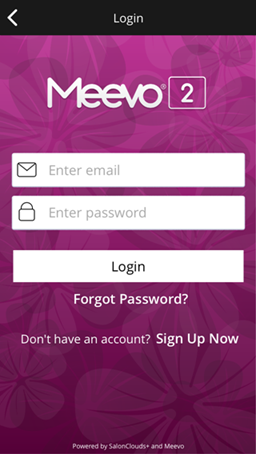
- Selecting Appointments or My Account prompts the client to log in. If the client does not yet have a SalonConnect account, the client selects Sign Up Now. If the client created an account already, they can log in and proceed as usual.
- After selecting Sign Up Now, the client enters their information.
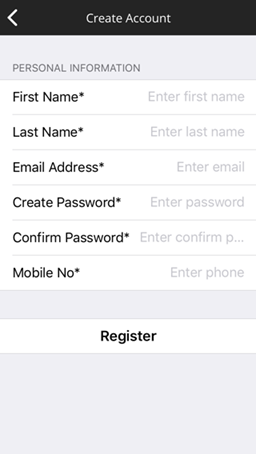
- After selecting Register:
- On the Meevo side, Meevo checks the location's client database to see if that email exists at the location. If it does not, Meevo creates the client profile using the information provided in the app. If the client's email address already exists, Meevo does not take any action on the client's profile information.
- If Meevo is creating a new client, note that no Referral Type is selected, so make sure your business added one to the client's profile (if desired) prior to checking out the client.
- The client automatically receives an SMS opt-in text message. The client's response is recorded in the Meevo client profile (Opted In or Opted Out).
- Meevo automatically enables notifications for SMS, phone, and email for this client, but the client must opt-in to receive SMS.
- Once a client has an account, the client can book appointments and view the My Account options.