Discounting a Purchase Order
From within the Purchase Order, you can configure and apply Percentage Off, Amount Off, and Specific Price discounts to one or more items on the Purchase Order. The final discounted price of an item is what is used to calculate Inventory Value.
From within the Purchase Order:
- Select Edit, and then select Discounts.
Note: Selecting Discounts when not in Edit mode will display the Discounts window, which lists any discounts currently applied to the order. To add or remove discounts from this screen; you must be in Edit.
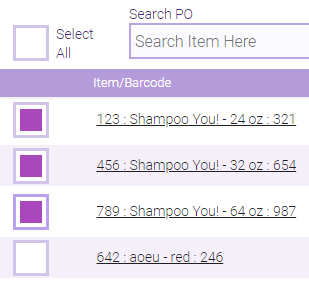
- Select the products to be discounted by enabling their checkboxes. Select All will select all items on the Purchase Order.
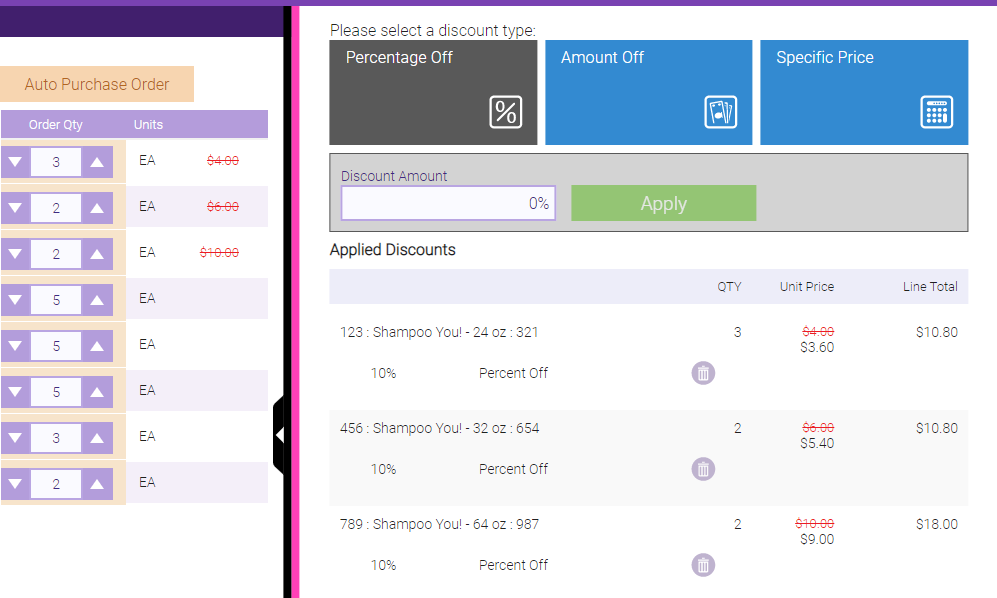
- Select a discount type, amount, and then select Apply. In the PO list, the items being discounted appear with their wholesale value slashed in red. On the discount slideout, the Applied Discounts are listed in detail.
- Select Save to save the applied discounts, or select Clear All Discounts to remove them.