Emailing a Purchase Order
Reminder: When emailing a PO, Meevo uses the From email address you configured in Notification Settings. If the person receiving the email selects Reply, the Reply to address in Notification Settings is used.
To email the Purchase Order (for example, to a distributor), select the Email button. This sends the Purchase Order (in the MI100 report's Purchase Order format) to one or more manually entered email addresses. The email body and subject line of the email can be edited, if desired.
- Locate and select the Purchase Order that you wish to email.
- From the bottom-left of the screen, select Email. Note that this button does not appear if you are in Edit mode.

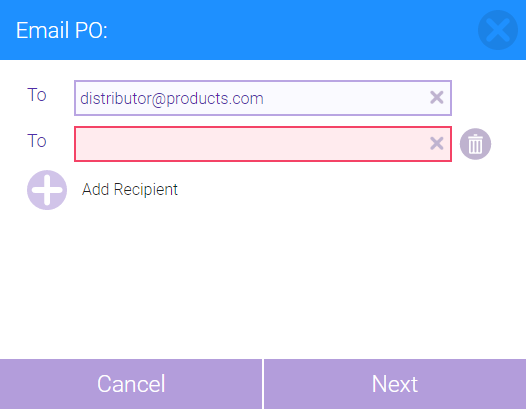
- In the Email PO pop-up window, enter an email address. You can select Add Recipient to create another To line. When ready, select Next to customize your email.
- Review the Subject and Body text and make edits if needed. Then, select whether to send the Purchase Order as a PDF, Excel, Word, or CSV file.
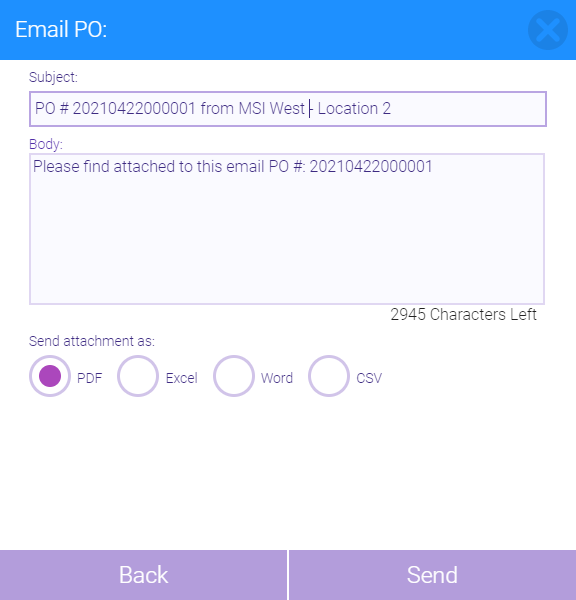
- Select Send when finished. The email will go out within a few minutes of selecting Send.