Adjusting Product Prices Immediately
Follow these steps to apply sweeping price changes to your selected products.
To use product filters
- Type pricemanagement into the Convobar, or go to Meevo > Management > Price Management and select the Products tab.
- Use the filters to narrow down your product search. You can search by product Manufacturer, Distributor, or Product Category/Sub-Category. You can also Include discontinued products in the list.
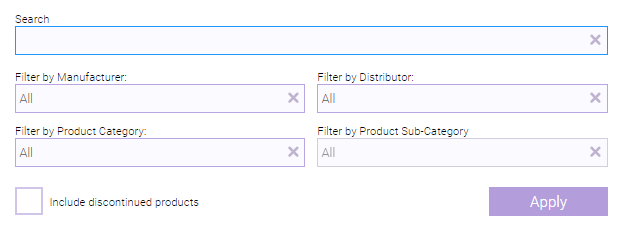
- Select Apply to view a list of products that fit the criteria.
To apply a mass update
- Use the controls above the product list to configure the update:
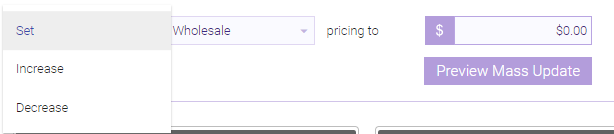
- Set: Applies a specific price or markup % to all selected products (Wholesale, Retail, or Markup %). Use this to apply the same price or markup % to many products at once.
- Increase / Decrease: Increases or decreases the Wholesale or Retail prices by an amount or a perecent.
- rounded to: Rounds price changes to the nearest $0.50 or $1.00 so that products don't end up with "random" prices. This field appears for Increase and Decrease only.
- Select Preview Mass Update to see your changes reflected in the list. This exposes the Apply Mass Update along the bottom of the screen.
- When ready, select Apply Mass Update to apply your price updates. Product prices are immediately updated in the product definitions.
To update individual products
Update individual products by making changes within the list of products.
- Select Edit.
- Make your changes within each desired product card.
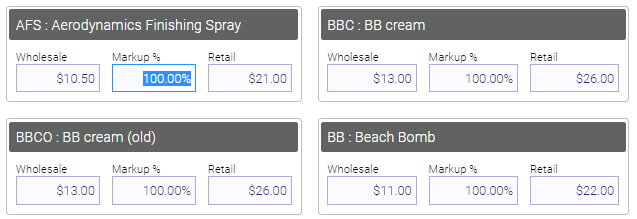
- When finished, select Save. A prompt lets you know that this change cannot be undone. Select Yes to immediately update product definitions.