Creating a Custom Dashboard
Custom dashboards are a way for you to display and track the metrics you are most interested in. You can create an unlimited number of dashboards, with no limit to the number of insights or metrics you can add to each dashboard.
To create a custom dashboard
- Go to Meevo > Marketing > Online Presence Management or type onlinepresencemgmt into the Convobar and select Analytics > Dashboards.
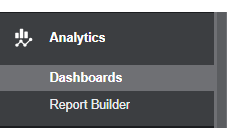
- Select +Add Custom Dashboard from the top-right of the screen. The Create New Dashboard window appears.
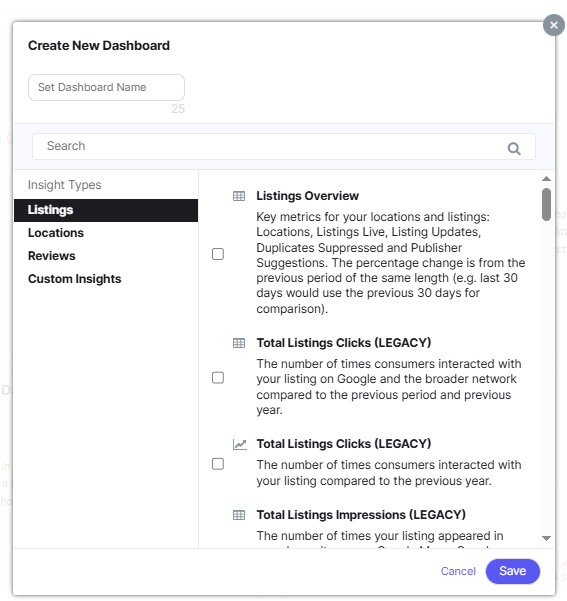
- Enter your dashboard name in the Set Dashboard Name box at the top.
- Select the insights you would like to use in your dashboard. You can view different categories of insights from the Insight Types list on the left. n the main pane on the right, select each insight you want to use in your dashboard.
- When finished, select Save.
- The new custom dashboard will appear under Personal Dashboards on the left navigation panel.
To edit an existing custom dashboard
There are two quick and easy ways to edit an existing custom dashboard:
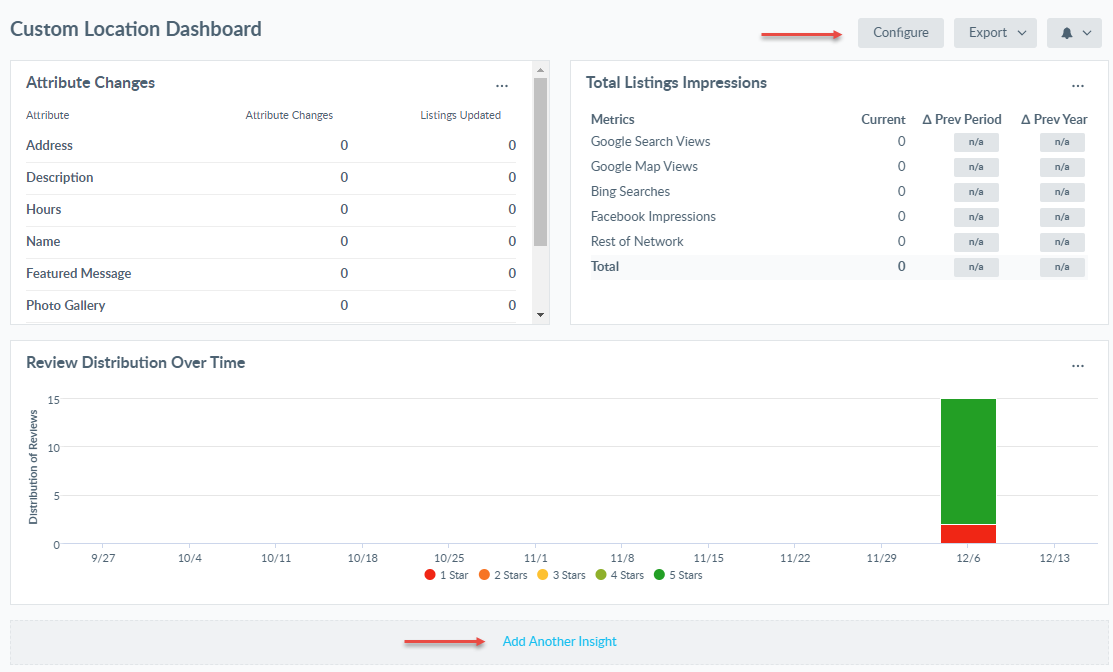
- While viewing the custom dashboard, select Add Another Insight from the bottom of the dashboard.
- While viewing the dashboard, select Configure from the top-right of the page.
The Custom Dashboard window appears, where you can add or remove insights as needed.
To add a caption to a custom dashboard
Custom dashboards are the only dashboards that allow you to create a caption.
- From within the tile, select the three dots in the top-right corner, and select Add Caption.
- Enter your caption in the text box and select Save. The caption appears just below the tile's title.