Monitoring and Responding to Reviews
What is the difference between the Monitoring tab and the Response tab?
The Monitoring tab displays all reviews, including ones you've replied to. The Response tab displays only those reviews that still haven't received a response from you/the business.
Will I be able to see historical reviews after I turn on Online Presence Management?
Yes! We bring in all historical reviews across all supported publishers, with the following exceptions:
- Facebook: We pull in the last 1000 reviews.
- Yelp: A Yelp algorithm determines the top 3 most relevant reviews, and Online Presence Management then pulls them in.
Which reviews can I reply to directly through Meevo?
You can reply to Facebook and Google reviews directly in Meevo. To reply to all other reviews, you'll need to sign into the publisher's site outside of Meevo (for example, in a new browser window) and reply there.
Is there a way for us to create canned replies for our businesses to use when responding to reviews?
Yes! This is precisely with the Intelligent Review Response feature is designed to do!
To respond to a review directly
- Go to Meevo > Marketing > Online Presence Management or type onlinepresencemgmt into the Convobar.
- Select Reputation Management > Response.
- Select the Respond button next to the desired review, or select the checkbox next to the review and then select Respond from the More Actions drop-down.
- Create your response using any of the following response options:
- Enter your response in the text box.
- Respond with Intelligent Review Response: Select the drop-down for each review response component and select the preferred option. You can also select the shuffle icon to generate a random selection of response components.
- Respond with a Review Response Template: Select the plus sign and then select the desired text asset, then select Add.
- Click on the Respond or Comment button to publish your response on the site where the review was submitted.
To edit one of your review responses
When you edit one of your responses, you can choose to simply submit the change or to submit the change and notify the customer of this change.
- In Online Presence Management, go to Reputation Management > Monitoring tab.
- Select Respond next to the response you’d like to edit.
- In the pop-up window, select the Edit link below the response.
- Enter your response in the text box.
- Select Submit Edit or Submit Edit and Notify Customer.
To delete one of your review responses
Removing a review response in the Yext platform will also remove the response from the third-party publisher. The ability to delete a review response is not available for all publishers.
- In Online Presence Management, go to Reputation Management > Monitoring tab.
- Click on the Respond button next to the response you’d like to delete. A dialog box appears.
- Click the Delete link below the response. A dialog box appears.
- Click Delete to remove the response and any responses associated with the response.
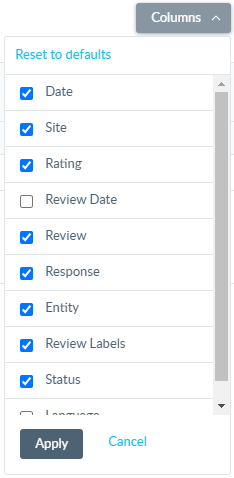
To add or remove a column
To add or remove a column to the listings, select the Columns drop-down and select or deselect the desired column. Select Apply when finished.