Editing Opening or Closing Details
Editing opening or closing details allows you to make adjustments to drawer totals without having to go through the entire open and close process.
Here are the edits you can make in Drawer Manager:
- Edit opening cash when a drawer is open or closed
- Edit closing cash only when a drawer is closed
- Edit pay-ins or pay-outs when a drawer is open or closed
To edit opening cash
Note: Opening cash can be edited from an open or closed drawer.
- Go to Meevo > Register > Drawer Manager, or type drawermanager into the Convobar. Alternatively, you can view a drawer's details from the Drawer History.
- Select Edit Opening Cash.
- Enter the Actual Opening Cash for this drawer, or select the Cash Calculator to enter the amount.

- For record-keeping purposes, it is recommended that you leave an Opening Note that describes the reason for this change.
- When finished, select Save.
To edit closing cash
Note: Closing cash can be edited from a closed drawer only.
- Go to Meevo > Register > Drawer Manager, or type drawermanager into the Convobar. Alternatively, you can view a drawer's details from the Drawer History.
- Verify that the Currently Assigned Drawer is the drawer you wish to edit. If necessary, change the drawer and select Apply.
- Select Edit Closing. The Closing screen appears.

- Follow the instructions in Closing a Register Drawer to make changes to this drawer.
- When finished, select Save.
To edit pay-ins or pay-outs
- Go to Meevo > Register > Drawer Manager, or type drawermanager into the Convobar. Alternatively, you can view a drawer's details from the Drawer History.
- Verify that the Currently Assigned Drawer is the drawer you wish to edit. If necessary, change the drawer and select Apply.
- Select Edit Closing. The Closing screen appears.
- Select Cash Transactions.

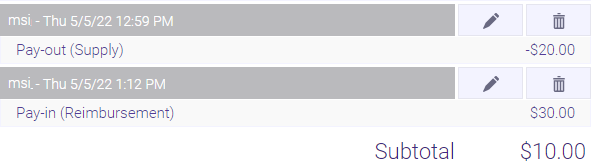
- Pay-ins and pay-outs appear under Cash Transactions. Select Edit or Delete to make your changes.
- When finished, select OK.