MA065 Estimated Vs. Actual Sales
The MA065 report compares estimated service sales based on service pricing stamped on the appointment with actual service sales based on what was paid in the register, and includes add-ons, fees, and retail sales.
How are estimates and actuals calculated?
To calculate estimates, Meevo looks at the Appointment Book and the service prices that are stamped on the appointment (in other words, the employee's currently configured service prices, plus service charges). To calculate actuals, Meevo looks at what was actually paid at the register, excluding tax, when the appointment was checked out.
Note: This report always looks at the employee's currently configured services prices, plus service charges. So, if you run the report today, then change an employee's service prices and run the report again with the same parameters, the two outputs will likely display different values.
Report definitions
Estimated Sales section
To calculate estimates for booked appointments, Meevo uses the service prices that are stamped on the appointment (in other words, the employee's currently configured service prices, plus service charges).
Note: If VAT/Tax included in price is enabled in Currency & Tax, then prices are inclusive of tax.
- Services Booked For: This column will be sorted by Date or Employee depending on your sort option.
- Services Booked: The number of services booked for that employee during the date range. For a service to count here, it must be booked prior to the scheduled appointment date. Same-day appointments are not included here; they are calculated in the Same Day section.
- $ Booked: The total estimated revenue for all of that employee's scheduled services. Prices are based on the service prices that are stamped on the appointment (in other words, the employee's currently configured service prices, plus service charges).
- Add-Ons Booked: The number of add-ons that were booked for that employee during the date range. For an add-on to count here, it must be booked prior to the scheduled appointment date. Same-day appointments are calculated in the Same Day section.
- Add-On Sales: The total estimated revenue for all add-ons scheduled to be performed by the employee. Prices are based on the prices that are stamped on the appointment (in other words, the employee's currently configured service prices, plus service charges).
- Estimated Sales: Total revenue for non-canceled services and add-ons that were booked for the employee.
Same Day section
This section calculates metrics for services that were booked on the same day they were expected to be checked out (same-day booking). To calculate these estimates for booked appointments, Meevo uses the service prices that are stamped on the appointment (in other words, the employee's currently configured service prices, plus service charges).
- Services Booked, $ Booked, Add-Ons Booked, and Add-On Sales: The definitions for these fields are identical to the Estimated Sales section, with the only difference being that this section only looks at services that were booked on the same day they are expected to be checked out.
- Cancel/No Show Adj.: This value is how much revenue you lost to no-show and cancellations; it is the total revenue of all canceled or no-show appointments. No-show and cancellation fees are not considered in this metric.
Actual Sales section
To calculate actuals for booked appointments, Meevo uses the price that was paid in the register, excluding tax. Services do not need to be on the book to count; services added in the register are still accounted for in this section.
Note: If VAT/Tax included in price is enabled in Currency & Tax, then prices are inclusive of tax.
- Services Sold: The number of services rung up for that employee during the date range. This includes services from the Estimated Sales section and Same Day section.
- Service Sales: Total service sales, including Swap Upgrade Fees. Taxes are not included. Refunds are deducted from totals.
Note: Any Swap Upgrade Fee used to pay for a service, add-on, or cancel/no-show fee will count towards Service Sales.
- Add-Ons Sold: The number of add-ons rung up for that employee during the date range. This includes add-ons from the Estimated Sales section and Same Day section.
- Add-On Sales: The total revenue for all of that employee's rung-up add-ons. Prices are based on what was paid at the register, excluding tax.
- Total Srv Sales: The total revenue from services, add-ons, and cancellation/no-show fees. Prices are based on what was paid at the register, excluding tax.
- % of Change: The change percentage of the estimated revenue versus actual revenue, calculated as:
([Estimated Sales – Total Srv Sales] / Estimated Sales) x 100 - Cancel/No Show Fee: Total amount of cancellation and no-show fees collected during the date range.
- Retail: The total revenue, excluding tax, for all retail sales that were credited to the employee during the date range.
- Total Sales: The total amount of actual service sales, cancellation and no-show fees, and retail sales. This does not include packages, gift cards, memberships, client account payments, or EFT charges, nor does it include taxes.
Setting up the MA065 report
- Type MA065 in the Convobar, or go to Meevo > Reports > Analytical, and then select the MA065 report.
- Select a date or date range for running the report:
- To run a report for a specific date range, select Custom and specify the Start Date and End Date for the report.
- Otherwise, select a predefined date or range (Yesterday, This Week, Last Week, etc.).
Note: If you select a predefined range (a date other than Custom), you can still change the Start Date and End Date. Doing so automatically changes the date range to Custom.
- Sort Report By: This determines how data in the report will be organized (by Date or Employee).
- Display Details: Select this option to break out the client details for each selected employee. If this option is not selected, the report does not break down metrics by client. Detail mode most often used for "same day" analysis, as it can be used to quickly see who upsold clients that day.
- Page Break After Sort Option: When selected, a new page begins for each date/employee (depending on your sort selection).
-
All Employees: Enable this checkbox to run the report for all employees within the date range. This includes active, inactive (including terminated), and deleted employees. Or, to run the report for specific employees, deselect the checkbox and use the drop-down to select employees or Employee Categories. You can show or hide inactive employees in this list, but deleted employees will never appear here. Note the All Employees "bubble" in the Employee list selects all employees in that list; it is not the equivalent of selecting the All Employees checkbox.
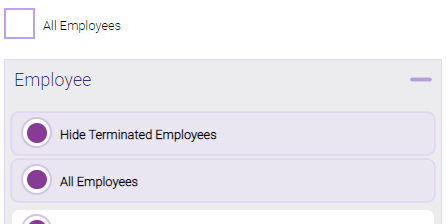
Note: Selecting All Employees will also return any data tied to the House employee.
- All Service Categories: Select All Service Categories to run the report for all categories. To run the report for specific Service Categories, deselect the option and use the drop-down to select which you'd like to run. Not selecting any Service Categories will run the report for all of them.
Running the report
- When you are ready to generate the report, select a Report Format beside the Run Report button.

- Here is a rundown of each format type:
- PDF: Each time you select Run Report with PDF selected, Meevo opens a separate browser tab that displays the PDF'ed report. Meevo remains on the setup page, so you can quickly jump back over to Meevo to run more date ranges or other reports. Each PDF report you run will open its own browser tab, so you can easily review and compare reports by simply jumping between browser tabs.
Note for viewing on iOS: If viewing a PDF on a mobile device running iOS, swipe from left to right on the screen to return to Meevo. - HTML: This is our original legacy format, which opens the report within Meevo. All of the functionality within that report is still there and available via the toolbar.

- XLSX: Each time you select Run Report, your browser auto-downloads the report in .xlsx format. Select the downloaded file in the browser footer to open the spreadsheet.
- PDF: Each time you select Run Report with PDF selected, Meevo opens a separate browser tab that displays the PDF'ed report. Meevo remains on the setup page, so you can quickly jump back over to Meevo to run more date ranges or other reports. Each PDF report you run will open its own browser tab, so you can easily review and compare reports by simply jumping between browser tabs.
- Select Run Report to generate the report in your chosen format. Depending on the type of report and criteria you entered, this process may take a few minutes.