MES30: California Meal and Rest Breaks
The MES30 report displays meal and rest breaks that are owed to employees within the selected date range according to California labor laws.
How meal and rest breaks are earned
Rest and meal breaks are earned based on the number of hours the employee is on the clock.
Note: Durations in the tables below are presented as hours:minutes. For example, 3:29 is three hours and twenty-nine minutes, 10:01 is ten hours and one minute, etc.
| Hours on Clock | 10-Min Rest Breaks Earned |
| 0 – 3:29 hrs | 0 |
| 3:30 – 6 hrs | 1 |
| 6:01 – 10 hrs | 2 |
| 10:01 – 14 hrs | 3 |
| Hours on Clock | 1/2-Hr Meal Breaks Earned |
| 0 – 5 hrs | 0 |
| 5:01 – 10 hrs | 1 |
| 10:01 – 15 hrs | 2 |
For more information on California meal and rest break laws, you can visit the following websites:
- California Labor Commissioner's Office Statement on Meal Periods
- California Labor and Employment Law's Official Site: Quick Calculator and Charts
Report definitions
For meal breaks to be considered "taken," they must fall within the defined hours during which they occurred. For example, the first meal break must be taken before the end of the 9th hour, and the second meal break must be taken after the 10th hour. If both meal breaks are taken after the 10th hour, the first one will not be considered a "taken break" because it did not occur before the 9th hour.
- 10 Min Rest Breaks Earned: The number of 10 min rest breaks earned based on the number of hours worked.
- 5 or more hr shift with break taken late: Instances where the employee worked more than 5 hours and took their first meal break after 5 hours.
- 5-6 hr shift w/ missed break: Instances where the employee worked more than 5 hours but less than 6 hours and did not take their meal break.
- 6 or more hr shift w/ missed 1st break: Instances where the employee worked more than 6 hours and did not take their first meal break.
- 10-15 hr shift w/ late 2nd break: Instances where the employee worked more than 12 hours and a meal break was not taken before the 10th hour of the shift ended.
- 10-12 hr shift w/ missed 2nd break: Instances where the employee worked more than 10 hours but less than 12 hours and did not take their second meal break.
- 12-15 hr shift w/ missed 2nd break: Instances where the employee worked more than 12 hours and did not take their second meal break.
Setting up the MES30 report
- Type MES30 in the Convobar, or go to Meevo > Reports > Schedules, and then select the MES30 report.
- Select a date or date range for running the report:
- To run a report for a specific date range, select Custom and specify the Start Date and End Date for the report.
- Otherwise, select a predefined date or range (Yesterday, This Week, Last Week, etc.).
Note: If you select a predefined range (a date other than Custom), you can still change the Start Date and End Date. Doing so automatically changes the date range to Custom.
-
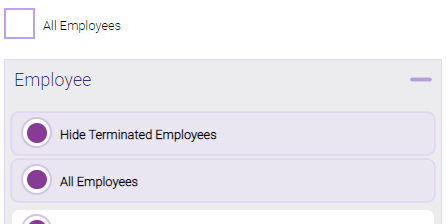
All Employees: Enable this checkbox to run the report for all employees within the date range. This includes active, inactive (including terminated), and deleted employees. Or, to run the report for specific employees, deselect the checkbox and use the drop-down to select employees or Employee Categories. You can show or hide inactive employees in this list, but deleted employees will never appear here. Note the All Employees "bubble" in the Employee list selects all employees in that list; it is not the equivalent of selecting the All Employees checkbox.
Note: Selecting All Employees will also return any data tied to the House employee.
Running the report
- When you are ready to generate the report, select a Report Format beside the Run Report button.

- Here is a rundown of each format type:
- PDF: Each time you select Run Report with PDF selected, Meevo opens a separate browser tab that displays the PDF'ed report. Meevo remains on the setup page, so you can quickly jump back over to Meevo to run more date ranges or other reports. Each PDF report you run will open its own browser tab, so you can easily review and compare reports by simply jumping between browser tabs.
Note for viewing on iOS: If viewing a PDF on a mobile device running iOS, swipe from left to right on the screen to return to Meevo. - HTML: This is our original legacy format, which opens the report within Meevo. All of the functionality within that report is still there and available via the toolbar.

- XLSX: Each time you select Run Report, your browser auto-downloads the report in .xlsx format. Select the downloaded file in the browser footer to open the spreadsheet.
- PDF: Each time you select Run Report with PDF selected, Meevo opens a separate browser tab that displays the PDF'ed report. Meevo remains on the setup page, so you can quickly jump back over to Meevo to run more date ranges or other reports. Each PDF report you run will open its own browser tab, so you can easily review and compare reports by simply jumping between browser tabs.
- Select Run Report to generate the report in your chosen format. Depending on the type of report and criteria you entered, this process may take a few minutes.