MES35: Basic Wage Accrual
The MES35 displays hourly wage calculations based on each employee's hours worked and current hourly wage settings.
Important: MES35 data is not based on payroll logic. The Payroll engine and Payroll reports like the DE040 are not expected to match the numbers in this report.
Report Definitions
- The output of the MES35 is similar to the MES10, except MA35 also displays Hourly Wage and Total Wages columns for each Work Activity.
- Total Wages = Total Paid Work Hours x Hourly Wage (according to the current hourly wage in the Employee profile)
- This report does not consider overtime, base salary, or commission settings.
Setting up the MES35 report
- Type MES35 in the Convobar, or go to Meevo > Reports > Schedules, and then select the MES35 report.
- Select a date or date range for running the report:
- To run a report for a specific date range, select Custom and specify the Start Date and End Date for the report.
- Otherwise, select a predefined date or range (Yesterday, This Week, Last Week, etc.).
Note: If you select a predefined range (a date other than Custom), you can still change the Start Date and End Date. Doing so automatically changes the date range to Custom.
- Page break on employee: Each employee begins on a new page of the report.
-
All Employees: Enable this checkbox to run the report for all active employees within the date range, including data from terminated employees. Or, to run the report for specific employees, deselect the checkbox and use the drop-down to select employees or Employee Categories. You can show or hide terminated employees in this list. Note the All Employees "bubble" in the Employee list selects all employees in that list; it is not the equivalent of selecting the All Employees checkbox.
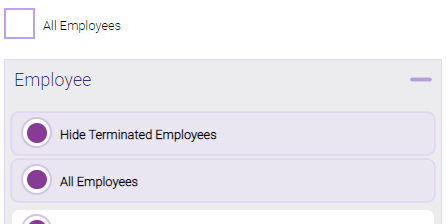
Note: Selecting All Employees will also return any data tied to the House employee.
Running the report
- When you are ready to generate the report, select a Report Format beside the Run Report button.

- Here is a rundown of each format type:
- PDF: Each time you select Run Report with PDF selected, Meevo opens a separate browser tab that displays the PDF'ed report. Meevo remains on the setup page, so you can quickly jump back over to Meevo to run more date ranges or other reports. Each PDF report you run will open its own browser tab, so you can easily review and compare reports by simply jumping between browser tabs.
Note for viewing on iOS: If viewing a PDF on a mobile device running iOS, swipe from left to right on the screen to return to Meevo. - HTML: This is our original legacy format, which opens the report within Meevo. All of the functionality within that report is still there and available via the toolbar.

- XLSX: Each time you select Run Report, your browser auto-downloads the report in .xlsx format. Select the downloaded file in the browser footer to open the spreadsheet.
- PDF: Each time you select Run Report with PDF selected, Meevo opens a separate browser tab that displays the PDF'ed report. Meevo remains on the setup page, so you can quickly jump back over to Meevo to run more date ranges or other reports. Each PDF report you run will open its own browser tab, so you can easily review and compare reports by simply jumping between browser tabs.
- Select Run Report to generate the report in your chosen format. Depending on the type of report and criteria you entered, this process may take a few minutes.