Deleting Schedules
Use the Schedule Manager's Delete or Delete Forward feature to remove employee schedules from the Schedule Manager and Appointment Book. There are two ways to delete schedules:
- Deleting an individual day or week. This method is best for minor adjustments to the schedule, as currently you can only delete within the same view.
- Deleting a schedule forward, which is for deleting an employee's schedule based on a start date and end date. You also have the option to delete all future schedules for an employee.
To delete multiple days or one week
You can use the Delete button on Schedules Editor to delete a day or week within the current view. To delete schedules further out than the current view, see To delete a schedule forward below.
- You can delete a schedule in any view: Day View, Week View, or 2-Week View.
- Select the day or week that you wish to copy. The Schedules Editor appears.
- Select Delete from the Schedules Editor.
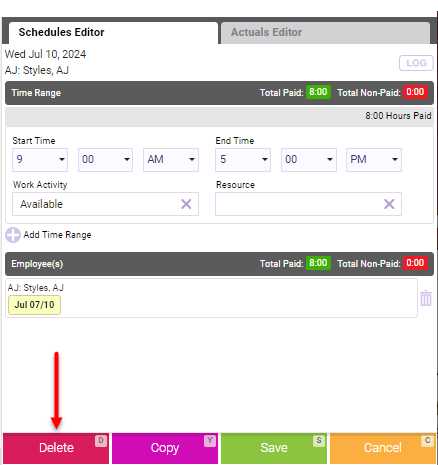
- A confirmation message may appear if there are appointments booked during the schedule being changed. Choose Yes or No to continue and finish the process.
To delete a schedule forward
Note: If you want to permanently or indefinitely remove an employee from Schedule Manager, inactivate the employee profile.
- You can delete forward a schedule in Week View or 2-Week View.
- Scroll in the calendar to the employee's week that you want to delete forward. It is not necessary to select the week; just ensure that the week is the current view in the calendar.
- Select Delete Forward from the bottom-left of Schedule Manager.
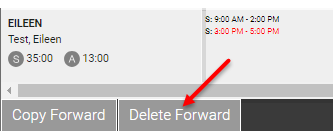
- The Delete Forward window appears.
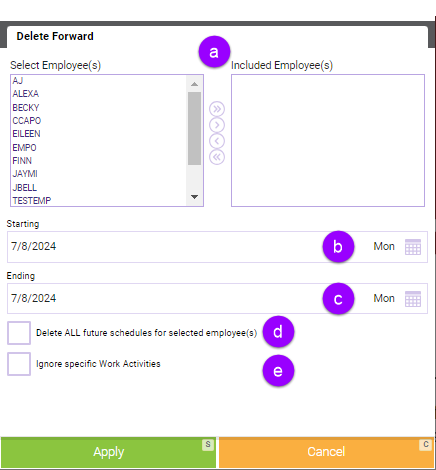
- Select Employees: Select the employees whose weekly schedule you will delete.
- Included Employees: Employees appear in this list as you use the mover to select them. Their schedules will be deleted according to the selected date range.
- Starting and Ending: Determines the date range of schedules that will be deleted.
- Delete ALL Future Schedules for Selected Employees: Deletes all schedules beyond the Starting date.
- Ignore specific Work Activity: All schedules going forward will be deleted EXCEPT for scheduled time that includes any of the selected Work Activities. For example, if an employee is scheduled for Work Activity A and Work Activity B on the same day, and I've chosen to ignore Work Activity B, only scheduled time under Work Activity A will be deleted.
- When finished, select Apply.
- As a best practice, scroll ahead and verify that the week(s) deleted forward as you intended.
- As a best practice, scroll ahead and verify that the weeks deleted forward as you intended.