Viewing and Editing Employee Actuals
"Actuals" refer to the actual times that an employee punched the time clock (for a clock-in, clock-out, break-out, and break-in). In Schedule Manager, you can enter new or edit existing employee clock in/out and break in/out times for the day.
Before diving into the Actuals Editor, here are a few more details to know:
- The steps in this topic are applicable whether you're entering new actuals or editing existing actuals.
- Days that coincide with archived service payroll periods are locked, so those actuals cannot be edited.
- You can only edit actuals for the current day or for previous days. You cannot edit actuals for days in the future.
What do the indicators mean in the Schedule Manager "Actuals" view?
When viewing actuals in Schedule Manager:
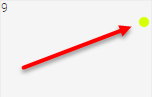
The yellow indicator means that the employee is missing a clock in and clock out. This indicator appears if the employee doesn't clock in or clock out when the Work Activity is set to Must Clock In.
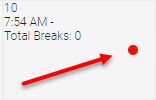
The red indicator means that the employee is missing a clock out or missing a break out or a break in.
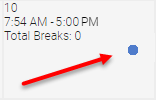
The blue indicator means that the employee was automatically clocked-out by Meevo.
To enter or edit an employee's actual time in Schedule Manager
- First, make sure Actuals View is active (the "A" button shown in the image below); this view must be enabled to use the Actuals Editor. Then, select a schedule view (Day, Week, or 2-Week) from the toolbar.

- Select the day of the new time clock event or the day of the clock event that you wish to edit. Actuals Editor is available only when selecting a single day.
- After selecting a day, the Schedule Editor slides out. Select the Actuals Editor tab.
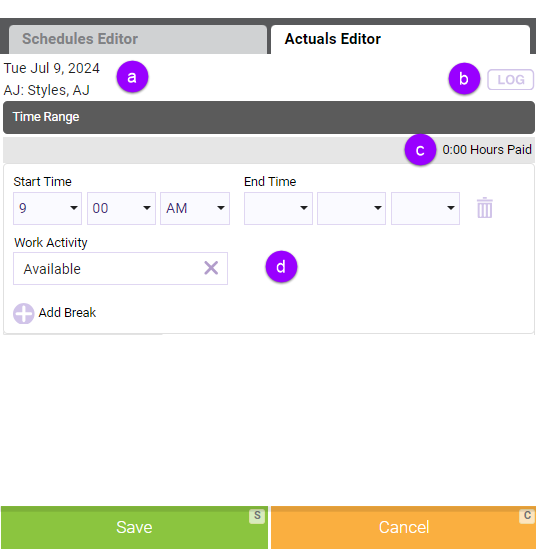
- This is the current employee and day whose actuals will be updated.
- The Actuals Editor Log modal displays details on who created or changed clock punches. The modal displays information that is specific to the current view (Schedules Editor or Actuals Editor).
- Once an employee's shift has a valid Start Time and End Time, the Hours Paid will reflect how much of that time was paid as determined by the Work Activity definition.
- These fields are how you define the clock action for the employee. See Step 4 below for more!
- Next, enter the clock time for the desired action:
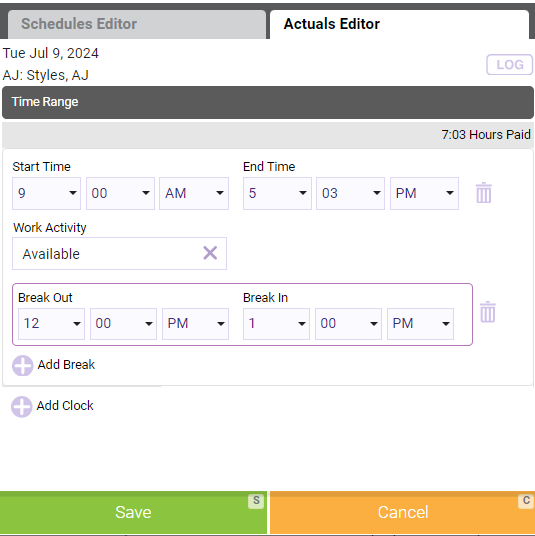
- The Start Time and End Time are the employee's clock in and clock out times, respectively.
- Enter or change the Work Activity for that shift.
- Select Add Break to display Break Out and Break In fields.
- You can remove both clock actions by selecting delete (the trash can beside a set of clock actions).
- When you're ready to commit the updates, select Save on the Actuals Editor. The selected day will be updated with the actuals you entered.
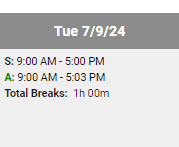
Some details on Meevo's clock rules
To allow for more flexibility when editing missed or incorrect clock actions, Schedule Manager allows you to enter any clock action in any order, except for the following rules:
- You can clock in without a clock out, but you cannot clock out without a clock in (clock-outs are never required).
- When clocking a break out, you must also enter a break in to save successfully.