2024 April Release Notes
MSI Internal Release Notes
New Data Exports to help with moving a Meevo business to another tenant
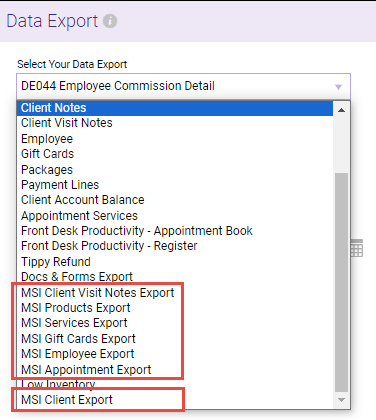
The following new Data Exports will help extract a location's data from Meevo (for example, to migrate a Meevo location to a different tenant). These exports are available only when an MSI employee is logged into Meevo.
- MSI Client Visit Notes Export
- MSI Products Export
- MSI Services Export
- MSI Gift Cards Export
- MSI Employee Export
- MSI Appointment Export
- MSI Client Export
Internal notes end here; client-facing notes start here.
MeevoPay Enhancements
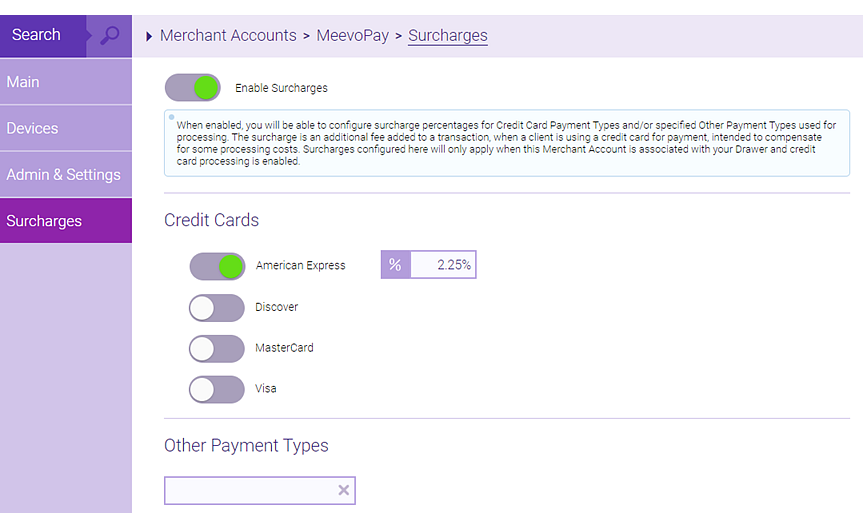
Surcharges on credit card use are now available for businesses using MeevoPay
What's new?
MeevoPay now offers the ability to apply a credit card processing fee (surcharge) to transactions. The fee will be a percentage of the transaction total that you can configure in the Merchant Account definition. When enabled, surcharges get applied to transactions in the Meevo register and during Self-Pay, Online Booking, and eGift transactions. Note surcharges are not assessed on membership or Payment Plan EFTs that are auto-billed using a card on file.
Why is this important?
A surcharge, sometimes called a checkout fee or service fee, allows you to pass on a portion of your credit card processing fees to your customers. This can reduce business expenses and increase margins. Plus, a surcharge shows your customers the exact cost of using a credit card instead of other lower-cost payment methods like cash or debit cards.
What else do I need to know?
Here are some details on MeevoPay surcharges:
Surcharge setup
- Enable and configure surcharges from the new Surcharges tab on a MeevoPay Merchant Account definition.
- Surcharges can be applied to American Express, Discover, MasterCard, and Visa credit card Payment Types.
- Surcharges can also be applied to custom "Other Payment Types" (alternative methods of payment that your business accepts, like PayPal or Venmo).
- Surcharges will never get applied to debit or prepaid gift card Payment Types.
Surcharge regulations
- Businesses in the U.S. can configure a maximum of 4% for a given Payment Type. However, since surcharge regulations can vary by country, state, and card brand, it is your business's responsibility to know those regulations and set the proper percentages for each card. You should know all of this information prior to enabling surcharges.
- For example, in the United States, Visa allows a maximum of 3%, while MasterCard and Discover allow up to 4%. But in Canada, surcharges cannot exceed 2.4% for any card brand. Note these surcharge percentages are accurate as of April 2024.
- After enabling surcharges, Meevo displays a warning message as a reminder of your responsibility: "By choosing to Surcharge, you implicitly agree to follow all rules and requirements put forth by card issuers and all regulations enforced by your state. We strongly recommend reading through our help topic and its references before turning on Surcharges. Do you want to continue with Surcharges enabled?"
Surcharges in Self-Pay
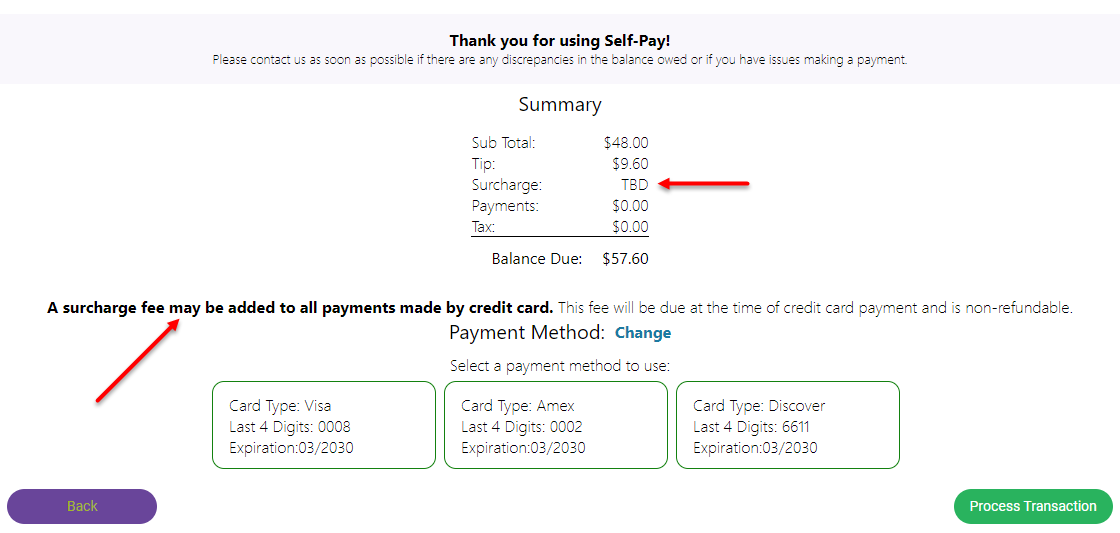
When surcharges are enabled on the Merchant Account, Meevo automatically calculates and adds the surcharge to the Self-Pay total based on the card being used to pay for the transaction. A Surcharge field on the Summary page informs clients of the fee along with a note above the Payment Method field.
Surcharges in Online Booking
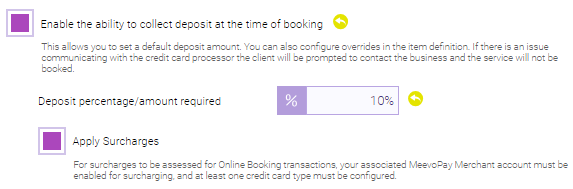
- To apply surcharges to Online Booking deposits, you'll need to enable a new option in Online Booking Settings. When you enable surcharges on your MeevoPay Merchant Account, an Apply Surcharges sub-option will appear below Enable the ability to collect deposit at the time of booking in Online Booking Settings. Apply Surcharges is enabled by default.
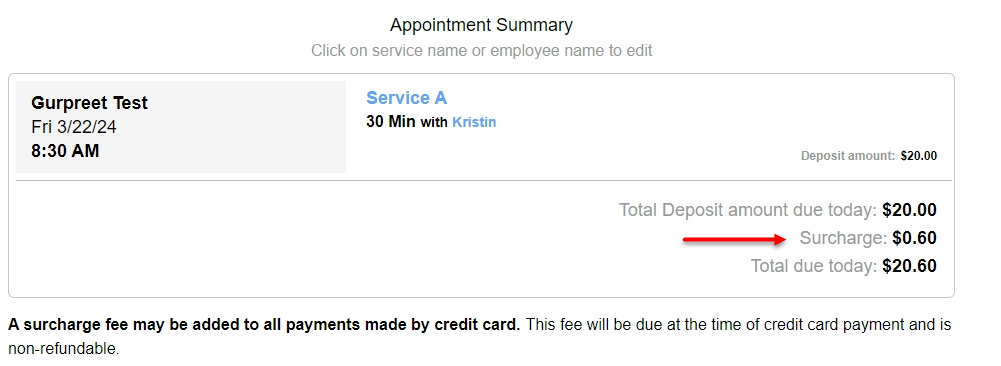
- In Online Booking, a Surcharge field on the Appointment Summary page informs clients of the fee along with a note below the total.
Surcharges in eGift
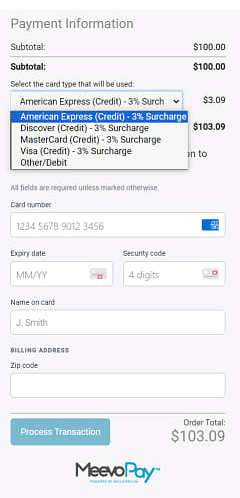
When you enable surcharges on your MeevoPay Merchant Account, Meevo automatically calculates and adds the surcharge to the eGift total. Clients can see the surcharge percentage beside each payment type in the "Select a card" drop-down, and a Surcharge field in the Payment Information section informs clients of the fee amount once a card is selected.

Surcharges on receipts
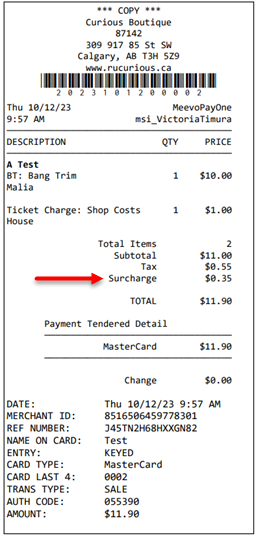
Surcharges are itemized on receipts. They appear as their own line item in the Smart Receipt, on printed receipts (below), and in the Transaction Editor.
Security for the "Surcharge" tab
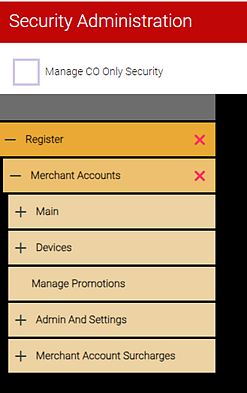
Secure the surcharges tab on the Merchant Account screen via the Register > Merchant Accounts > Surcharges keys and sub-keys.
Surcharge refunds
Surcharges cannot be refunded, so during an historical refund, the register will bring in all line items except for surcharges. In a future release of Meevo, we will enhance surcharges to be refundable.
Surcharges in reports
Surcharges appear in the following Meevo reports:
- MR080: Register Summary now includes a Surcharges field on the right side of the report, below the Tax Total.
- MR100: Transaction Log now includes a Surcharges line below the Tips line.
- MR110: Payment Detail and COMR110: Payment Detail (CO version) now include a new Surcharges column.
- CF001: Cash Flow now includes a new Surcharges Collected line in the Sales section.
Funding sources
Meevo now indicates the Funding Source of MeevoPay cards on file, providing insight into whether a card is eligible for surcharging. Funding sources can be Credit, Debit, Prepaid, Unknown (if no funding source was captured by MeevoPay), and Not Captured (for cards on file that were added using a non-MeevoPay Merchant Account). Previously, card-on-file screens listed the Card Type (Visa, MasterCard, etc.) but did not specify it the card was credit, debit, etc.

Surcharges in the Quickbooks Integration
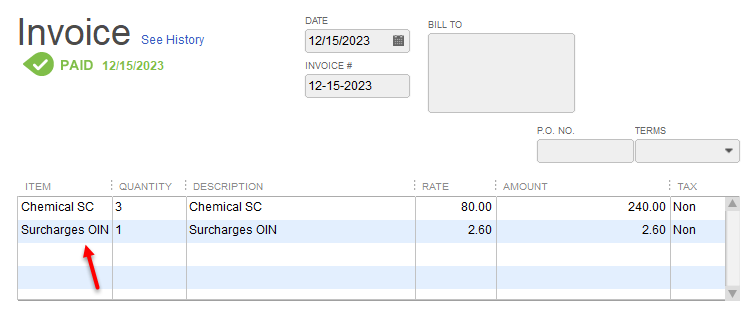
Surcharges are recorded in a new Surcharges sub-account under the Meevo Other Income account. Within the invoice, it appears as Surcharges (OIN).
Auto-bill HSA/FSA cards for membership and Payment Plan EFTs
What's been enhanced?
In our February release, we introduced the ability to dedicate a MeevoPay Merchant Account to processing HSA (Health Savings Accounts) and FSA (Flexible Spending Accounts) cards on file. In this April release, we expanded HSA/FSA support to include automatic billing of memberships and Payment Plans using a dedicated HSA/FSA MeevoPay Merchant Account.
Why is this important?
HSAs/FSAs allow a person to set aside money before it's been taxed to pay for health care-related services. Often times that money is placed on an HSA/FSA payment card which can be swiped just like a credit card, though there are rules on what you can purchase using that card. If your business is required to process HSA/FSA cards using a separate Merchant Account, this enhancement is for you, as you're now able to auto-bill those cards on file for membership and Payment Plan EFTs.
Online Booking
Now that we've officially rolled out the new Online Booking to all Meevo businesses, our focus over the next several releases will be on making enhancements based on your feedback.
Configure the days and times that an employee can accept online bookings
What's new?
Online Booking now offers the ability to specify the days and times that an employee can be booked through Online Booking.
Why is this important?
A number of Meevo businesses let us know they needed more control over the days and hours that employees are available to be booked online. With this enhancement, you can configure specific days and times that an employee can be booked via OB, helping to drive appointments to your slowest days and hours.
What else do I need to know?
- Employee profiles now have a new tab, Online Booking, which replaces the "Online Booking" section that used to reside on the Main tab.
- When Bookable online is enabled in the profile, a new section appears: Specify the days that are bookable for this employee
- In that section is where you can specify the days and hours the employee is available to be booked via OB.
- The employee will be available only on the days and times that overlap with the employee's schedule in Schedule Manager. For example, if an employee is scheduled to work Monday 9 am - 5 pm and their online booking availability is set to Monday 2 pm - 6 pm, they will be available to be booked online on Monday from 2 pm - 5 pm only.

Client-facing OB now reflects Yield Management and Member (Benefit Template) pricing
What's been enhanced?
Clients booking online will see Yield Management and member pricing throughout the client-facing OB site. The client must be logged in to see this dynamic pricing.
Why is this important?
- Yield Management automatically adjusts the prices of services, allowing you to dynamically charge higher prices during peak times and lower prices during slow times.
- Member Benefit Templates are additional benefits offered to your membership clients (members), such as special service pricing or discounts.
- Many businesses offer dynamic pricing to clients and special pricing to members through those two features, but prior to this release that pricing was not reflected in the client-facing OB site.
Appointment audit log now captures acceptance of Cancellation Policy
What's been enhanced?
Appointment audit logs will now include the phrase Cancellation policy accepted any time a user accepts the Online Booking Cancellation Policy when booking a service.

Why is this important?
This enhancement makes it easier to audit when a client accepts a Cancellation Policy in Online Booking by providing those audit details on the appointment itself. This improvement may help with fighting chargebacks on Cancellation Fees, as previously the act of accepting the cancellation policy was captured only in the Activity Log.
Password enhancements
What's been enhanced?
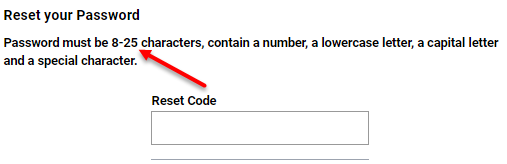
- To make client signups easier, we tweaked the password validation rules to meet or exceed the Apple Strong Password generator. As a result, the maximum character count was updated from 16 to 25 characters, and the following special characters are now permitted:
` ~ ! @ # $ % ^ & * ( ) - _ = + [ ] { } \ | ; : ' " < > , . ? /
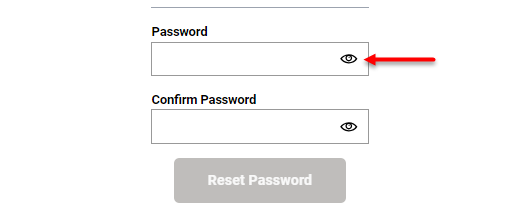
- To make entering passwords easier, we added the ability to show/hide password when logging into OB. Selecting the eyeball icon will show or hide the password masking.
Updated "Buy Gift Card" link (multi-location enhancement)
What's been enhanced?
If a client selects the Buy Gift Card button from the Online Booking hamburger menu before selecting a location, they will now be brought to the eGift location selector (assuming eGift is configured and enabled). Previously clients would incorrectly see a message that the business does not have eGift available.
Advanced Dashboards
What's been enhanced?
- To make users more aware of where the dashboard filters are, all dashboards now default to an open filter slideout when you first load the dashboard.
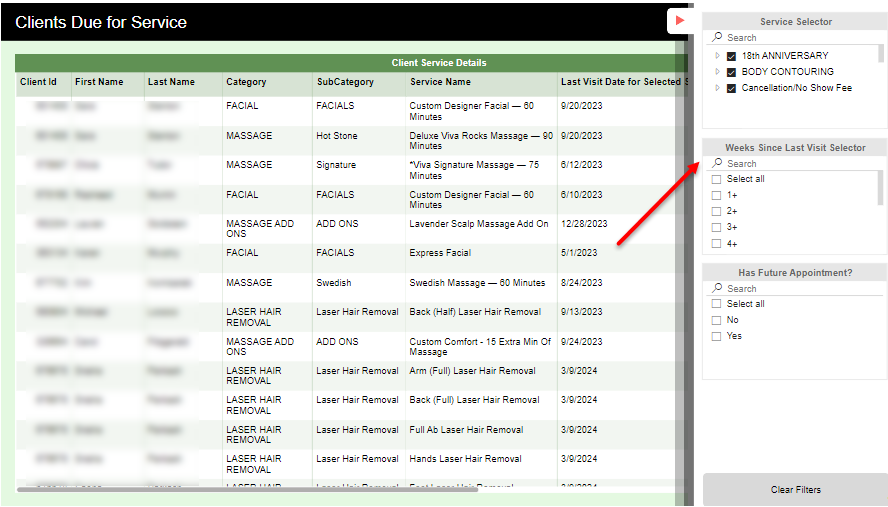
- On the Clients Due for Service dashboard, you can multi-select Service Categories and services from the Service Selector to narrow down visits by service or category. There is no longer a Select All option for that selector.
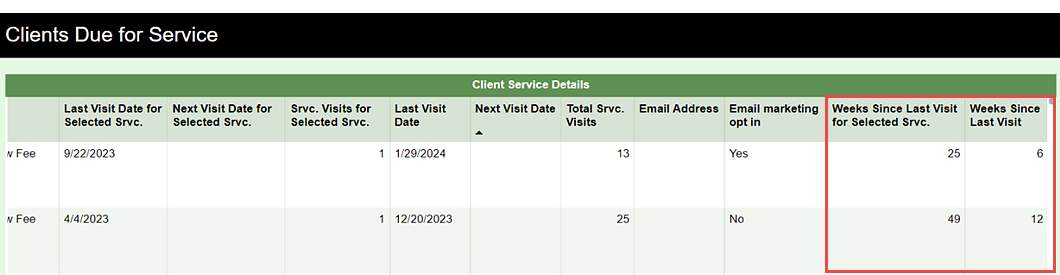
- Also on the Clients Due for Service dashboard, we added two new FOV-related columns to the Client Service Details table: Weeks Since Last Visit for Selected Srvc. (updates according to selected services in the Service Selector) and Weeks Since Last Visit (does not update; always shows you the number of weeks since any service transaction).
- The Register and Sales dashboards have been reordered so that they are grouped by Sale Type.
MeGo
MeGo is a fully customizable branded app designed for your clients. Its primary focus is to help you improve communication with your clients and to provide them with easy access to your Online Booking/eGift/eCommerce solutions (if you choose to make them available).
In-app promotional templates added to MeGo
What's new?
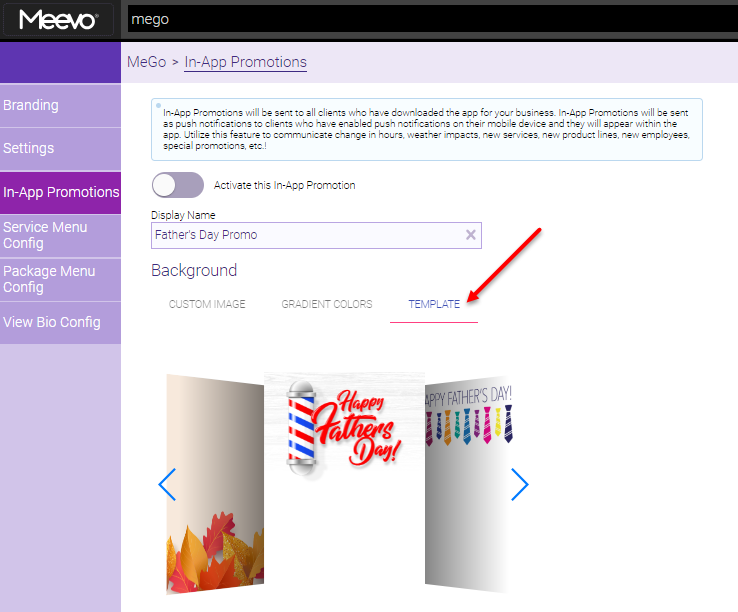
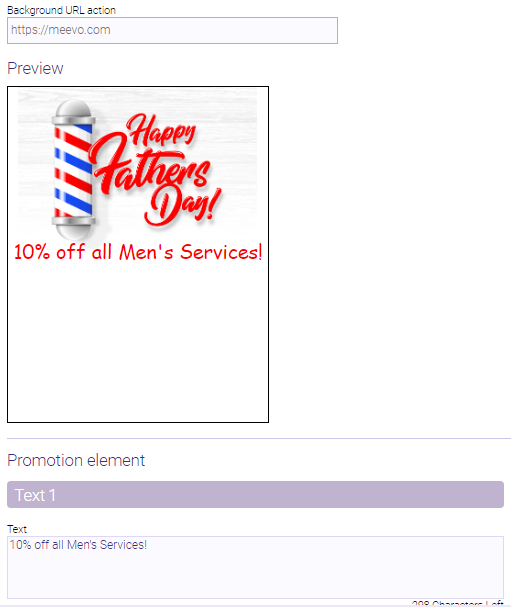
To help you get a promotion up and running more quickly, we designed a series of customizable templates that can you can use as a starting point when creating a promotion in MeGo. We left room for text and images within each template, so you can add and position any element to the promotion using the provided controls.
More on MeGo In-App Promotions
In-App Promotions are a great way to make clients aware of important information like your business's sales or promotions, a new service provider, or a new service. Active in-app promotions appear in MeGo when the client first logs in, and you can also configure them to be sent to clients as push notifications (if push notifications are enabled on a client's device) when the promotion first becomes available.
Notifications
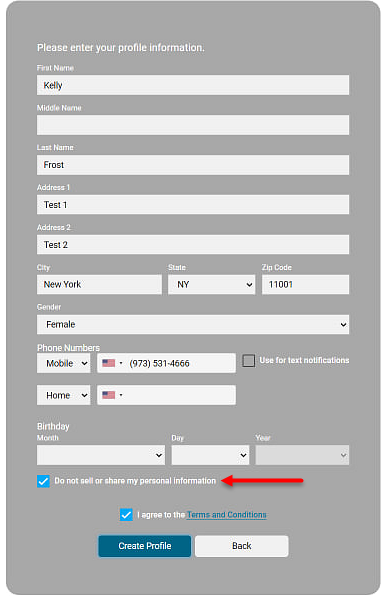
Clients can set their personal information to "do not sell or share" through eGift
What's been enhanced?
In February, we enhanced Online Booking so that clients are able to opt themselves out of the sharing/selling of their personal information. In this release, we extended that functionality to eGift!
What else do I need to know?
As with OB, clients can opt themselves out only if the Client Business Preferences option Enable clients to opt out of selling or sharing of personal information is enabled.
Activity Log
Inserted transactions can now be viewed in Activity Log
What's been enhanced?
You are now able to audit actions on an inserted transaction in the Activity Log. Selecting the Transaction Editor LOG button or searching the Activity Log by the transaction number now pulls up all audit entries for that transaction.
Why is this important?
Previously, users could not audit activity from a transaction inserted into the past because there was no corresponding record in the Activity Log.
Membership Security
Secure the ability to upgrade/downgrade memberships in the register
What's new?
A new Allow Upgrade/Downgrade security key under Register > Register > Membership controls access to the Upgrade/Downgrade tile in the register. This key is set to Grant by default.
Why is this important?
Previously, there was no way to hide or secure that Upgrade/Downgrade tile.
Improvements to using Meevo on a mobile device
What's been enhanced?
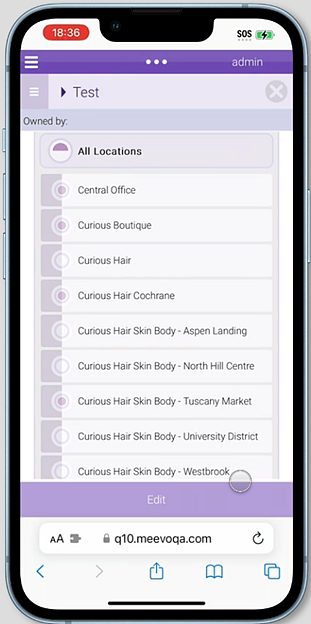
The multi-select tool you're used to seeing in Meevo has been added to the following areas when using Meevo on a mobile device, replacing the old mover.
- Data > Departments: For selecting which Service Categories belong to the department
- Reporting Hierarchy: For selecting locations via the Set Locations screen
- Cancellation Reasons: For when a user at the CO-level selects Configure Locations
- Alerts Manager: For Steps 2, 3, and 4 of the Alert Manager workflow
- Docs & Forms: For selecting which Service Categories apply to the form
Why is this important?
The "old" movers on mobile were not always mobile friendly. The multi-select tool acts like a tree structure hierarchy (it's also be referred to as a "picker") and is designed to work well on both desktop and mobile.
Other Meevo Improvements
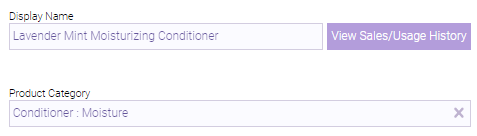
- Updated Product Info modal icon: The product information "i" button that opens the Product Information modal has been replaced with a View Sales/Usage History button. The previous icon was a little small and could be missed by users.
More on the Product Info modal
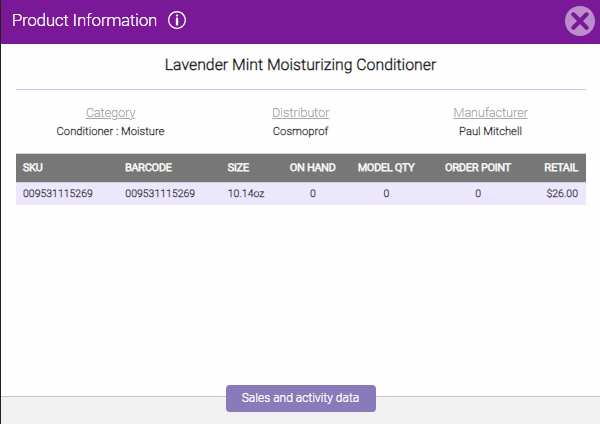
The Product Information modal is a quick way to look up inventory and price information for a product. The modal includes supporting details such as category, Distributor, and Manufacturer, and at the bottom of the window is a button to view Sales and activity data as well. Open the Product Information modal by selecting View Sales/Usage History on a product definition or by typing a lookup command into the Convobar (for example, bc=[productbarcode]).
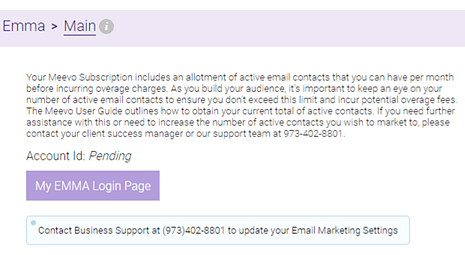
- Allotment reminder added to Email Marketing: We added a disclaimer to the top of the Emma > Main tab to remind Email Marketing users of their allotment of contacts. The note explains that going over your allotment could result in overage fees and refers you to Meevo Help for guidance on managing your number of contacts.
Report Enhancements
CODE040: Employee Payroll
The CODE040 is a multi-location payroll report that displays payroll data for employees across locations and/or Reporting Hierarchies.
What's been enhanced?
- Adjustments to service hour logic: Service Hours in the CODE040 have been adjusted to match the logic in the DE044 and DE040. This is how service hours are now calculated in the CODE040:
- Service Hours = Base Service Time + Add-On Additional Time
- Clean-up-time service steps are no longer included.
AQ020 / AQ022: Client Work Tickets
These reports list appointment details in the form of work tickets.
What's been enhanced?
- Ellipsis appears for notes that are cut off on Work Ticket: This enhancement adds an ellipsis to any Visit Note or Appointment Note that gets cut off due to the character limit. This indicator will let service providers know that there is more to the note than what is on the work ticket.

MR200: Employee Sales
The MR200 covers employee sales in the date range, organized by sale item type.
What's been enhanced?
Report setup enhancements
- New employee sort option: The new Employee Sort By option determines the order of employees in the report output; you can sort by Employee Code (default selection) or by Employee Last Name.
- New option to exclude EFT payments in output: The new option Include EFT Payments is enabled by default; deselect the option to exclude all EFT payments from the report output.
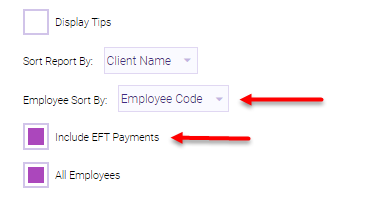
- General UI corrections: Finally, we made a few adjustments to the widths of some of the setup drop-downs (like Run Report In) when viewing Meevo on a desktop computer.
Report output enhancements
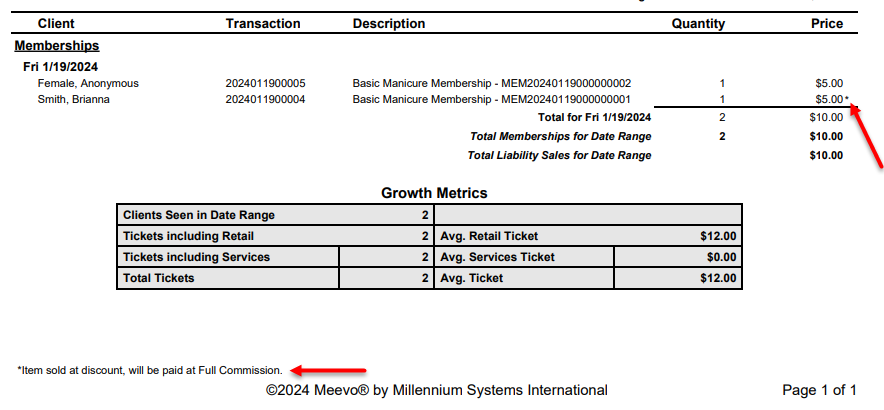
- Indicator for Full Commission Overrides: The MR200 now indicates if a service, product, or membership was sold at a discount and the Full Commission Override checkbox was selected in the register. When the MR200 is run in Detail Mode, the sale will now appear with an asterisk and a footer: Item sold at discount, will be paid Full Commission. Previously there was no way to tell on the MR200 if Full Commission Override was selected at the time of sale.
- Updated labels: For consistency across the rest of Meevo, we updated the following labels.
| Old Label | New Label |
| BulkGiftCards | Multi Gift Cards |
| Total BulkGiftCards for Date Range | Total Multi Gift Cards for Date Range |
| PromoGiftCards | Promo Gift Cards |
| Total PromoGiftCards for Date Range | Total Promo Gift Cards for Date Range |
| MembershipWaives | Membership Waives |
| Total MembershipWaives for Date Range | Total Membership Waives for Date Range |
| Tickets Including Services | Tickets Including Services Performed |
| Clients Seen in Date Range | Total Client Service Visits |
Plus, Product Bundles now adhere to product display standards: sku: DisplayName
- Update to how "Total Client Service Visits" field is determined: This field no longer counts clients who paid no-show fees/cancellation fees, clients who purchased retail or another non-service item type, or clients who refunded a service. Now, this field only counts clients who were rung up for a service visit.
More on this update: We made this adjustment because the Total Client Service Visits field is meant to show the number clients who actually came in for a service. This field should now match the Total Client Service Visits field on the MA200. - Reordered Sales and Liabilities sections: To improve the flow of information, we updated the order of the Sales and Liabilities sections:
- Sales
- Services
- Cancellations
- No Shows
- Upgrade Fees
- Package Transfers
- Products
- Liabilities
- Gift Cards
- Multi Gift Cards
- Promo Gift Cards
- Reload Gift Cards
- Packages
- Memberships
- Payment EFT Sales
- Membership Waives
- Sales
Public API and Daily Data Stream (DDS) Enhancements
Interested in our Public API and Daily Data Stream offerings? Click here to jump to our Developer Tools page, where you can request access to these solutions by filling out and submitting a simple form.
Ability to book through FOV conflicts
In October of 2023 we released new endpoints that allow you to book or update an appointment through a double-booking conflict. In this release, we enhanced those endpoints to allow you to book through FOV conflicts as well. Set bypassFOVWarning to true to book through or update through FOV warnings returned by the API.
Enhancements to Client:Write endpoints
Error messaging in Client POST and PUT endpoints has been enhanced to provide much more useful information when a call fails validation. For example, the endpoint will now return specific guidance if the call is missing a required field such as OnlineBookingAccess (a common troubleshooting issue that came up frequently).
Bug Fixes
- Bug 55992: Scanning a Standing Appointment conflict resulted in an error message.
- Bug 57091: Services did not appear in OB unless "All Business Types" was selected in the service definition in CO.
- Bug 58627: The Scan Engine's "Tomorrow" filter was based on EST when booking past 9 PM PST.
- Bug 68307: QuickBooks Desktop was not adhering To custom mappings.
- Bug 70092: Searching for a Mexico phone number in Client Search did not return results.
- Bug 71617: Online Booking's Add-On Modal did not show the price range.
- Bug 71650: In Online Booking, the Terms & Conditions with HTML formatting could overlap with buttons during registration.
- Bug 71790: Notifications were being sent for past appointments in certain scenarios.
- Bug 71867: Long pre-defined discount names were being cut off in the Register while applying a discount.
- Bug 71972: When viewing Business Preferences on a mobile device, overlapping occurred between buttons while scrolling.
- Bug 72086: In Advanced Dashboards, Service & Retail Sales did not include House sales in the Employee Category Performance dashboard.
- Bug 72113: A tilde could not be used in First or Last Name when creating an OB profile.
- Bug 72181: In Online Booking, the "Book from History" section's details did not display on a tablet.
- Bug 72189: White text displayed when a user entered their password on the Elevate Permissions modal.
- Bug 72231: Stock Level data was incorrect when viewing the Product definition screen on mobile if certain criteria was met.
- Bug 72293: Clicking the "G" icon and then "Client Gift Cards" did not open Gift Card History if another history tab was already opened.
- Bug 72374: In the register, Meevo Prompted for an extra penny to complete the sale but then showed it as Change Due.
- Bug 72387: In Business Preferences, currency appeared as $ when Cultural Settings were set to UK (should Be £).
- Bug 72392: In Central Office Drawer History, the Edit button did not work.
- Bug 72491: A copy of a Resource Only Standing Block could not be saved.
- Bug 72514: Docs & Forms were able to be saved with duplicate custom form fields.
- Bug 72517: On-Hold Transactions cleared from the update did not appear in Transaction Editor.
- Bug 72578: Employee Goals did not appear unless the Employee Name was selected first.
- Bug 72613: Having a service step as a clean-up step resulted in clients booking outside of business hours via Online Booking.
- Bug 72740: Online Booking Terms & Conditions did not appear on the Appointment Booked Page.
- Bug 72778: No audit entries were created when appointments were automatically marked as "No Show."
- Bug 72797: Adding a service to an existing Service Add-on Mapping would reset all configured add-on times.
- Bug 72918: When ringing out an appointment, you were unable to use points by linked family members.
- Bug 73033: Online Booking's scan only returned 6 days when clicking "Scan Next 7 Days" button.
- Bug 73144: An extra space or padding on Online Booking's Add-On Modal made the list appear empty on mobile devices.
- Bug 73241: The Online Booking calendar could not be selected when the Date Range option was set to "Specific."
- Bug 73265: The month in the Tippy log would not change.
- Bug 73278: When disabling / re-enabling notifications for a client, the rebuild queue was not being triggered.
- Bug 73283: Docs & Forms would send again even if it was already submitted.
- Bug 73311: In Online Booking, dismissing the Specific Time Modal without making a selection would yield 0 openings.
- Bug 73340: In Online Booking, an infinite loading icon would appear upon entering a credit card with a "declined" status.
- Bug 73344: In Online Booking, the Continue/Login buttons were active even with blank fields.
- Bug 73355: Custom Branding's Background Image selection always defaulted to Stock Library.
- Bug 73363: Online Booking's Scan for Opening logic was not honoring Booking Restrictions for number of services.
- Bug 73402: When viewing Location Groups on a mobile device, overlap was seen between the arrows and location fields.
- Bug 73404: In Price Management, "An error occurred processing your request" appeared when trying to edit an existing scheduled a price change for the product.
- Bug 73488: In 5 Star Ratings, pressing the X caused color issues.
- Bug 73504: In Online Booking, a service was preselected at step 3 upon clicking the "Start Over" button on the "Book a service" modal when Initial Login Required was set to false.
- Bug 73836: In Inventory Count, counting and saving Retail/Shop Supply in fast succession removed one of those products.
- Bug 74578: eGift experienced a UI issue when Worldpay was used.
Report Bug Fixes
- Bug 54332: On the MA045 & DB050, the date picker disappeared when browser zoom was set to between 80%-90%.
- Bug 67759: The DE040 had formatting issues when multi-location payroll was turned on.
- Bug 71068: The DC090 did not display results when enabling "Have Not Been Used Since" and sorting by "Card Last Used On" and "Have Not Been Used Since."
- Bug 71384: The MR080 Payment Total Is different than the drawer total for a specific date.
- Bug 71416: The DC090 was not displaying a message when there were no records to report.
- Bug 71560: On the AQ010, the "Coming From/Going To [Employee/Resource]" field showed inconsistent results.
- Bug 71970: The DC090 was not displaying newly added expired credit cards.
- Bug 73714: The DB040 displayed clients with Payment Plans for All Locations instead of a Specific Location.
- Bug 74925: The MR100 threw an error when trying to run the report.