Configuring Lot Tracking
Lot Tracking is configured at the product variant level, allowing you to track individual product inventory by lot number throughout its lifecycle. Once enabled, lot information is maintained as inventory is received, counted, transferred, returned, sold, or used during client services.
You can also enable expiration date tracking for products that require expiration management.
Before You Begin
Before enabling Lot Tracking:
- Determine which products require lot-level tracking.
- Decide whether expiration dates should also be tracked.
- Verify that the product is not currently included in any active product bundles.
Note: Once inventory has been assigned to lots, certain Lot Tracking settings become read-only to preserve inventory integrity.
Important Considerations
Keep the following in mind when configuring Lot Tracking:
- Lot Tracking can only be enabled for inventory products.
- Products included in active bundles cannot have Lot Tracking enabled until they are removed from those bundles.
- Once inventory has been assigned to lots, Lot Tracking configuration cannot be changed for that variant.
Multi-Location Considerations
For multi-location businesses, Lot Tracking is configured separately at each location where the feature is enabled. The Track Lots setting is not available from Central Office for multi-location tenants.
Locations can configure Lot Tracking for their own individual product variants. This allows each location to determine which products require lot-level inventory tracking based on the location's own inventory needs.
Note: Lot numbers and inventory quantities are maintained separately for each location. The same product can have different lots and on-hand quantities at different locations.
Enabling Lot Tracking
- Open Data > Products.
- Create a new product or edit an existing product.
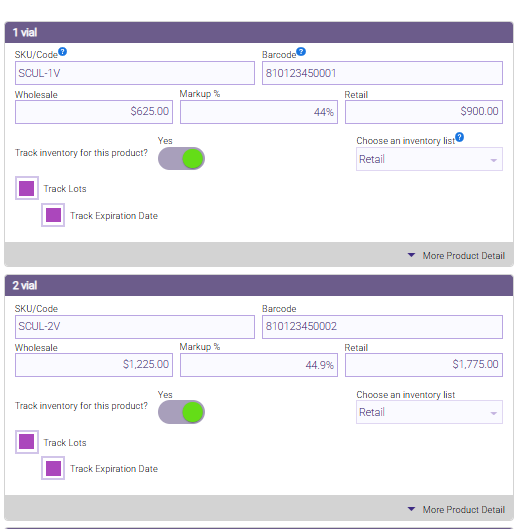
- After configuring the standard product fields, enable Track Lots. If you've set up product variants, enable Track Lots for each variant that should be managed by lot number.
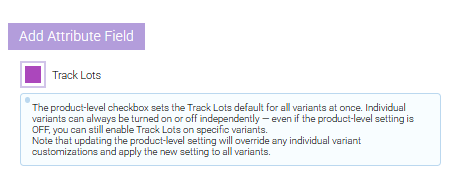
- The Track Lots setting can be managed from both the product and variant levels.
- The product-level checkbox (shown above) provides a convenient way to enable or disable Lot Tracking for every variant at once.
- Individual variant settings remain the source of truth and can be configured independently.
Tracking Expiration Dates
Enable Track Expiration Date when expiration dates should be recorded for each lot.
When it's disabled, lots are tracked by lot number only. Expiration dates are not recorded or displayed.
When Track Expiration Date is enabled:
- An expiration date must be entered whenever a new lot is created.
- Expiration dates are displayed throughout supported inventory workflows.
- Inventory alerts can notify users when lots are approaching or have exceeded their expiration date.
Disabling Lot Tracking
Lot Tracking can be disabled for a variant. If inventory still exists in lots, however, turning off Lot Tracking may cause inventory and accounting quantities to become inaccurate.
When you disable Track Lots, Meevo displays a warning recommending that you complete an Inventory Count first to zero out or reconcile existing lot inventory. After confirming the warning, you must still Save the Product definition for the change to take effect.
Next Steps
After Lot Tracking has been enabled, inventory must be received into named lots before it can be counted, transferred, sold, or used.