Configuring the SalonInteractive Integration
Follow these steps to authenticate, map, and enable the SalonInteractive integration within Meevo.
Connecting to and authorizing your SalonInteractive account
First, you’ll authenticate your SalonInteractive account by logging into SalonInteractive directly through Meevo. This establishes a secure connection between the two platforms and automatically imports the list of SalonInteractive distributors currently linked to your account.
- From the Meevo > SalonInteractive > Account tab, select Edit.
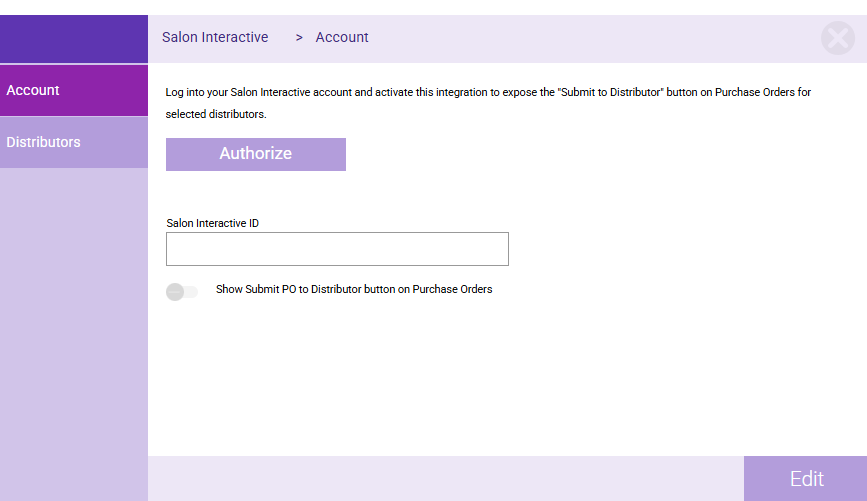
- Select Authorize.
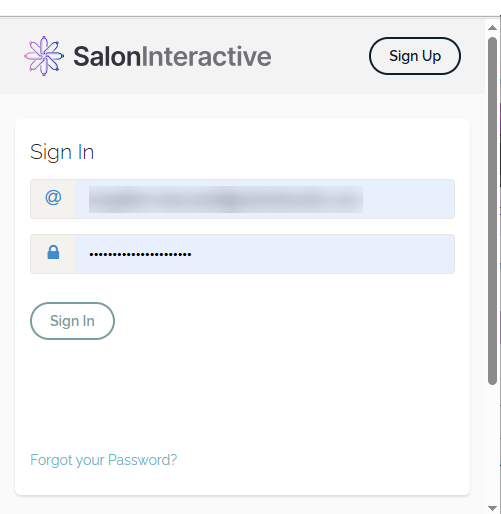
- From the pop-up window, sign into your SalonInteractive account.
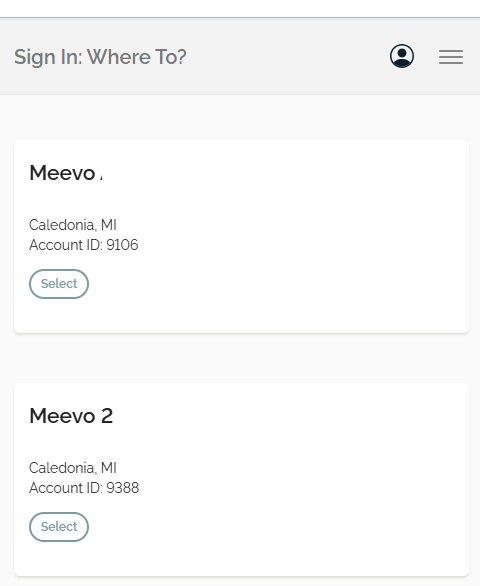
- If you have multiple locations associated with the SalonInteractive account, select a specific location to connect to.
- After authentication, you’ll be redirected to the Account tab in Meevo, where your SalonInteractive ID is automatically populated. This field is read-only and cannot be edited.
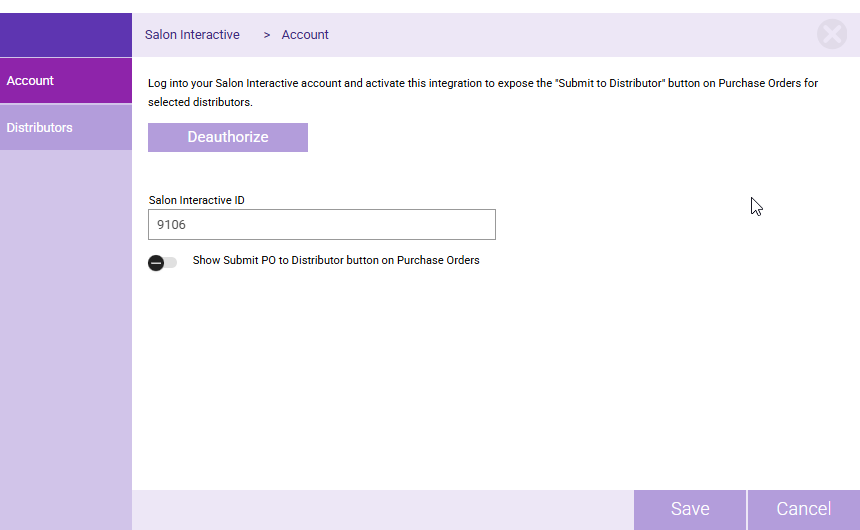
- Select Save when finished, and then move onto the mapping step below.
Mapping distributors
Next, you'll map your SalonInteractive distributors to their corresponding Meevo distributors, ensuring purchase orders route to the correct destination automatically.
- From the drop-down, select a SalonInteractive distributor to add it to the list below. Only the distributors you're using in SalonInteractive will appear in this drop-down.
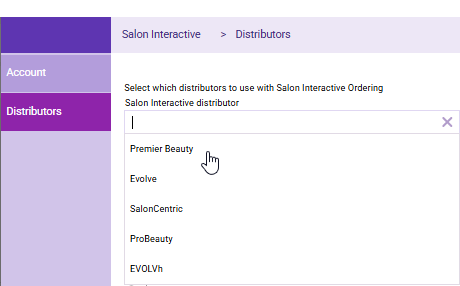
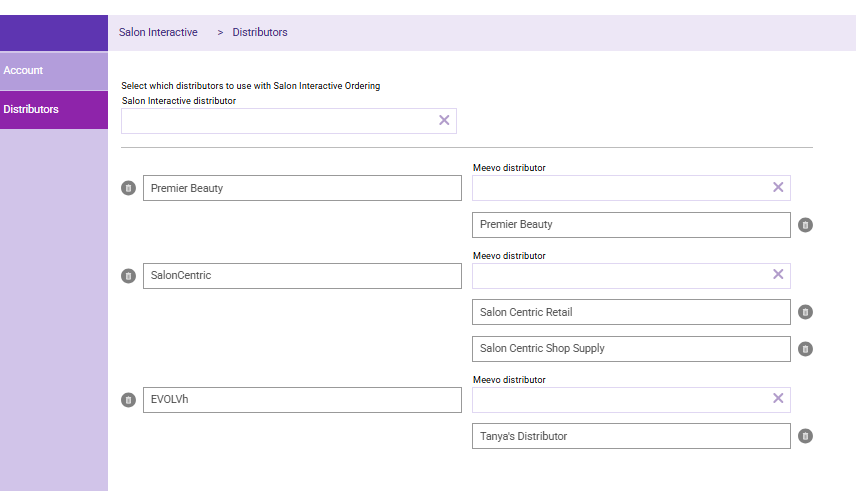
- Select the corresponding Meevo distributor from the drop-down to the right. You can map the SalonInteractive distributor to multiple Meevo distributors, but the Meevo distributor can only be used once on this screen.
- Repeat steps 1 and 2 until you've mapped all distributors, and Save when finished.
Exposing the "Submit to SalonInteractive" button in Meevo Purchase Orders
Finally, you'll need to toggle the Show Submit PO... option to "on" to reveal the Submit to SalonInteractive button in the Meevo Purchase Order screen.
- From the Meevo > SalonInteractive > Account tab, select Edit.
- Toggle the Show Submit PO to Distributor button on Purchase Orders to the "on" position.

- After saving, the Submit to SalonInteractive button becomes available on the Meevo Purchase Orders screen (assuming the required conditions are met in the Meevo Purchase Order).
