Client Accounts
When you allow a client to place charges and credits on their account, you are able to:
- Charge to a client's account.
- Accept payment on a client account that has an owed balance.
- Accept payment as credit on a client account without an owed balance.
- Set a maximum balance limit for all clients and adjust (if needed) for individual clients.
How do I enable a Client Account for a client?
To enable a Client Account:
- Locate and open the client's profile.
- Scroll to Additional Settings and enable the option Allow this client to place charges and credits on account.
- If your business wants to implement a spending limit per individual client:
- Turn on the option Enable client account spending limit under Business Preferences > Register Settings.
- This exposes a Limit field in the client profile.
- Adjust the Limit for this client to override the Business Preferences setting.
Tip: Also check your Payment Types to make sure Account Charge is active.
How do I know if a client has a balance or credit on the account?
If a client's account has a balance or credit, one of the following indicators will appear beside the client name in the register:
|
|
There is available credit on the client's account. Hover over the icon to see the existing credit amount, or select the icon to open the client profile with the account history already pulled up. |
|
|
There is a balance owed on the client's account. Hover over the icon to see the existing balance and, if a balance limit is set, to see the amount owed and amount of remaining available credit. Select the icon to open the client profile with the account history already pulled up. |


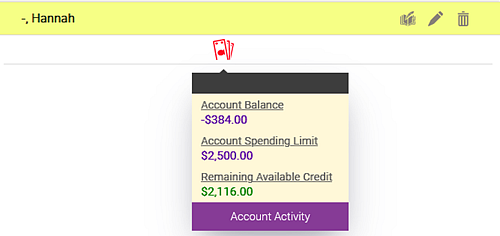
How do I set a balance limit on client accounts?
- In Register Business Preferences, select Enable client account spending limit. In the Limit field, set a maximum balance that clients can owe on their account. This sets a maximum for all clients who are allowed to charge to their account.
- That same Limit field will now appear in client profiles. The value on the client profile defaults to the value in the Business Preferences setting. If at any point you wish to raise or lower this limit for individual clients, you can do so on a profile-by-profile basis.
Where can I view information about Client Accounts?
- MR000: Client Account Activity
- MR205: Client Account Invoices
- MR055: Liability Sales Detail
- MR129 Liability Summary and MR129B Quarterly Liability Activity
Making a payment or placing a credit on a Client Account
Note: Account credits can only be used in the location where the original charge was placed.
- In the register, add the client to the Smart Receipt.
- Select Account from the center list of tiles.
- Select Make a payment or Place a credit.
Note: The Make a payment tile is available only if there is a balance that is owed, and the Place a credit tile is available only if there is no balance that is owed.
- Use the keypad to enter the amount to add to the account. When finished, select Apply.
- If you selected the Make a payment tile, select the employee responsible for executing the payment.
- Select Pay Now and finalize the transaction.
Transferring an account credit from one client to another
Follow these steps to apply a client's account credit to another client's account balance.
- In the register Smart Receipt, add the client who will be receiving the funds. This is the client who owes a balance on their account.
- Select Account from the center list of tiles.
- Select Make a payment.
- Enter the amount to be paid down and select Apply.
- When ready, select Pay Now.
- In Payment Options, select the Account Charge Payment Type.
- Under Account to be charged, select the client who is transferring their account credits. This is the client who is sharing their credit with the client in the Smart Receipt. The client's existing account balance appears below the field.
- Enter an amount and select Add Payment.
- Finalize the transaction to complete the transfer.