AI Patient Overview
AI Patient Overview summarizes information across a client’s chart history, helping providers quickly understand the patient’s clinical journey without opening and reviewing each chart individually.
With Patient Overview, you can:
- Review important clinical highlights and trends from the client’s chart history.
- Quickly locate observations and treatment notes organized into easy-to-scan categories.
- Pin frequently referenced information so it remains readily available during future visits.
- Spend less time searching through previous charts and more time focused on client care.
Note: AI Patient Overview is available for businesses on an Essentials or higher MeevoMD subscription.
Opening Patient Overview
Note: This feature is intended to make reviewing chart history faster. Providers should open the relevant charts when they need to verify complete clinical details.
- Open the client’s profile and select the Charts tab.
- From the client’s chart list, select AI Summary.
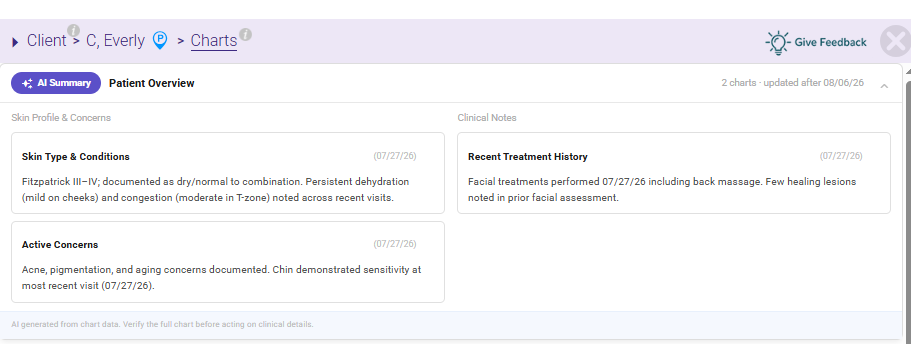
- Review the information in the Patient Overview panel at the top of the page.
Reviewing the Overview
Patient Overview organizes information from the client’s charts into categories so providers can quickly locate important details. Depending on the client’s chart history, the overview may include:
- Flags & Alerts: Important considerations such as sensitivities, contraindications, or recurring concerns.
- Clinical Notes: Relevant observations, treatments, responses, and other details documented across visits.
Highlights may also identify when the summarized information was most recently documented, helping providers understand how current it is.
As new charts are added, Patient Overview refreshes to incorporate relevant information from the client’s updated chart history.
Note: AI Patient Overview summarizes important clinical information across a client’s entire chart history. To learn how AI summarizes an individual chart, see AI Chart Recap.
Pinning Important Highlights
Pin information that you expect to reference frequently so it remains at the top of the Patient Overview panel.
- Locate the highlight you want to keep readily available.
- Select its Pin icon.
- Pinned highlights remain in the overview as new charts are added and the AI-generated summary is refreshed.
- To remove a highlight from the pinned area, select its Pin icon again.