Using the Meevo BI App Filters
Use the filters to quickly change locations, view specific metrics including Total Sales, sort the location list, view specific employee metrics if permissions allow, and change the comparison date ranges.
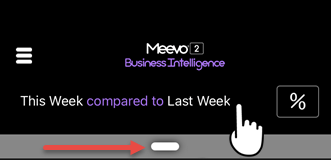
- While logged into Meevo BI, tap the comparison date range to reveal the filter slideout. Alternatively, you can grab the slideout bar (red arrow) and drag it down.
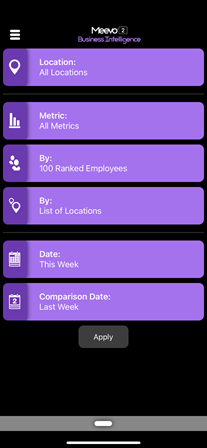
- Each filter is described below. Remember to tap Apply when finished setting your filters!
Tip: To reset the applied filters and return to the Home view, tap the hamburger menu in the upper-left and tap Home.
To switch between locations
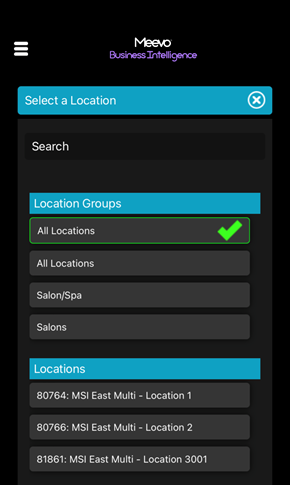
You can tap the Location filter to select from a list of locations that you have access to.
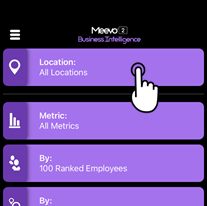
Note that filters on this screen will have slight differences depending on whether you are viewing All Locations or a specific location.
Note: Viewing Metrics in Meevo BI explains how to swipe to quickly switch between locations by swiping.
To view employee data and switch between employees
The Employee filters are available when viewing an individual location. If you were granted Full Location Meevo BI access, you can tap the Employee section to select a specific employee and view all metrics for that individual. If you were granted Employee access, you can view only your personal metrics.
By default, inactive employees are not considered in metrics. You can include inactive employees by deselecting Hide Inactive Employees from the top of the filter.
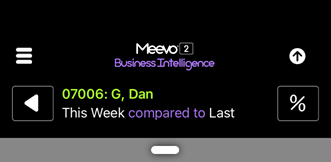
When you select a specific employee, the employee name appears in the header and Meevo BI by default displays All Metrics. You can view individual metrics for an employee by drilling down into the data and selecting the employee.
To switch between metrics
The Metric section controls which data you are currently viewing. Tap the Metric section to view the list and select an option.
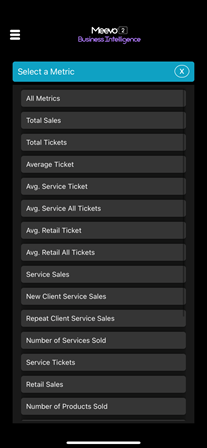
Note: In addition to changing metrics using the filter, you can also advance to the next metric in the list by swiping right while viewing data.
When you select a specific metric, the metric name appears in the header and Meevo BI by default displays All Employees' data. You cannot specify a metric and an employee at the same time. Instead, you can view individual metrics for an employee by drilling down into the data and selecting the employee.
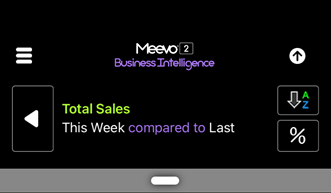
Note: The filters will not allow you to specify a metric and an employee at the same time.
To sort the list of employees (Full Location access only)
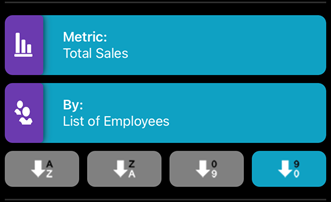
When viewing a specific metric, you can sort the list of employees by selecting the By: List of Employees section. The sort options are, in order from left to right:
Employee code (alphabetical order), Employee code (reverse alphabetical order), Current Date Range Value (low to high), Current Date Range Value (high to low)
To change the comparison date range
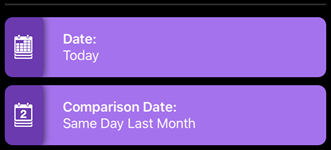
The Date field determines the "base" data that Meevo BI displays. The Comparison Date field determines the set of data that will be compared against the Date data. A workweek is based on a location's Calendar Week Start Day setting in the Appointment section of Business Preferences.
To reset all filters and go back to default view
To reset the applied filters and return to the Home view, tap the hamburger menu in the upper-left and tap Home.