Viewing Meevo BI Metrics
Meevo BI displays data in real-time, so actions taken in Meevo should be reflected in Meevo BI within minutes. The app does not refresh automatically, so you will need to use filters to refresh the data.
Note: Be sure to review Granting Access to Meevo BI for information on permission levels, and see our FAQs for details on which reports are referenced to calculate Meevo BI metrics.
Navigating the app
Here are some tips to help you as you explore Meevo BI:
- Select the "back left" arrow at any time to go back to the previous view.
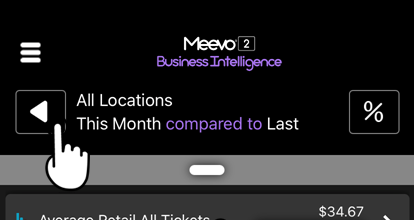
Android users: The "back left" arrow does not appear on Android devices, as that operating system has its own native "back" button you can use.
- While in any view, select the white arrow to return back to the All Metrics view in the current location. Selecting the white arrow from the All Metrics view in a specific location will bounce you out to All Locations, All Metrics.
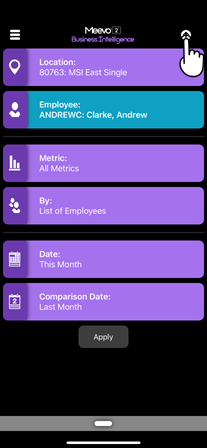
To quickly change between metrics
While viewing a specific metric, you can simply swipe right to advance to the next metric in the list or swipe left to return to the previous metric.
To quickly change between locations
While viewing All Metrics, you can simply swipe right to advance to the next location or swipe left to advance to the next Location Group.
To change the comparison units
The "comparison" data is presented as the bottom number in any given metric. Below, there has been a $67 increase in this metric compared against the same metric from a previous date range.
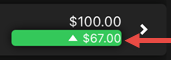
The "units" icon to the right of the header indicates the units being used for comparison data:
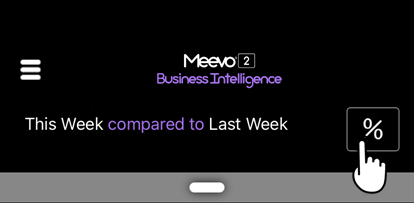
 This toggles the bottom number to display as the percent change between the two date ranges.
 This toggles the bottom number to display as the dollar or amount change between the two date ranges.
 This toggles the bottom number to display as the actual amount for that metric during the Comparison Date.
Drilling down into metrics
What you see in Meevo BI depends on your level of access. If you have Full Location access, you can view metrics for all employees in the location. If you have Employee access, you cannot drill down into metrics, as all of the data you are viewing is yours.
Here are some tips to keep in mind when navigating the app:
- If you have Meevo BI permission in all locations (including CO), your initial view when logging in is All Metrics for All Locations.
- If you do not have Meevo BI access in Central Office, the view displays All Metrics for first location in the list of those you have access to.
- From All Locations view, selecting a metric displays a breakdown of that metric by location. Then, selecting a specific location will reveal the employee breakdown for that metric within that location.
- When viewing the employee breakdown for a specific metric, tapping an employee will display all of that employee's metrics in that location.