CORE Royalty Export
Meevo's Central Office Royalties Engine (CORE) Export is designed to simplify the process of reconciling and tracking royalties for multi-location franchises. The export provides a summary of each locations' total "money in" and "money out" which can be used to determine:
- Royalties owed to franchise owners based on a location's sale data, and
- Money a location is owed or owes to other locations based on offsite liability redemptions (when liabilities are redeemed across locations).
What are some of the challenges a multi-location franchise faces when reconciling?
When a multi-location business allows liabilities to be redeemed across locations, they face the challenge of reconciling amounts owed between those locations:
- For example, let's say a client purchased a gift card at Location A. The next day, the client partially redeemed the gift card at Location B, and then the following week, partially redeemed it at Location C. Locations B and C are owed money, as they accepted the gift card as payment even though they never collected anything during the original purchase.
- Now consider that this same scenario can also occur with a purchase at Location B and partial redemptions at Location A and Location C. Plus, with each location owing the Corporate Office royalties (a flat percentage of total sales), it's easy to see how this can create a complicated and inefficient matrix of payments within the franchise network.
How does the CORE Royalty Export make reconciling easier?
The CORE Royalty Export simplifies this exchange of funds by providing the Corporate Office with the data they need to determine how much a location owes or is owed. That money would be allocated to a centralized "bucket" of funds to be dispersed by the Corporate Office to other locations accordingly. This takes the responsibility of reconciling out of the hands of locations, where an excessive number of EFTs would likely take place as funds are exchanged. With the Corporate Office acting as the "quarterback" of the funds, reconciliation can be achieved with only one or two EFTs per location.
- Let's consider Location A from our earlier example, which owes the franchise 6% of their total sales along with $500 for off-site gift card redemptions. However, Location A is also owed $200 for accepting gift cards as payment that were purchased at Location B.
- Without using this export, Location A might pay out 6% to the Corporate Office, $250 to Location B, and $250 to Location C. Location A would also receive $200 from Location B. That's four EFTs for Location A in this one example alone!
- But using this export, the Corporate Office can come up with one value for Location A; in this case, Location A must pay out 6% plus $300 ($500 - $200). That $300 would go to the "bucket" managed by the Corporate Office. This reduces the number of EFTs for Location A from four to one!
How do I export this information?
- Select Schedule an export from the Royalty Export Settings > Main tab to open the Report Scheduler, where you will schedule the export.
- From Report Scheduler, a scheduled export can be searched for and edited just like any other scheduled report. You can also view and edit scheduled exports from the Royalty Export Settings > Main tab.
- Once an export is scheduled, you can also run a scheduled report immediately with a custom date range from the Royalty Export Settings > Main tab.
How do I view an export?
See Viewing Delivered Reports for details on how a recipient can view a delivered CORE Royalty Export.
Which items are captured by the export?
By default, all of the following are included: sales from services, products, packages, memberships, and gift card types, along with payment types and any applied discounts.
Package tips, taxes, and tip-only transactions are not included in the export data. Also, an item's active/inactive/deleted status is not considered; if the item impacted sales, then that sale information will be included in the export.
Can I exclude any of these items?
Yes! From the Exclusions tab, you can specify one or more items from each category (except Payment Types) to exclude. Note that to exclude an item, it must be owned by Central Office. Location-owned items are always captured by the export and cannot be excluded.
Configuring CORE Royalty Export exclusions
Items added to the exclusion list will be omitted from every Royalty Export. The Royalty Export honors the current exclusion list each time an export runs, so you can add exclusions to the list at any time.
- Go to Meevo > Management > Royalty Export Settings.
- Select the Exclusions tab, and select Edit.
- For each category, you can use the drop-down to select specific items to exclude from the export. Remember, an item must be CO-owned to be eligible for exclusion.
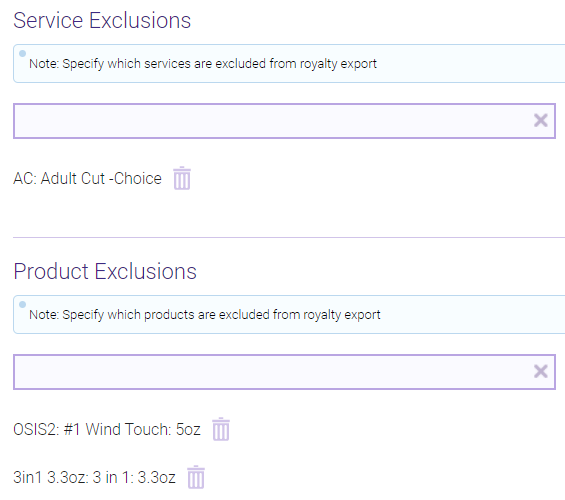
Note: Select the trash can at any time to remove an item from the list.
- When finished, select Save.
- Finally, schedule a CORE Royalty Export by selecting the Main tab or selecting the Schedule an export button.
Scheduling a CORE Royalty Export
- Go to Meevo > Management > Royalty Export Settings.
- From the Main tab, select Schedule an export. The Report Scheduler opens on the CORE Royalty Export.
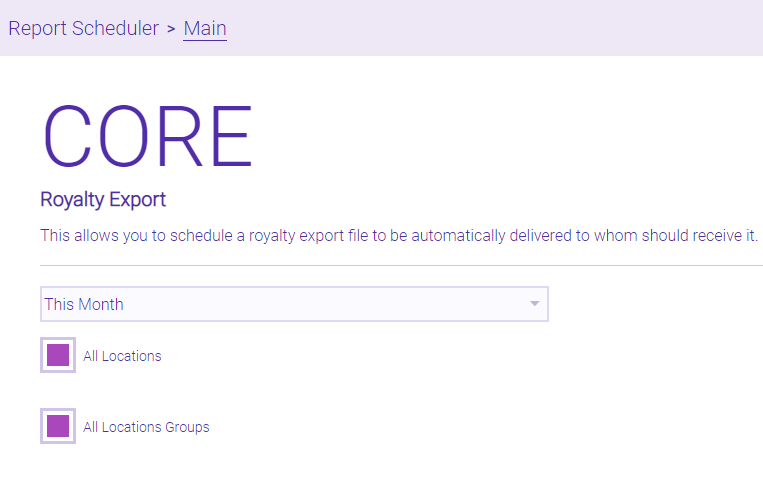
- From the drop-down, select the time-frame from which Meevo will export data. You can report on Last Week, Previous Two Weeks, This Month, and Last Month.
- All Locations: Leave this selected to report on all locations, or deselect this and use the picker to specify which locations to include.
- All Location Groups: Leave this selected to report on all Location Groups, or deselect this and use the picker to specify which Location Groups to include.
- Under Delivery Options, give this export a Schedule Name.
- Report Format: The export will be delivered in the format you choose from this list.
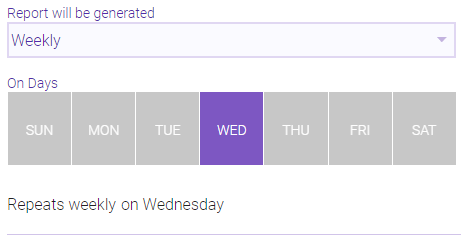
- Report will be generated: Select Weekly or Monthly.
- If you selected Weekly, choose one day from the day picker to run the export.
- If you selected Monthly, choose how frequently to run the export:
Day of month:
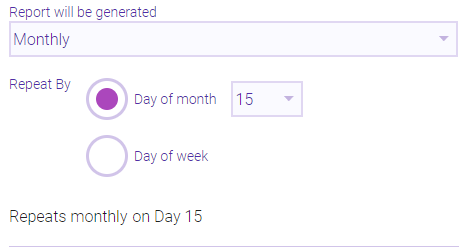
Day of week:
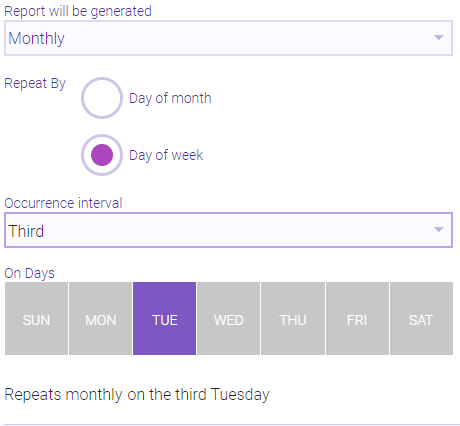
- Report Runs At: Select a time frame that the export will run. While the export is likely to be generated within the specified time interval, due to a number of variables (such as exports and reports that are already in the queue), there is a possibility that the export will be delivered later than the selected time range. Links to the export are always delivered shortly after the export is finished generating.
- Require security code to view report: When this option is enabled, the recipients will be unable to access the export until they each enter a unique, one-time alphanumeric PIN. This PIN is randomly and automatically generated when the recipient selects the link in the notification.
- Deliver Report To: Select which employees and users will receive links to the scheduled export. Note that there are no security limitations on this list; all employees and users appear here. Keep in mind that it is up to the recipient of the export to keep the information private.
- Custom Delivery Options: To add recipients who are not in your list of Meevo users and employees, enter a name, then an Email Address and/or SMS Number. Select Add Address to add the recipient, and repeat as many times as needed.
- When finished, select Save. Saved exports can be searched for and edited in Report Scheduler just like any other scheduled report.
Running a scheduled Royalty Export job immediately
- Go to Meevo > Management > Royalty Export Settings.
- From the Main tab, you can view or edit scheduled exports from the Royalty exports currently scheduled table.
- Select Run Now to immediately run a custom export.
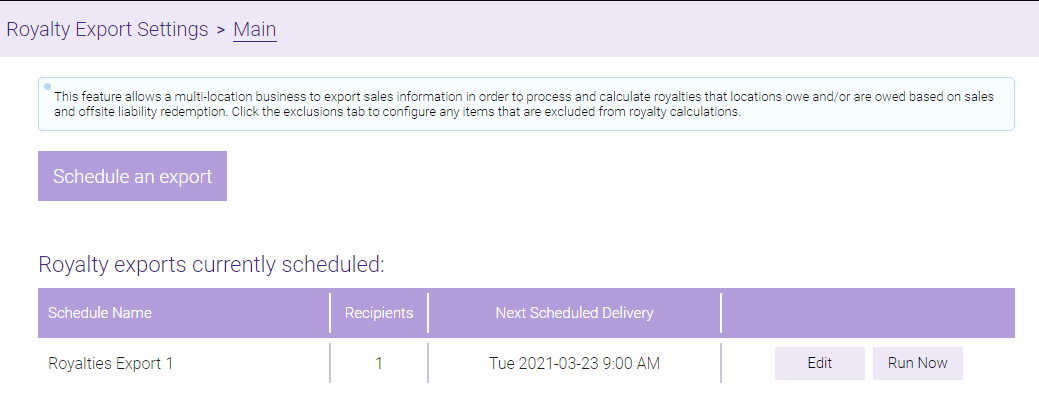
- In the Run Now window, configure your custom export date range.
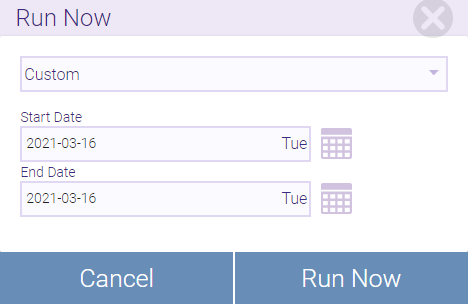
- When ready, select Run Now. The report will be delivered to the configured recipients within the hour.
Viewing or editing scheduled exports
From the Royalty Export
- Go to Meevo > Management > Royalty Export Settings.
- From the Main tab, you can view or edit scheduled exports from the Royalty exports currently scheduled table. You can also select Run Now to immediately run a custom export.
From the Report Scheduler
- To view which exports you have scheduled and when they are scheduled to be delivered next, type reportscheduler into the Convobar, or go to Meevo > Management > Report Scheduler.
- Enter search criteria or simply select Search to view a list of all active report schedules.
- The results list the Report Name, Schedule Name, number of Recipients, and the Next Scheduled Delivery. CORE exports will have CORE as the Report Name.

- Select the export and select Edit to modify the scheduled export settings. Make sure to select Save when finished.