Configuring Online Booking Settings
As this latest version of Online Booking is actively being enhanced and updated, certain options on-screen may not function or function as intended. Refer to the list below for all options that are currently supported by this version of Online Booking.
- Go to Meevo > Business Settings > Online Booking Settings, or type online into the Convobar.
- From the Main tab, select Edit.
- Enable Online Booking: This enables Online Booking by default for all locations. See Online Booking: Setup Overview for complete details on enabling Online Booking for your business.
- Google Analytics Tracking Id and Google Tag Manager Id: Enter the Google Analytics ID for your OB Property and your Google Tag Manager Id.
- Default referral type assigned: Any new client who registers through Online Booking will have this Referral Type automatically selected in the Referred by field in the client profile. This can be overridden in the client profile, as long as it is before the client's first transaction. This is a required field.
- Display Terms and Conditions: Displays the Terms and Conditions text that is in the text box below this option.
- Allow client(s) to reschedule appointment(s): Clients can reschedule an appointment by going to their Future Appointments screen. Enable this option to allow clients to easily move an appointment (and its deposit); otherwise, the existing deposit will need to be refunded and a new deposit collected.
- Allow Online Appointment Cancellation: Allows clients to cancel their own appointments through Online Booking in the Future Appointments area.
- Appointments may not be canceled or rescheduled within 'X' hours of appointment start time: Customers are prevented from canceling an appointment through Online Booking if the appointment Start Time is within the number of hours set here. When rescheduling functionality is available, this option will impact rescheduling as well.
- Require OTP Verification: During login, clients who have an existing Meevo profile associated with the entered email address will receive a verification code sent to the phone number on file.
- The following options determine which information will be required when a client signs up for Online Booking:
- Initial Login Required: When this option is enabled, clients must log in before they can scan for and view appointment openings. With it disabled, clients can scan for and view appointment openings as guests (without logging in). Regardless of this setting, clients are always required to register and/or log into Online Booking before they can actually book an appointment.
Important: To ensure you adhere to Google's policies, we recommend turning the Online Booking setting Initial Login Required OFF when using the Google Book Online integration. If the Initial Login Required option is on, Meevo will ignore that login setting for clients who arrive at Online Booking via Google's Book Online button.
- Is login required? Determines where in the workflow clients must log in, if login is required at all:
- Login is required to book: Clients can browse services, providers, and availability without logging in, but must log in just before completing their booking.
- Login is required to see availability: Clients must log in before they can browse appointment availability.
- Login is optional: Clients can complete the entire booking process without logging in, while still having opportunities to sign in throughout the workflow.
- Credit Card Required: Requires the client to place a valid card on file in order to book an appointment. This option is available only if your default Merchant Account processor supports it.
- Enable the ability to collect deposit at the time of booking: This turns on Online Booking Prepay. Clients will be required to deposit a certain amount to hold an Online Booking appointment if they book a service that has This service requires a deposit enabled in the service definition. This option appears only if your default Merchant Account processor supports it.
- Deposit percentage/amount required: This is the default amount or percentage of the service price that must be deposited to hold the appointment. If there is a service deposit amount override on the service definition, that override will be charged instead of the value entered here.
- Enable A/B testing of deposits: When enabled, the system randomly requires a deposit for some clients during Online Booking. This allows you to measure the impact of deposits on booking behavior before making them required for all clients.
- Birthday Required: When this is enabled, clients must provide their birthday when registering for Online Booking and will be prevented from saving updates to their profile if the birthday has been removed. In multi-locations, this option is set by Central Office and is read-only within locations.
- Phone Required: When this is enabled, clients must provide a phone number when registering for Online Booking and will be required to always have a phone number on their profile in order to book appointments through Online Booking.
- These options allow you to set limits and conditions on Online Booking:
- Maximum Number of Bookable Services per Appointment: Limits the number of services that can be booked for a single appointment.
- Prevent Appointments from being booked within __ of current time: This setting prevents last-minute appointments from being booked online. For example, if set to 3hr, the earliest available appointment will be 3 hours from the time the client scans for an opening through Online Booking.
- Prevent Online Booking client(s) from booking more than x weeks in the future: This option limits how far into the future an Online Booking client can search for an opening. Setting this option to 0 means there are no restrictions on how far into the future a client can search and book.
- Maximum wait time between services (in minutes): This option is for clients booking multiple services online. It defines the maximum wait time that can pass between services in a single appointment. Meevo considers this option during a "scan for opening." Setting this option to a lower number prevents too much down time for clients as they wait between services.
- Number of days searchable in a custom date range: Defines the maximum number of days a client can search for an opening using a custom date range.
- Maximum number of guests: Determines the maximum number of guests a client can book with through Online Booking. Setting this to zero (0) turns off guest and family booking. Setting this to anything other than zero enables Couples and Guest booking.
- Enable Resource Room Sharing: Businesses who do not offer rooms that multiple clients can occupy at the same time (like couples massages or a sauna room) will want to disable this checkbox.
- Require email to be entered for each guest: If Maximum number of guests is set to 1 or greater, this option appears. When enabled, the booking client must enter an email address for each guest on the appointment.
- Require mobile phone number to be entered for guests: If Maximum number of guests is set to 1 or greater, this option appears. When enabled, the booking client must enter a mobile phone number for each guest on the appointment.
- The remaining settings determine what a client can see and do in Online Booking. A description of the option appears below each option label, but also take note of these tips:
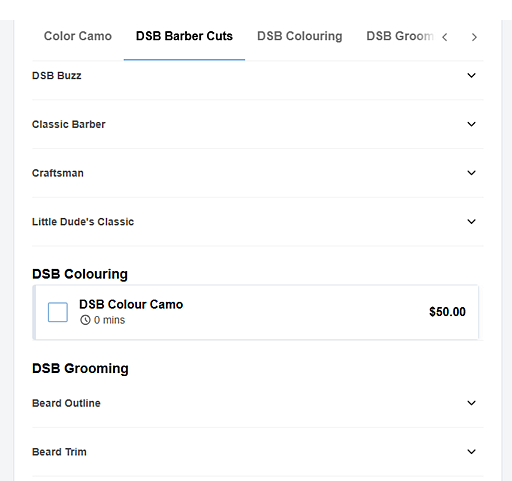
- Display Sub-categories: When this option is enabled, the service menu displays collapsed service sub-category drop-downs under the service category. There must be at least 2 service sub-categories with OB-available services for this to take effect. If your business offers services across multiple sub-categories, enable this option to make it easier for clients to browse and find what they’re looking for.
- Display Service Images: When enabled, this will show the service image in the service menu. This is the image uploaded to the Main tab of the Service definition, just above the Display Name.
- Allow clients to add themselves to the Wait List lets a client add themselves and up to 4 other guests to a single Wait List entry (if scan did not find any openings during the booking process). When multiple clients are part of the same Wait List record, Meevo looks for openings that will bring all of the clients in at the same time.
- The option Prevent client(s) from booking a Service if booking date is earlier than configured FOV ensures that clients cannot book a service too soon within their Frequency of Visit (FOV) timeframe. When enabled, it prevents clients from scheduling an appointment if the selected date is less than half of their FOV period. For example, if a client has a 4-week FOV for a service, they won’t be able to book it again until at least 2 weeks after their last appointment.
- Enabling Allow any employee reveals a sub-option Bypass employee selection. Enabling that sub-option reduces the number of clicks needed to book an appointment by defaulting the employee selection in the Online Booking workflow to "Any Employee," speeding up the booking process. The booking client is able go back to the employee selection step and select a specific employee if they desire.
- Allow client(s) to enter an Appointment Note gives clients the option to add details and notes about the appointment in a text box. Below the text box is a reminder that services are not to be requested.
- Require client(s) to enter an Appointment Note: Makes the Appointment Note a required field before a client can complete a booking.
- Display Sub-categories: When this option is enabled, the service menu displays collapsed service sub-category drop-downs under the service category. There must be at least 2 service sub-categories with OB-available services for this to take effect. If your business offers services across multiple sub-categories, enable this option to make it easier for clients to browse and find what they’re looking for.
- Service Selection Subheader: Define the text that appears immediately below the Select a Service heading. This option is configured through Central Office and appears in the client-facing Online Booking site for all locations that have OB enabled.
- Guest Info Subheader: Define the text that appears below the Complete appointment details heading on the Confirmation step. This option is configured through Central Office and appears in the client-facing Online Booking site for all locations that have OB enabled.
- Allow client to opt-in for text marketing and Allow client to opt-in for text notifications: These options allow clients to opt into marketing texts and appointment notification texts, respectively. When enabled:
- The corresponding "opt-in" checkbox will be available on the Guest Details page in Online Booking.
- A text field appears below the option where you can customize the opt-in text, if desired.