Checking Out a Past Appointment
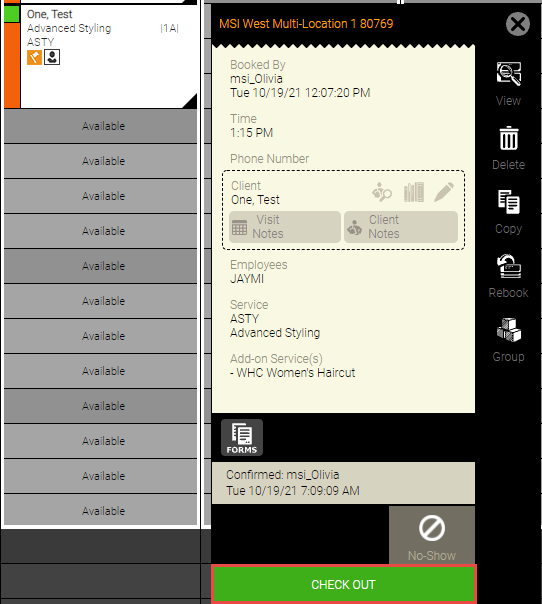
Check out a past appointment by selecting the Check Out button on a past appointment's Smart Assistant. This launches the Transaction Editor, where you will complete the checkout by inserting a past transaction for this appointment.
Note: The Check Out button appears as long as the appointment date is within the "edit transaction" setting on the user’s Security Role.
Note that when checking out a past appointment, Meevo does also pull in any other past, not checked-out appointments from that day. Meevo does not pull in any on-hold transactions from that day (or otherwise) that are not associated with a booked appointment. Also note that 5-Star Ratings notifications are not sent after checking out an appointment from the past.
Note: The following appointment details can be edited up to 14 days after an appointment is checked out: service steps and requested/redo/walk-in checkboxes.