Adding or Editing a Resource Category
To get to Resource Categories, type resourcecat into the Convobar, or go to Meevo > Data > Resource Categories.
To add a Resource Category
Tip: Use the copy function to quickly create a new data record with similar details to an existing item. First, locate and select the existing item, and then select Copy. Meevo 2 will create a new definition with fields that are identical to the record you just copied. Make changes to the data as needed, and select Save when finished.
- From the Resource Category search form, select Add New.
- Enter a Display Name and an optional Description.
- Services: Select one or more services to associate with this resource. If any of the services listed here are being booked in the Appointment Editor, Meevo will also attempt to book the associated resource. If the associated resource is not available, the user can select any other available resource, but a resource must be selected to book that service. Resources that belong to this category will inherit these services, but the services can be refined at the resource level as needed.
- Configure the Appointment Book Style. The Appointment Book Style color scheme controls color of the client capacity column headers when you are viewing the Appointment Book in Resource View. In the example below, Room 3's Appointment Book Styles are set to black text and green background. There are 3 numbered columns because Room 3 has a maximum client capacity of 3.
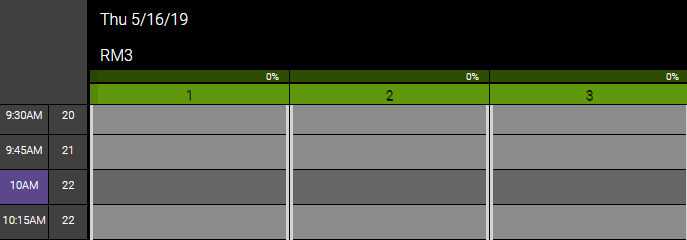
Note: Newly created resources that are assigned to this Resource Category will inherit this category's Appointment Book Style. If this style is changed in the resource definition, then that resource definition determines how it will appear in the Appointment Book.
- When finished, select Save.
To edit a Resource Category
Note: Some fields may not be editable if the current location is not the item's Home Location.
- Locate the Resource Category and select it.
- Select Edit, and make your changes.
- When finished, select Save.