Adding or Editing a Service Category
To get to Service Categories, type servicecat into the Convobar, or go to Meevo > Data > Service Categories.
To add a Service Category
Tip: Use the copy function to quickly create a new data record with similar details to an existing item. First, locate and select the existing item, and then select Copy. Meevo 2 will create a new definition with fields that are identical to the record you just copied. Make changes to the data as needed, and select Save when finished.
- From the Service Category search form, select Add New.
- Enter a Display Name and Description.
- Background: Select a color for the Service Category. Service Categories control the color of the bar along the left side of the appointment. In the example below, the vertical blue bar in this appointment reflects the Service Category.
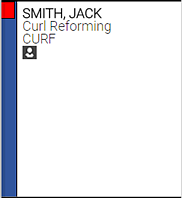
- Service Sub-Categories: Enter a Display Name and configure a Background color for this sub-category. You must add at least one sub-category.
- To add another category, select Add New (shown below).

- When finished, select Save.
To edit a Service Category
Note: Some fields may not be editable if the current location is not the item's Home Location.
- Locate the Service Category and select it.
- Select Edit, and make your changes.
- When finished, select Save.