Using MeevoTips During Checkout
When using MeevoTips, the checkout process in the Meevo Register remains largely the same. The biggest difference is how tips are collected and applied.
- Create a transaction in the Meevo Register as you normally would.
- To preselect a tip amount for the client prior to selecting Pay Now, open Meevo's Add Tip modal and make a selection.
- When you select Pay Now, your selection will be sent to the Tippy Kiosk where the client can make a new selection if desired.
- When the client is ready to add a tip, select Pay Now. This launches the MeevoTips Kiosk associated with the current Meevo drawer.
- Only employees who are mapped and have Allow Tips enabled on their Meevo profile are sent to the Kiosk.
- Employees who are not mapped in MeevoTips can still receive tips through Meevo's standard Add Tip workflow. These tips are not included in MeevoTips logs or reporting.
- While the Kiosk is active and in use Meevo displays the message: Waiting for client to make selections on MeevoTips Kiosk, and the Kiosk remains locked.
- The client selects a tip amount.
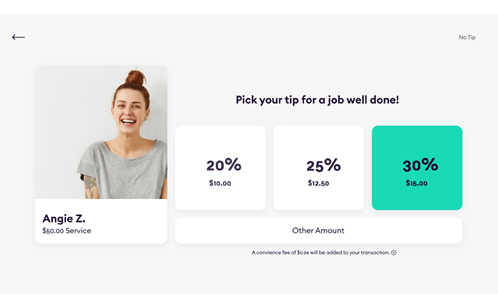
- On the Purchase Summary screen, the client selects Continue to Payment.
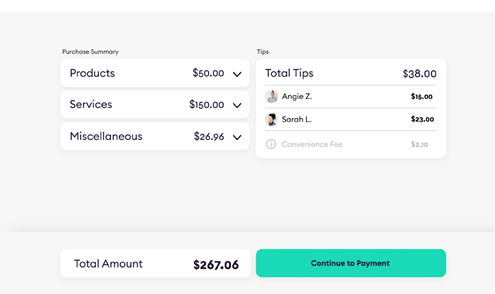
- After the client finishes on the kiosk, Meevo returns to the Payment Options / Balance Due screen. The client can pay the remaining balance using any supported payment method.
- If changes are needed before completing checkout, select Back to Sale to update the ticket. You can re-initiate the Tippy Kiosk by selecting Pay Now again.
- When you're ready, finalize the transaction as you normally would.
Details on the Smart Receipt and Convenience Fee
The Smart Receipt subtotal includes tips entered through the Tippy Kiosk as well as manually entered tips for non-MeevoTips employees.
When MeevoTips tips are included on a transaction, a Tip Convenience Fee appears in the subtotal. This fee is assessed by MeevoTips and is based on the total tip amount entered through the kiosk.
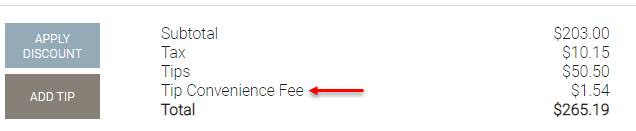
Note: The Tip Convenience Fee is waived for Employee Tip Service Charges and prepaid tips applied during package redemptions.
Register behavior with MeevoTips enabled
When the Tippy Kiosk is enabled, the Meevo Register will look slightly different:
- The Prompt for Tip checkbox is hidden if the drawer in use is associated with a Tippy Kiosk.
- The Change Due window does not have the usual Add Tips button, as all tips are processed through the Tippy Kiosk.
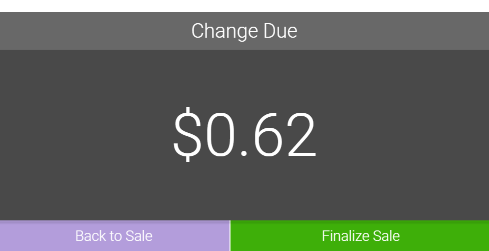
Editing tips before finalizing the transaction
To modify any tips, you can select Back to Sale and trigger the Tippy Kiosk by again selecting Finalize/Pay Now.
Reviewing the status of tip deliveries
To verify that tips were successfully sent to MeevoTips, review your Logs at the end of each day. We recommend setting the Send Status filter to Error to identify any tips that were not successfully transmitted.
For more information, see MeevoTips Logs and Resending Tips.