Creating a New Connection to QuickBooks Online
Note: You can only create one connection per company QuickBooks Online file.
IMPORTANT: Before creating a connection to QuickBooks Online, ensure you've turned on and configured tax rates in QuickBooks Online, and make sure you've created an Undeposited Funds account.
- Type quickbooks into the Convobar, or go to Meevo > Integrations > QuickBooks Online. Be sure to have your QuickBooks Online login information handy.
- On the Main tab, select Create a New Connection.
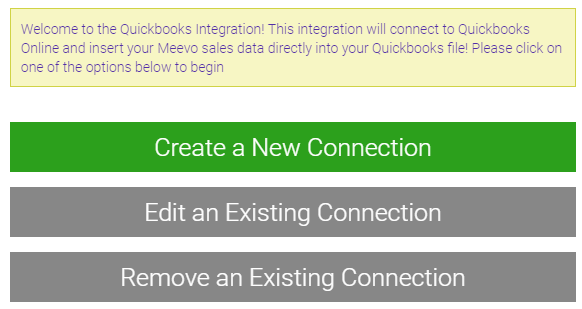
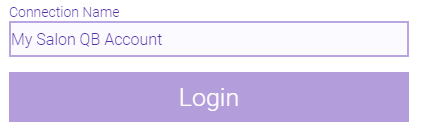
- Enter a Connection Name; give it a name that makes it easy to identify the item in Meevo. When the Login button is enabled, select it.
- A new browser tab appears, bringing you to a QuickBooks login screen. Enter your QuickBooks account credentials and select Login.
- If you have more than one QuickBooks company account, a You're almost ready to use MSI Meevo window appears. Select your company in this window. If you have one QuickBooks company account, it is automatically selected and you do not see this window.
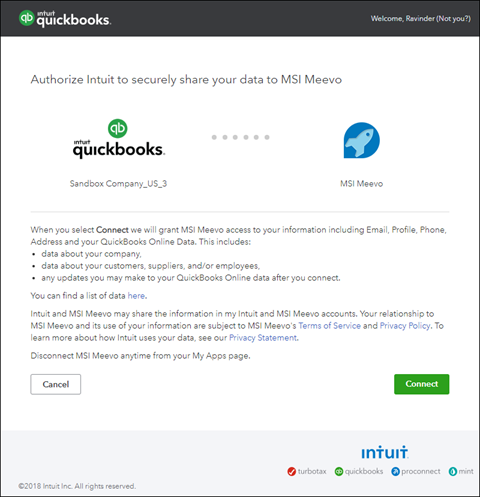
- Read the Authorize Intuit to securely share your data to MSI Meevo statements and, when ready, select Connect.
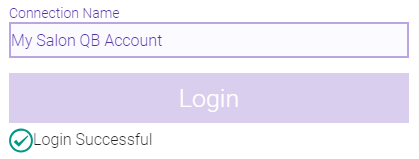
- After the spinning wheel, you are brought back to the Meevo Create a New Connection screen. A Login Successful message appears below your Connection Name.
- Select Next. You are brought to the Account Setup screen.
- You are now ready to set up accounts and payment types. See Setting Up QuickBooks Online Accounts and Payment Types for details.