Setting Up QuickBooks Accounts and Payments Types in Meevo
Now that you've created a connection, the next step is to set up your accounts and payments. As a best practice, MSI recommends not changing the default account mappings to ensure that all data synced from Meevo is funneled into the correct accounts. This way, you always know exactly where data is coming from and going to.
Account mapping
By default, the QuickBooks Integration provides new accounts to which your information will sync. If you've been using QuickBooks for your accounting prior to purchasing this integration, and you would like to continue using your own existing accounts, you can map those accounts here.
For each income type, you can select the blue i at any time to view more info on these accounts.
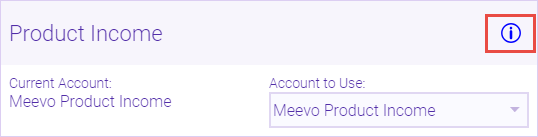
Here is some additional information about the accounts on this screen:
- Product Income and Service Income: These accounts house all income brought in as a result of product sales and service sales, respectively. Each Product Category comes over as its own sub-account, and each Service Category comes over as its own sub-account. Only Income accounts are selectable here.
- Other Income: This account contains drawer overages, collected fees, membership dues, pay-ins, collected tips, service and package charges, and unlimited packages. The following will come over as their own sub-accounts: Cash Drawer Over Amount, Memberships, Pay-Ins, Service Charge, and Package Charge. Only Other Income accounts are selectable here.
- Accounts Receivable (QuickBooks Online) or Meevo Accounts Receivable (QuickBooks Desktop version): This account houses all invoices that come into the business. It also holds the balance of what clients owe on their accounts or what balance is owed to them. This account is a QuickBooks default and the default mapping cannot be changed.
- Inventory Assets: This accounts houses the cost of items in your inventory prior to them being sold (wholesale value). When a product is sold, the wholesale value is subtracted from this account and moved to Meevo Cost of Goods Sold Account. This account is a QuickBooks default and cannot be changed.
Note: You will need to provide your most recent, up-to-date inventory value in QuickBooks prior to your first sync. This is explained further in Syncing to QuickBooks Desktop.
- Cost of Goods Sold Account: This account houses the wholesale cost of goods that have been rung through the register. Only Cost of Goods Sold accounts are selectable here.
- Liabilities: When gift cards, packages, package tips, or client points are rung through the register, they appear in this account, with each liability type its own sub-account. Only Liabilities accounts are selectable here.
Note on client points: Points are only accounted for when redeemed. They are deducted from the Meevo Liability: Points account, with the expense recorded under the Meevo Expense Account. Unlike gift cards, points are not a client-purchased liability, so we recommend managing them through manual journal entries based on your accounting preferences.
- Expense Account: This account is responsible for expenses that come out of Meevo: Cash Drawer Short Amounts and Pay-Outs. Only Expense accounts are selectable here.
- Cash Drawer: This account holds opening amounts across all cash drawers. Those opening amounts need to be entered by the user in QuickBooks; MSI recommends opening amounts be the same each day. Overages and shortages are reflected in this account. A journal entry will be created daily to account for the amount of cash to bank; that amount is removed from the Meevo Cash Drawer account and added to the Undeposited Funds account. See Before syncing for the first time for details.
When you are finished selecting your accounts, select Next to advance to the Payment Type Setup screen.
Payments Types setup
Note: If you are using the Care Credit Integration, a Care Credit Integration Payment Type can be mapped on this screen. The integration Payment Type is named Care Credit Integration®.
The QuickBooks Integration brings over all payments that occur in Meevo. The vast majority of businesses will not need to make any changes to this screen and will post to the Undeposited Funds account for each payment type. However, if you do wish to change an account, the Account Type can be Bank, Other Current Asset, Other Asset, Fixed Asset, or Income.
You can enable Include Monetary Payments to send monetary payment information to QuickBooks. Regardless of this setting, non-monetary and liability usage will still be sent to QuickBooks. MSI recommends you leave this setting enabled unless your bank is adding payment information directly into QuickBooks. Also note that open invoices will remain open; you'll need payments to be manually applied to close invoices.
When you are finished selecting your Payment Types, select Next:
- If you are using the QuickBooks Online integration, you will advance to the Ready to Send Data screen.
- If you are using the QuickBooks Desktop integration, your account updates have been queued for the QuickBooks Web Connector to process. Select Update Selected again in the Web Connector, and then select Finish in Meevo.
Sending your settings to QuickBooks Online (QuickBooks Online only)
This step applies to the QuickBooks Online integration only.
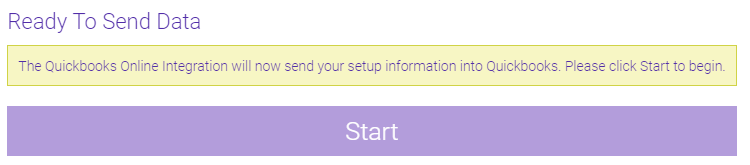
- To send your accounts and Payment Type settings to QuickBooks Online, select Start.
- After a minute or two, you will see the following screen, indicating a successful transfer of data.
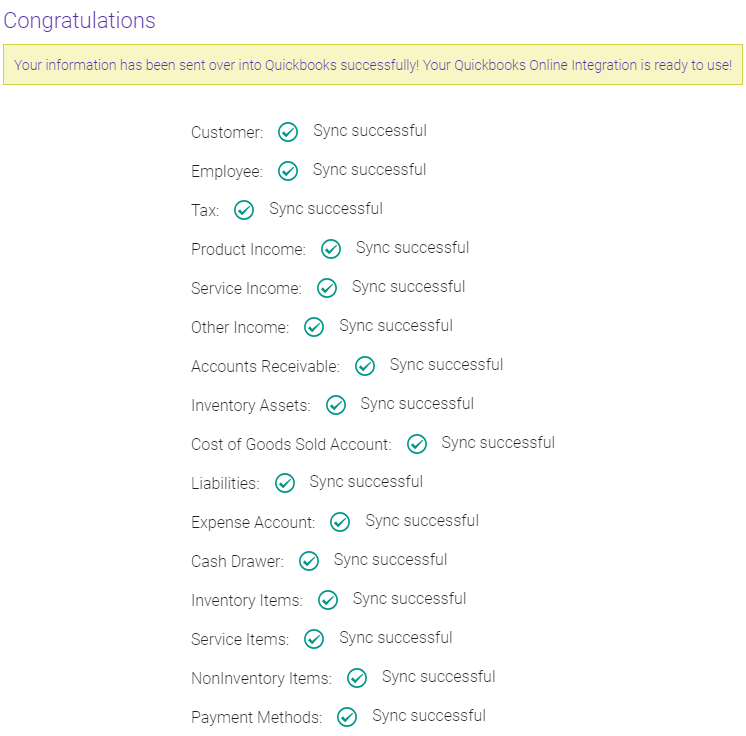
- Select Finish to advance to the Sync tab. See Syncing to QuickBooks Online for more information.