Scheduling a Price Change
What do I need to know about scheduling a price change?
- Price changes can be scheduled for tomorrow or later.
- You can have only one scheduled update per entity.
To schedule a price change
Schedule a price change if you want to update product or service pricing on a future date.
- Type pricemanagement into the Convobar, or go to Meevo > Management > Price Management.
- Select the Schedule price change tab.
- Select Schedule New Price Change in the bottom-right corner of the form.
- Select Products or Services.
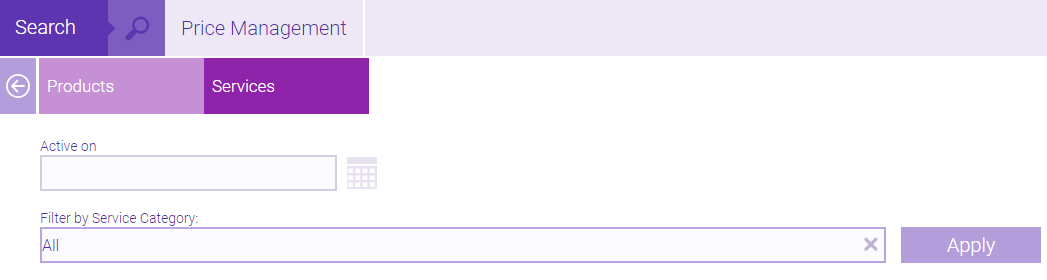
- Follow the instructions in Adjusting Product Prices or Adjusting Service Prices to filter the list and make your edits.
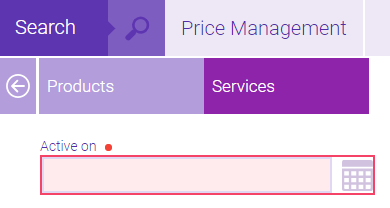
- After making your edits, set a date that the scheduled change will take effect via the Active on field. The earliest you can set this date to is tomorrow.
- Select Save.
To view, edit, or delete a scheduled price change
- Type pricemanagement into the Convobar, or go to Meevo > Management > Price Management.
- Select the Schedule price change tab.
- Use the field at the very top to filter the list by Scheduled, Completed, or All scheduled updates. If you enter a Date Range, Meevo will display updates based on the date they are scheduled to run.
- You can edit or delete the scheduled update by selecting the appropriate icon in the row.
