Clocking In and Clocking Out
How do I require an employee to clock-in?
In the Work Activities form, you can select Must clock in to make clock-in required for that specific activity.
Can Meevo automatically clock out an employee who never clocked out?
Yes! In Business Settings > Payroll Settings, enable Automatically clock out employees who have clocked in but not clocked out for their scheduled time.
When this option is enabled, Meevo will clock out the employee automatically during a maintenance job that is run every night at midnight, local time.
- If the employee was scheduled to work that day and forgot to clock out, then Meevo clocks out the employee according to the end time on the schedule. This is true regardless of which Work Activity was selected during clock in.
-
If the employee was not scheduled to work that day and forgot to clock out, then Meevo clocks out the employee according to the close of business hours defined in Business Information. If the business has no closing hours for that day – for example, if the business is closed – then the employee is clocked out at 11:59 pm.
To clock in
Note: An employee can only have one active clock-in per day, but they can clock in and clock out however many times they need.
- Type timeclock into the Convobar, or go to Meevo > Schedules > Time Clock.
Note: If Must Clock In is selected for the user's current Work Activity, the Time Clock automatically appears to the user upon login.
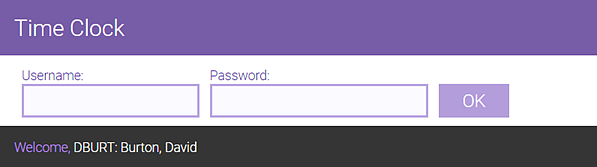
- Enter your username and password to log into the Time Clock and select OK. A welcome message appears below the login fields.
- Select your Work Activity.
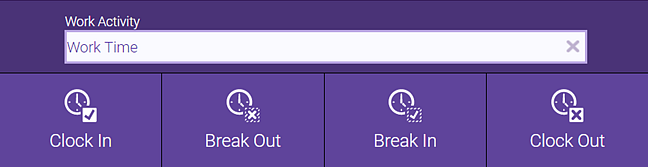
- If you are scheduled to work on this day, your scheduled Work Activity appears in the field above the action buttons. You can select a different Work Activity if needed.
- If you are not scheduled to work on this day, you are still required to select a Work Activity.
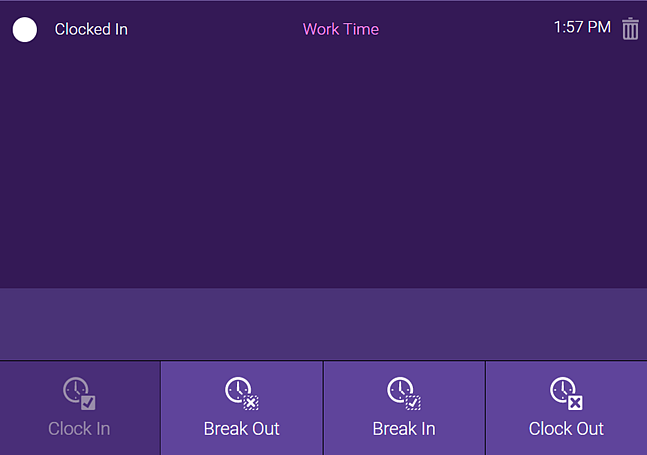
- Select Clock In. The clock-in time appears in the right pane. Also notice the Clock In button is now shaded because it cannot be selected again.
- As a best practice and for security reasons, select Log Out when finished so that the next employee can log in and enter their time clock events.

To clock out
- Type timeclock into the Convobar, or go to Meevo > Schedules > Time Clock.
- Enter your username and password to log into the Time Clock and select OK. A welcome message appears below the login fields.
- Select Clock Out. The clock-out time appears in the right pane. Also notice that the Clock Out button darkens, indicating that it cannot be selected again.
Note: Alternatively, you can clock out via your timesheet view. See To view your timesheet for more information.
- As a best practice and for security reasons, select Log Out when finished so that the next employee can log in and enter their time clock events.