Selling and Using Lot-Tracked Products
Once inventory has been received into lots, Meevo requires your staff to identify which lot inventory is being sold or used from. This ensures inventory is deducted from the correct lot and maintains complete product traceability throughout the client transaction.
Lot selection is required whenever lot-tracked products are:
- Sold as retail products
- Recorded as Product Usage during a service
- Redeemed through a Product Unit Package
Important Information
When inventory is redeemed from a package:
- Lot selection is required before redemption can be completed.
- Inventory may be deducted from one or more lots.
- Inventory is deducted only when the transaction is finalized.
- Lot history is preserved for future inventory tracking and reporting.
Selling Retail Products in the Register
When selling a lot-tracked retail product, the lot must be selected before the sale can be completed.
- Add the retail product to the Smart Receipt.
- Select the Lot # field displayed on the product line and select the lot being sold.
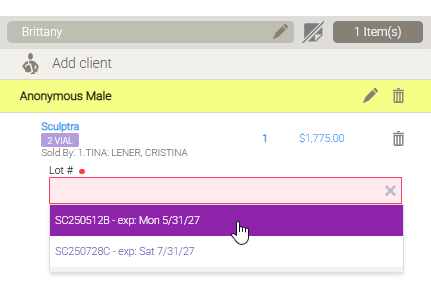
- If inventory is being sold from multiple lots, add another lot row and assign the appropriate quantity.
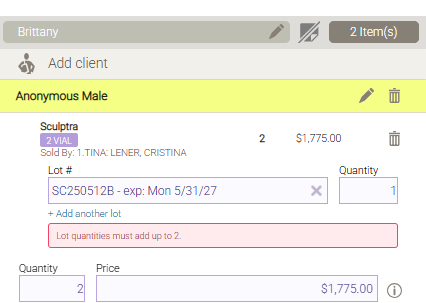
- Complete the transaction.
Note: The transaction cannot be completed until valid lot selections have been made for all lot-tracked products.
Redeeming Lot-Tracked Products from Packages
When redeeming products from a package, Meevo requires you to identify the lot from which inventory is being consumed before the package redemption can be completed.
Redeeming Standard Product Packages
For packages that include predefined products:
- Add the product to the Smart Receipt.
- Select a lot from the Lot # field. If inventory is being consumed from multiple lots, add another lot row and assign the quantity for each lot.
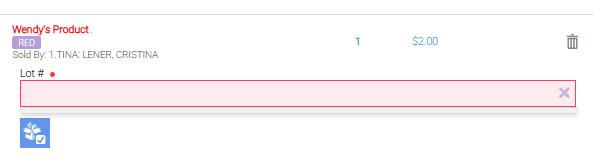
- Redeem the product by selecting the "redeem" icon. Inventory is deducted from the selected lot or lots when the transaction is finalized.
Redeeming Product Unit Packages
Product Unit Packages follow the same lot selection workflow as standard product packages.
- Add the product to the Smart Receipt.
- Open Product Usage for the service and select the Lot # for each lot-tracked product.
- Enter the quantity used.
- Select Apply.
- Redeem the product by selecting the "redeem" icon. Package redemption is unavailable until all required lot information has been entered.
Recording Lot-Tracked Product Usage
When recording Product Usage for a service, you'll specify which lot was used during the treatment.
- Once the service is added to the Smart Receipt, select the Product Usage icon for the service.
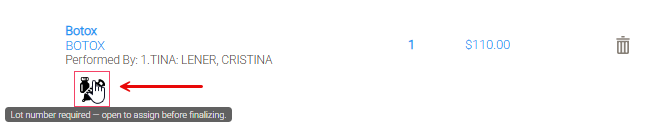
- Select the Lot # for each lot-tracked product and enter the quantity used. If product was used from multiple lots, add another row and assign the appropriate quantity.
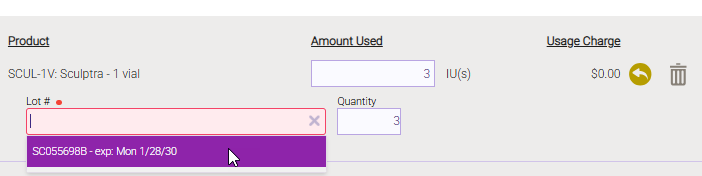
- Select Apply.
- When the transaction is finalized, inventory is deducted from the selected lot(s).
Refunding Lot-Tracked Products
Meevo supports both history-based and manual refunds for lot-tracked products.
Historical Refunds
- Locate the original transaction and create the refund.
- If returning all remaining quantity, Meevo automatically restores inventory to the original lot(s). If partially refunding a product that was sold from multiple lots, select the appropriate lot(s) before completing the refund.
- Complete the refund in the register.
Manual Refunds
- Begin a manual refund. Optionally select one or more lot numbers.
- If Meevo finds a matching historical transaction, you can associate the refund with that sale. If no match is found (or no lot is entered), continue the refund as normal.
Note: Manual refunds are never blocked because a lot number is missing. When no lot is identified, inventory is returned to the product's overall on-hand quantity without lot attribution. You can later assign that inventory to the appropriate lot using Inventory Count.
Editing Lot Information in Transaction Editor
You can view and, when permitted, edit lot information for lot-tracked retail products directly from Transaction Editor.
Viewing Lot Information
For lot-tracked transactions, the associated lot number is displayed directly within the transaction.
- Retail product sales: Lot numbers appear beneath the product name in the Item column. If multiple lots were used, each lot and its associated quantity is displayed.
- Service product usage: Lot numbers appear alongside each product usage entry for lot-tracked products used during the service.
Editing Lot Information
Lot information can be edited until the end of the business day, following the same timing rules as other editable transaction information. Changes are reflected during the nightly inventory processing.
When editing a retail product sale:
- The associated product can be changed.
- The assigned lot number can be changed.
- For quantities greater than one, inventory can be reallocated across multiple lots.
- Lot quantities must equal the line item's total quantity before changes can be saved.
If changing the product removes the current lot assignment, Meevo warns that the saved lot number will be cleared before allowing the change to continue.
Editing Refunds
Refund behavior depends on how the refund was created.
- Historical refunds: Lot information is displayed for reference but cannot be edited. Refunds associated with sales made before Lot Tracking was enabled display Lot Number N/A.
- Manual refunds: Lot information may be added, changed, or removed. Unlike retail sales, lot selection remains optional when editing a manual refund.