Creating and Redeeming Product Unit-Based Packages
Businesses that track and charge for product usage can bundle, sell, and redeem product units from a package in Meevo.
For example, a med spa could sell a 100-unit Botox package at a discounted per-unit price. When you ring up an associated product usage service (like "Injections - Forehead"), selecting the redemption icon on the Smart Receipt automatically deducts the appropriate number of units from the package balance at checkout.
When product usage is documented in an associated chart, the provider can send the actual number of units used to the Register. Those units can then be redeemed from the client’s Product Unit Package during checkout.
This automated unit deduction, along with displaying the number of units used on the receipt, provide clear visibility into balances and usage.
Note: Product unit-based packages are not currently eligible to be added to memberships. This functionality will be enhanced in a future release. In the meantime, we recommend creating a membership that awards points, which can then be redeemed toward product usage.
Creating a unit-based package
To create a unit-based package, Product Usage Tracking must first be configured following the standard setup steps outlined in the Product Usage Tracking guide. The guidelines below are based on those same configuration steps.
- All Product Usage Tracking stems from the Product definition, so the Product Usage tab within a Shop Supply or Retail/Shop Supply Product definition is your starting point. Configure the product for usage according to the instructions in Product Usage Tracking Step 1.
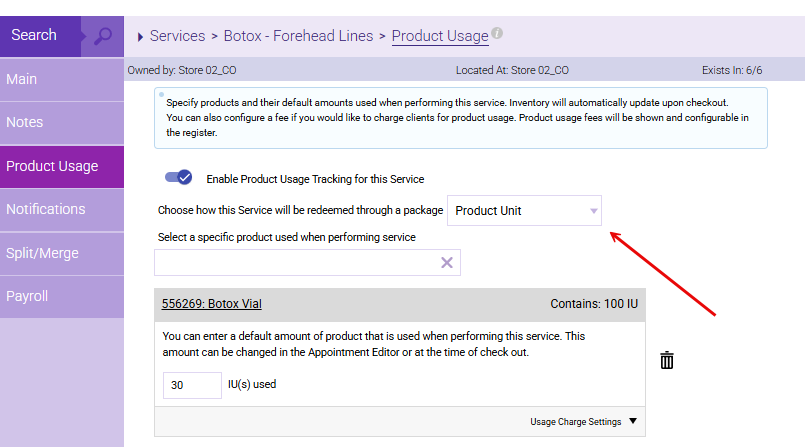
- Within a service definition, open the Product Usage tab. Under the option Choose how this service will be redeemed through a package, select Product Unit. This ensures that when this service is performed, the client will redeem product units from a unit-based package.
- Be sure to configure how product usage will be recorded when the service is performed.
- The actual usage can be documented in an associated chart or, when no applicable chart is assigned, through the Appointment Book or Register.
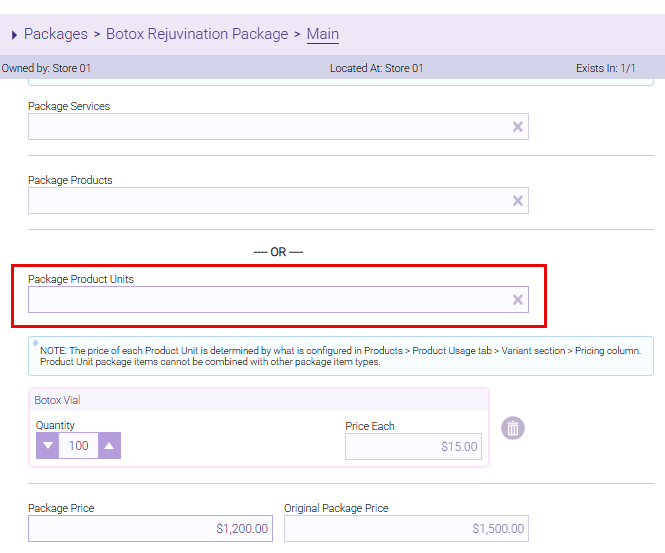
- Create a package definition that contains the products to be redeemed. Packages can include either services and products (standard packages) or product units (unit-based packages). If the product you select here is configured for Partial amounts, set the Quantity to reflect the total number of units available in the product—for example, 100 units for a vial of Botox.
- Once the package is sold to the client, the units are immediately available for redemption at checkout, just like any other package in Meevo.
Redeeming units from a package
Once the package is sold, its product units are available for redemption during checkout. How the usage is reviewed or adjusted depends on whether it was received from a chart.
When usage is received from a chart
When the provider marks the service Ready for Checkout, Meevo sends the recorded product usage to the Register.
- Review the usage received from the chart.
- Select the Redeem icon in the Smart Receipt to apply the available package units.
- When the redeemed product is configured to Track Lots, the required lot information must also be provided before redemption and checkout can be completed.
- See Selling and Using Lot-Tracked Products for details.
- Complete the transaction as usual and note the following:
- Provider-entered usage is view-only in Register. If the usage is incorrect, the provider must update the chart and send the service again before the transaction is completed.
- If required product usage has not been sent from the chart, the package cannot be redeemed. Meevo displays a message explaining that the provider must record and send the usage before checkout can continue.
- If the provider updates the usage after the package has been redeemed but before checkout is complete, Meevo updates the transaction. Review the revised usage and balance, then apply the package redemption again if needed.
- For the complete workflow, see Recording Product Usage in Charts and Sending to Checkout.
When usage is not supplied by a chart
If no applicable chart is assigned, select the Product Usage icon to review or adjust the number of units used. Then select the Redeem icon to apply the available package units.
- When the redeemed product is configured to Track Lots, the required lot information must also be provided before redemption and checkout can be completed.
- See Selling and Using Lot-Tracked Products for details.
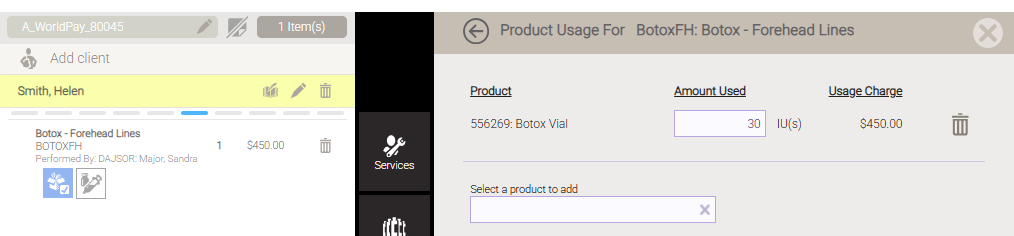
If the client's package does not contain enough units to satisfy the full redemption, Meevo will redeem the remaining available units and then create an additional usage line in the receipt to cover the balance.
Looking up details on unit-based packages
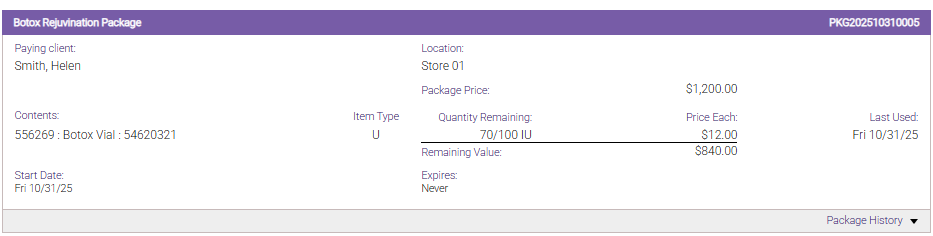
In Client History, you can see details on unit-based packages, including how many units are still available and the remaining value of the package as a whole.