Closing a Register Drawer
When should I open or close register drawers?
At least one register drawer should be opened at the start of each business day, and all open drawers should be closed at the end of each business day. This allows you to track the variances on cash drawers used by specific employees, manage the tips awarded to each employee, and record of the amount of cash and checks deposited to the bank.
Tips: To better understand why a drawer wasn't balanced at closing, you can require a closing note when the drawer doesn't balance. After a register is closed, you can view the Last Drawer Close Summary for details on the user, date, and time of the last open and close.
To reconcile a drawer
Any time you close a register drawer – either during business hours or at the close of the business – you must balance the drawer. Go here for descriptions of how each drawer field is calculated.
- Open Drawer Manager:
- Go to Meevo > Register > Register, or type register into the Convobar. At the top of the Smart Receipt, select Edit beside the drawer name to open Drawer Manager on the right panel.
- Navigate to Meevo > Register > Drawer Manager, or type drawermanager into the Convobar to open the Drawer Manager.
- In the Currently Assigned Drawer section, select Close Drawer.
- In the Cash Summary section, enter actuals for the following:
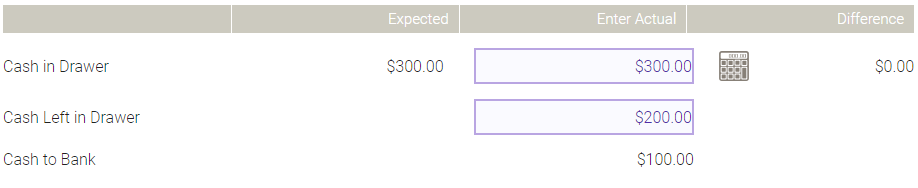
- Cash in Drawer: Count the cash that is in the drawer and enter the value in the Enter Actual column. Alternatively, select the Cash Calculator to enter the amount.

- Cash Left in Drawer: If you are removing cash from the drawer for deposits or other reasons, enter the value of what remains in the drawer in the Enter Actual column. This is the amount that will be in the drawer the next time it is opened, so if you are not taking any cash out of the drawer, make this value the same as Cash in Drawer.
- The Cash to Bank field will update automatically according to your entries.
Note: When you click Save to save a Drawer Closing, Meevo double-checks if any transactions occurred while the closing screen was being edited. If there were, Meevo will display a message that the Expected amount for one or more payment types has been updated. When you clear the message, the screen remains in Edit mode but with updated Expected fields, allowing you to update the actuals as needed.
- If needed, you can select the Cash Transactions and Tips Collected buttons at any time to view that information in a separate screen.
- In the Other Payments Summary section:
- Actuals for Account Charge, Gift Cards, Points, Barter, Comp, Donation, and custom payment types are auto-filled. Verify these values and make changes if needed.
- Checks and Credit/Debit are not auto-filled and must be reviewed and filled out manually.
Note: You can select one of the payment type buttons at any time to view that information in a separate screen.
- Add Closing Notes, if desired.
- Proceed with the sections below according to whether or not you want to print a deposit slip.
To close the register drawer and print a deposit slip
- Select Deposit Slip. Printing a deposit slip requires the drawer to be closed.
- Select Yes on the next two confirmation messages. The deposit slip is printed to your default printer and the drawer is closed.
To close the register drawer without a deposit slip
- Select Save. A confirmation message appears.
- Select Yes to confirm. The drawer is now closed.