Basics of Running Payroll
After you've configured and enabled payroll (see Getting Started with Payroll if you haven't already), Meevo will begin tracking payroll on the configured date. Review the FAQs below to learn more about how payroll works in Meevo.
When finished, be sure to review the rest of our "Running Payroll" topics:
- Searching Payrolls
- Viewing Payroll Period Details
- Recalculating a Payroll
- Stopping Payroll Tracking
When are new payrolls created?
New payrolls are created when needed by a payroll service that runs each night. This service also handles overnight recalculation of Current payrolls.
What are payroll statuses?
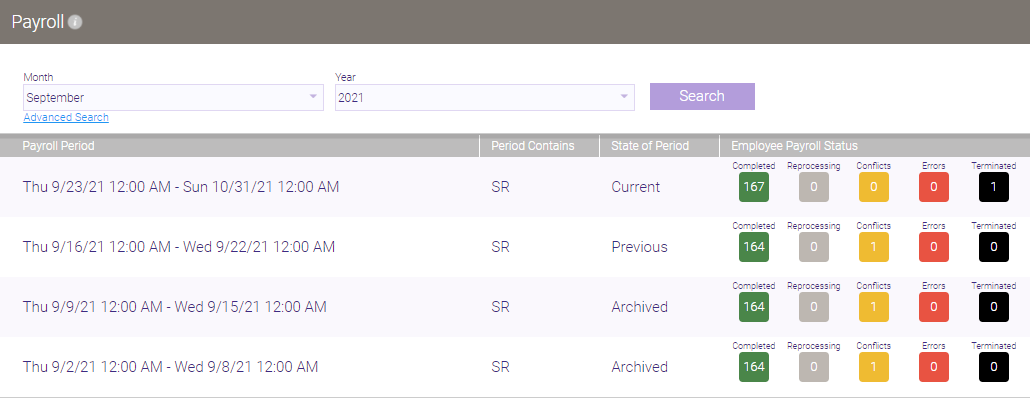
Payrolls always begin with a Current status. After the payroll period ends, the status changes to Previous. Previous payrolls then become Archived, the Current payroll becomes Previous, and this pattern continues for as long as payroll is running.
Specifics on payroll statuses
- Current: The current, in-progress payroll.
- Current payrolls can be manually recalculated at any time, and they are always automatically recalculated each night at 1 am.
- If your payroll frequencies for retail commissions and service commissions are identical, you will have only one Current payroll per pay period.
- If your payroll frequencies are different, you will have one Current payroll for service commissions, and one Current payroll for retail commissions.
- Previous: A completed payroll (usually the most recently completed payroll).
- This status assumes compensation has not yet been distributed to employees, as Previous payrolls can be edited.
- Previous payrolls can be manually recalculated for individual employees or for all employees, but Previous payrolls are never automatically recalculated.
Note: Pay periods that are truncated, for example if you change your payroll frequency in Payroll Settings, will have a Previous status.
- If service and retail payrolls are on the same frequency, you will have one Previous payroll at any given time (not counting any truncated payrolls). If service and retail payrolls are on different frequencies, you will have two Previous payrolls at any given time (again, not counting truncated payrolls).
- Archived: A completed payroll.
- This status assumes compensation has been distributed to employees.
- Archived payrolls cannot be recalculated manually or automatically.
- There can be several Archived payrolls at any given time.
How long should a recalculation take and when does it happen?
This depends on the status of the payroll. In most cases, a recalculation should not take longer than 30 minutes.
- Current payrolls are automatically recalculated each night around 1 am, but you can do a manual recalculation at any time to recalculate immediately.
- Previous payrolls are never automatically recalculated, so if you wish to recalculate a Previous payroll, it must be a manual recalculation, which will recalculate immediately.
- Archived payrolls cannot be recalculated.
How do I know when a payroll is recalculating?
When a payroll or item in the payroll is recalculating, you will not see real-time updates to payroll numbers on the Payroll screen. You can refresh the page to see the latest details.
Note: If the page does not load after 1 minute, close the Meevo tab on your browser and then reopen to log back in and reprocess payroll.
Here's how Meevo indicates that employee payroll is being processed:
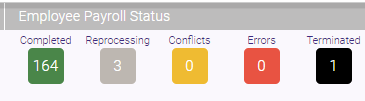
- On the Payroll search screen, the gray Reprocessing indicator will show you the number of employees whose payrolls are being recalculated:
- When viewing the payroll, a purple header appears across the top of the screen, and the employee's payout appears in gray with an in-progress spinner.
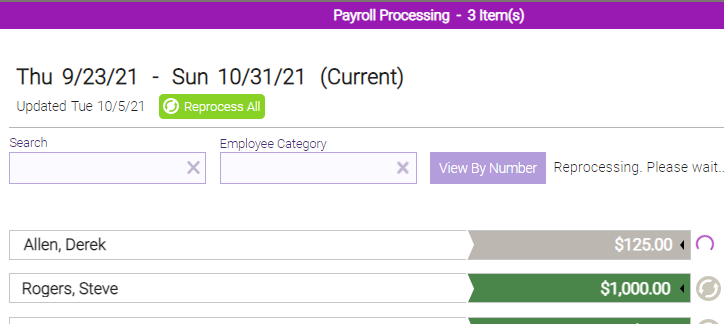
- When recalculations are finished, the employees' payouts will appear in green:

- On the Payroll search screen, the Reprocessing indicator will read 0.

I configured Payroll and created my first payroll period, but I want to change the start date. How do I fix this?
In Payroll Settings, edit your existing Payroll and change the End of First Payroll Period field to achieve your desired Start Date.
Why does an employee show $0 earnings even though they performed services?
If this situation occurs, the most likely culprit is one or more settings that were not configured as you intended. These are potential causes for this issue:
- The employee is scheduled for a Must Clock In Work Activity, but never clocked in.
- To resolve this, you should review these topics for important details: Setting Up Payroll Clock Rules and Options That Affect Clock-ins and Meevo Access.
- The employee's Commission scale was not set up properly in the Payroll tab of the employee's profile.
- If the employee should be receiving a commission percentage, ensure that the commission Percent is not set to 0%. See Setting Up an Employee's Earnings for details.
- The employee's Employee pay calculation in the Payroll tab of the employee's profile is set to Commission Only, but a commission rate has not yet been set up. See Setting Up an Employee's Earnings for details.
- Check to ensure that a commission override is not applying a 0% commission percent.
An employee forgot to clock out for the day. How do I fix this?
- First, edit the employee's actuals in Schedule Manager.
Note: If Automatically clock out employees who have clocked in but not clocked out for their scheduled time is enabled in Payroll Clock In/Out Rules, then the employee will automatically receive a clock-out overnight.
- Then, reprocess the Payroll as needed:
- Current: A Current payroll can be manually reprocessed immediately; otherwise, it will automatically reprocess overnight.
- Previous: A Previous payroll must be manually reprocessed, as Previous payrolls never automatically reprocess.