Syncing to QuickBooks Online
IMPORTANT: If this is your first time syncing with a new connection, you must follow the steps in Before syncing for the first time to ensure smooth and accurate accounting with the QuickBooks Online Integration.
Before syncing for the first time
Before your first sync on a new connection, you need to populate some starting data in QuickBooks Online to ensure accurate accounting.
- Meevo Cash Drawer account: In QuickBooks Online, enter the starting cash amount for all cash drawers. This only needs to be done once. Since you are defining the opening cash in QuickBooks Online, it is highly recommended that you open and close your drawers with the same amount each day. Failure to do so may result in inaccuracies.
- Meevo Inventory Asset Account: In QuickBooks Online, enter the total value of all inventory. Run the MI210 report in Meevo to obtain this value, provided you've recently performed an Inventory Count and are confident in your data.
Note: As a reminder, always be sure to account for additional product received by your business by adding received products' wholesale back into the Inventory Asset Account in QuickBooks Online. As a best practice, we recommend doing this before your next sync, though in theory this can be done at any time.
To sync to QuickBooks
Meevo never auto-syncs with your QuickBooks Online account. The only way to push your Meevo data into QuickBooks Online is to manually sync by following the instructions below.
To sync, you must have an established connection to QuickBooks Online and configured accounts and Payment Types.
- In the QuickBooks Online Integration screen in Meevo, select the Sync tab.
- Which connection would you like to use? If using multiple connections, choose the desired connection. Otherwise, this defaults to your only connection and cannot be changed.
- Sync: Enter the From and To dates. As a best practice, you should avoid syncing data that has the potential to be changed in Meevo. The "edit transaction" option in a user's Security Role definition determines how many days into the past they can edit transactions. MSI recommends reviewing your Security Roles to determine the maximum value you've set for this option, and then making sure the To field is that many days prior to today.
Note: Data that is changed in Meevo after a sync is not retroactively pushed to QuickBooks. See Best Practices for the QuickBooks Integration for details on how editing a past transaction can impact your synced QuickBooks data and the steps you should take to resolve any discrepancies.
Some more notes on syncs:
- You can sync as many times as you want on a given day, but you cannot sync a date or date range twice; attempting to do so will display a message that explains this. If the date or dates were deleted, then a sync can happen again.
- If you are re-syncing previously synced dates, first consider any deposits that may have been created as a result of the original sync and modify your deposit data accordingly.
- All drawers must be closed in order to sync. You cannot sync if a drawer is open in Drawer Manager.
- Sync range can be up to 14 days, and you can go back as far in the past as needed.
- When ready, select Sync. After a few moments, you receive a successful message.
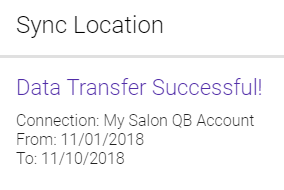
- Select Finish to complete the sync.