Adding or Editing a Product Bundle
To get to Product Bundles, type bundle into the Convobar, or go to Meevo > Data > Product Bundles.
Can a Product Bundle count be negative?
Note: Product Bundle counts (the Current amount in stock section in a bundle's definition) are not affected by the Business Information setting Track negative inventory.
No, bundle counts will never appear negative because of the way Meevo handles on-hand count deductions during a bundle sale.
Meevo allows you to sell any number of bundles, regardless of how many you currently have assembled. If you sell more bundles than you have assembled, upon finalizing the sale, Meevo automatically assembles the extra bundles, deducts from on-hand counts as needed for the relevant products in the bundles, and leaves you with a count of zero (0) bundles.
How is inventory affected when I assemble or disassemble a Product Bundle?
Meevo allows you to assemble or disassemble Product Bundles regardless of product or bundle on-hand amounts.
- When a bundle is assembled, on-hand amounts for the products in the bundle are deducted from Stock Levels according to the quantity of each product in the bundle.
- When a bundle is disassembled, on-hand amounts for the products in the bundle are added back to Stock Levels according to the quantity of each product in the bundle.
- Assembling or disassembling a bundle does not change your inventory value. Only when a bundle is sold or refunded can your inventory value be affected.
Which products can I add to a bundle?
If you are tracking inventory for a product, the product must be classified as Retail or Retail/Shop Supply for it to be eligible for a bundle.
If you are not tracking inventory for a product, it can be added to the bundle without any restrictions.
To add a product bundle
Tip: Use the copy function to quickly create a new data record with similar details to an existing item. First, locate and select the existing item, and then select Copy. Meevo 2 will create a new definition with fields that are identical to the record you just copied. Make changes to the data as needed, and select Save when finished.
- From the Product Bundle search form, select Add New.
- Display Name and optional Description: Enter a name for the bundle that helps easily identify its content.
- Product Category: Select a Product Category from the list. This will impact which products appear in the Products in Bundle drop-down below.
- Not for sale: If selected, this bundle will not be available in the register.
- This is a custom product bundle: If enabled, this product bundle will be defined differently from regular product bundles, as products in custom product bundles are selected by the client. See Adding a Custom Product Bundle for details.
- SKU/Code and Barcode: You can use a barcode scanner to automatically populate the Barcode field.
Note: Barcodes longer than 12 characters in length may not be readable by a barcode scanner.
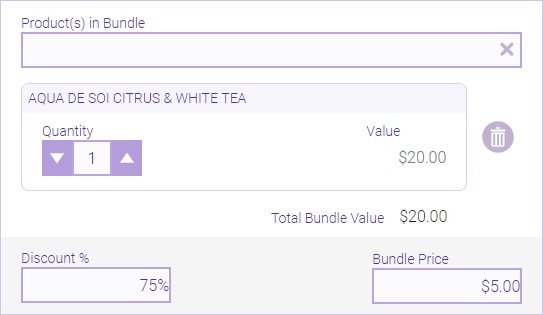
- Products in Bundle: Select a product to add it to the list. Repeat this step as many times as needed. The Total Bundle Value and Bundle Price are updated with each change to the list.
- Discount % and Bundle Price: These options work in tandem, so updating one will automatically update the other.
- You can define the Discount % to determine the register price; the discount is based on the Total Bundle Value. The Bundle Price will update as well.
- You can define the Bundle Price, and the Discount % will update based on the Total Bundle Value.
- When finished, select Save.
- Finally, remember to assemble the bundle!
To edit a product bundle
Note: Some fields may not be editable if the current location is not the item's Home Location.
Note: The contents of a product bundle cannot be edited if the bundle has been sold at least once. Specifically, products cannot be added or removed, nor can their quantities be changed.
- Locate and select the bundle. .
- Select Edit, and make your changes.
- When finished, select Save.