Installing the Adyen SFO1 (MeevoPay Only)
Before you begin
- To use this device, you'll need a Merchant Account with MeevoPay. Review our Meevo System Requirements and Supported Devices to ensure your computer and devices are compatible with Meevo.
- The Adyen SFO1 documentation contains important information and details from the manufacturer that are not discussed in this topic. We strongly recommend you review your device documentation before installing the device.
- The SFO1 is a countertop device that must be plugged in for power. This device is Wi-Fi capable when used with Meevo, but Meevo does not support Bluetooth functionality on the SFO1. For Ethernet connectivity, the USB-C to Ethernet adapter is available upon request.
- Installation of the Countertop Stand for the SFO1 requires the included Allen wrench and, if you're not using Wi-Fi, an Ethernet cable.
- In addition to Wi-Fi and Ethernet, the included SIM card allows for automatic 4G failover should you lose network connectivity. Bluetooth functionality is not supported.
Installation steps at a glance
|
Step 1: Add Your MeevoPay Merchant Account in Meevo (separate topic) |
|
Step 2: Assemble and power the device, add or "pair" it to your Merchant Account, and connect it to the internet (this topic) |
|
Step 3: Assign a default Merchant Account and credit card device to a drawer in Meevo (separate topic) |
Assemble the SFO1
- Make sure you've added your MeevoPay Merchant Account in Meevo.
- Unpack the SFO1 components:
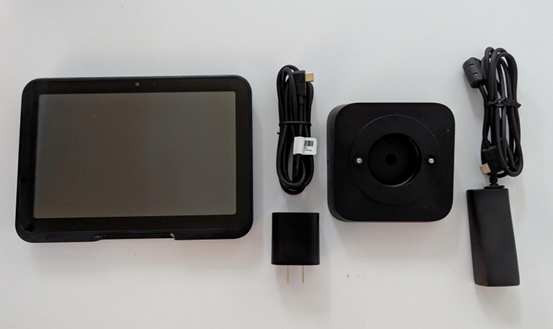
From left to right:
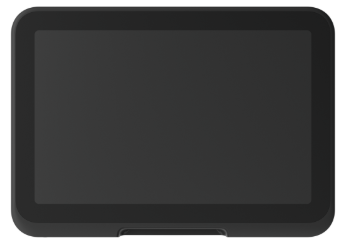
- Adyen SFO1
- USB-C cable
- USB-C power adapter
- Countertop stand
- USB-C to Ethernet adapter (available upon request)
Assemble the countertop stand
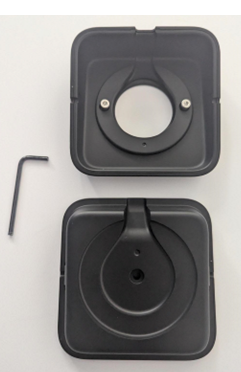
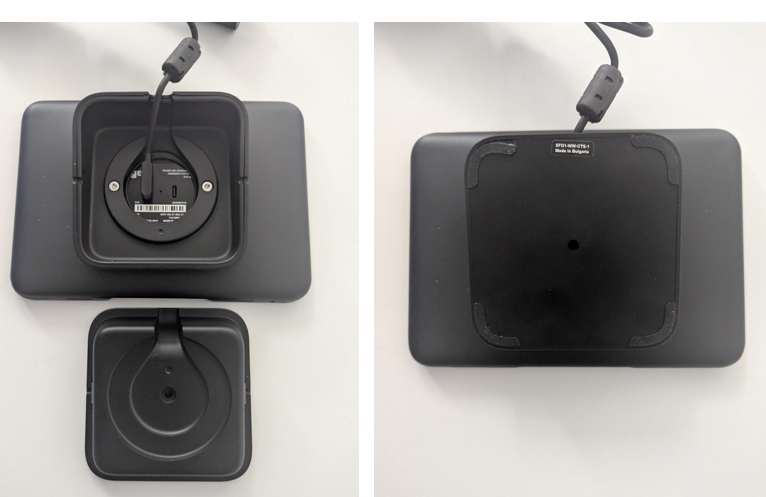
- On two sides of the Countertop Stand there is a small hole. Insert one end of the provided Allen wrench into that hole until you hear a click. Repeat the previous step on the other hole. Then separate the 2 sides of the stand.
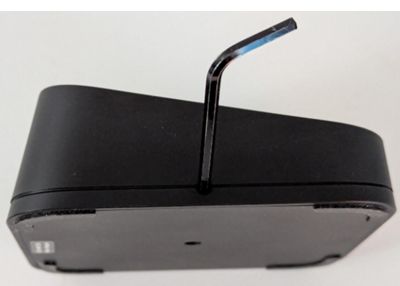
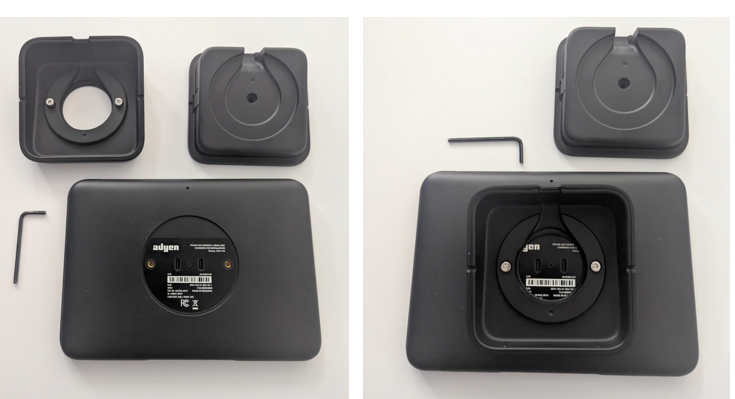
- Take the stand with the pre-installed screws and line them up with the screw holes on the back of the SFO1 terminal. Use the Allen wrench to tighten the screws.
If connecting to the internet via Wi-FI
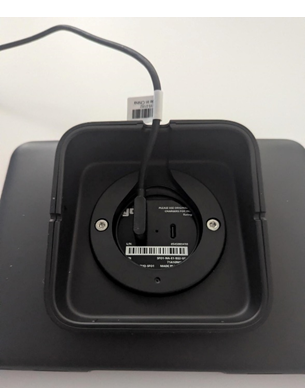
- If connecting to the internet via Wi-Fi, plug the angled end of the USB-C Cable into one of the USB-C ports on the SFO1 and lay the cable in the notch along the edge of the stand.
- Take the other part of the countertop stand and reconnect it to the part attached to the SFO1.
If connecting to the internet via Ethernet cable
- Take the USB-C to Ethernet Adapter (available upon request) and plug the USB-C end into one of the ports on the back of the SFO1. Lay the cable in the notch along the edge of the stand.
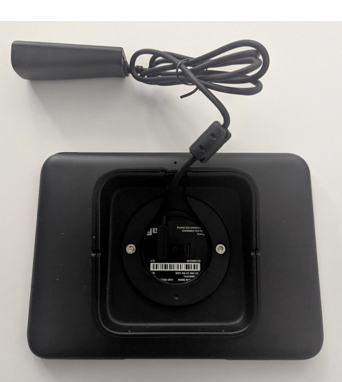
- Plug your Ethernet cable (not provided) into the adapter.
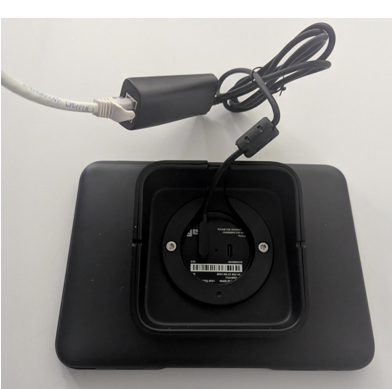
- On the end of the adapter is a USB-C port.
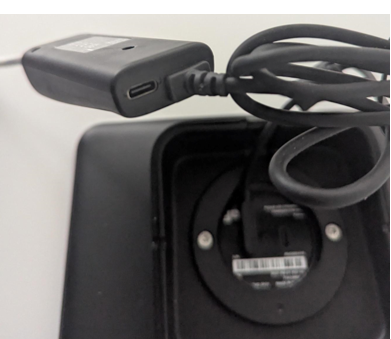
- Plug the angled end of the other USB-C Cable into that port.
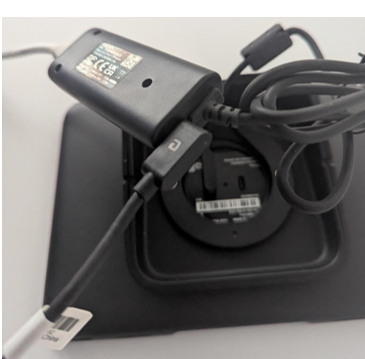
- Take the other part of the countertop stand and reconnect it to the part attached to the SFO1.
Power on the SFO1
- When you are ready to turn on the device, connect the other end of the USB-C Cable into the power adapter and then plug that adapter into a wall outlet or surge protector.
- The device powers on automatically once connected to a power source.
Add or "pair" the SFO1 in Meevo
With MeevoPay, you can add a device in Meevo even before you've received it! Shortly after your purchase of a device, MSI will associate the device with your account in our system. Once this is complete, you can actually add the device in Meevo before it arrives.
To pair a device, it must be associated with your MeevoPay account (this is done by MSI) and it must be unpaired (not activated) on any other accounts.
- First, make sure you've selected Enable credit card processing in the Register category of Business Preferences.
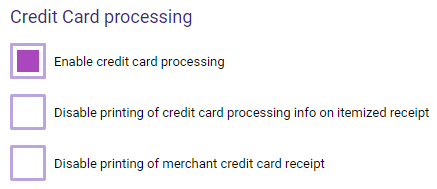
- Go to Meevo > Register > Merchant Accounts, or type merchacct into the Convobar.
- Search for and select the MeevoPay Merchant Account that will be tied to this device.
- Select the Devices tab.
- Select Add New. If a device is available to be paired, the Activate new device window appears.
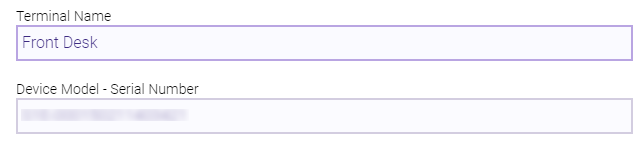
- Enter a Terminal Name, which is how you'll identify the device in Meevo. Give the device a name that will make it easy to identify in a menu or list, such as it's physical location (Front Desk, for example).
- Choose your Device Model - Serial Number from this drop-down. There is nothing for you to enter in this field; you only need to select the device serial number from the pre-populated list. If there are multiple S/Ns available in the drop-down, check the device's shipping box to make sure you select the right one.
- Is Shared: This enables multiple merchant account support for this device. The device becomes "shared" across all MeevoPay Merchant Accounts, meaning that it will appear in the Devices tab of all MeevoPay Merchant Accounts with (Shared) beside the Terminal Name. In this way, you can use one device for several Merchant Accounts.
- Display Transaction Details: When the option is enabled, supported terminals will display live transaction details (service name, shortcut, and price) as items are added to the Smart Receipt, replicating pole display behavior.
Reminder: A device appears in this list only if it's associated with your account and it is not paired (activated) in Meevo. If no devices are available to be paired, Meevo displays the message Please associate devices to this Merchant Account through your payment processor before adding them in Meevo.
- When finished, select Save to pair the device. The device appears immediately in the Devices tab.

- Now that you've paired your device with your Meevo Merchant Account in Meevo, you can connect the credit card device to the internet as explained in the next section.
Connect the SFO1 to the internet
If connecting to the internet via an Ethernet cable, plug the other end of the cable into an Ethernet port. If you plan on connecting to your network using the device's Wi-Fi, then you can skip this step.
To connect to the internet via Wi-Fi:
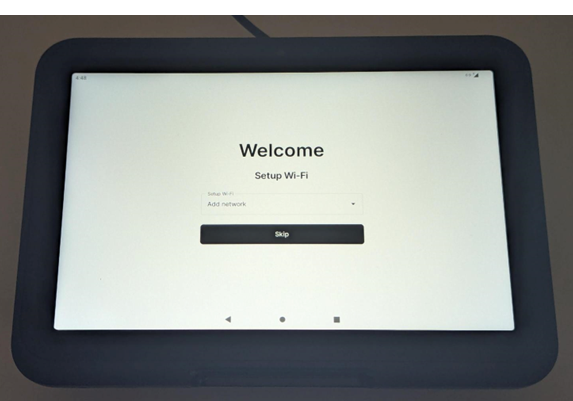
- On the SFO1 Welcome screen, select your language and tap Continue. The Setup Wi-Fi menu appears.
- Select Add network from the drop-down menu.
- Toggle the Use Wi-Fi switch to On to view nearby wireless networks.
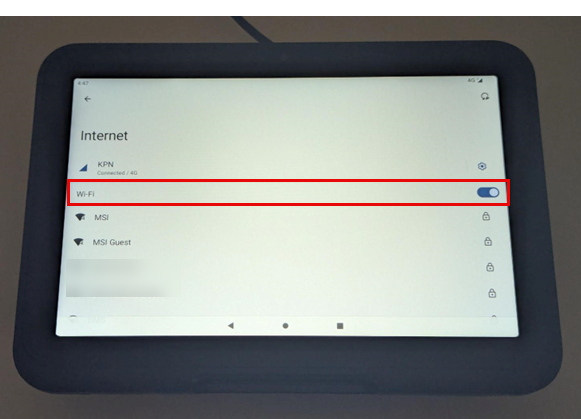
- Select your network and enter the Wi-Fi credentials. After a successful connection, a Wi-Fi signal strength symbol appears at the top of the display.
- Select the center O button on the device screen to return to the Home screen. The Home screen now displays your store location, address, and StoreID.
- Select Confirm if this information is correct. If this information is inaccurate, select the "back" key on the device to return to the Home screen and then reach out to MSI Client Success for assistance.
- The device will likely begin installing updates, which may take up to 30 minutes. The device may restart several times.
- When the home screen appears with a cloud icon in the upper-left of the device screen, your credit card device is ready for use!
- Finally, you should assign your MeevoPay Merchant Account and M400 device as the default options for your desired register drawers.
Obtaining your device passcode
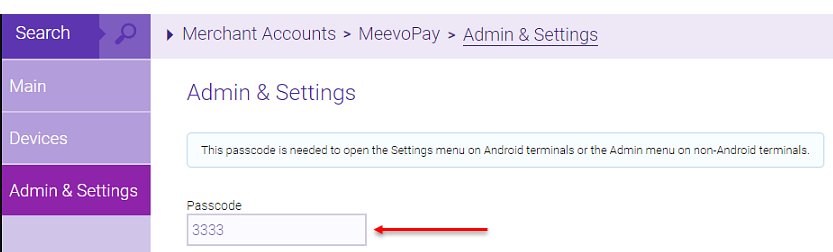
MeevoPay credit card devices require a passcode to access their advanced menus: a passcode is needed to open the Settings menu on Android devices and to open the Admin menu on non-Android devices.
You can quickly obtain your device passcode by selecting the Admin & Settings tab on a MeevoPay Merchant Account screen. When you select this tab, Meevo checks your device and displays the device's latest passcode.
The device passcode is editable from this tab as well, so you can easily change the passcode if needed for security reasons.