Adding or Editing an Appointment Category
To get to Appointment Categories, go to Meevo > Appointments > Appointment Categories.
To add an Appointment Category
Tip: Use the copy function to quickly create a new data record with similar details to an existing item. First, locate and select the existing item, and then select Copy. Meevo 2 will create a new definition with fields that are identical to the record you just copied. Make changes to the data as needed, and select Save when finished. Note that Central Office cannot copy items that are owned by a location.
- From the Appointment Categories search form, select Add New.
- Display Name: Enter a name that will make this item easy to identify in lists or menus in Meevo 2.
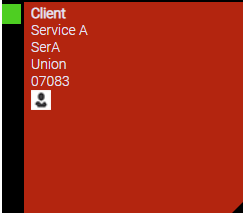
- Text and Background: Determine how the "details" section of appointments appear in the Appointment Book. Text controls the color of the appointment details text (client name, service details, add-ons, resource, and location/city/zip), while Background controls the background of the appointment.
Below, the client's appointment was assigned an Appointment Category whose Text is set to white and Background is set to red.
- When finished, select Save.
Business Types and data in Central Office
If you configured Business Types, select one from the Business Types drop-down. Only locations of the same Business Type will have access to this item once it is made available.
Reminder: Business Types are a way to categorize locations that offer vastly different services. For example, a Med Spa location would be set to a different Business Type than, say, a hair salon. In this way, Business Types ensure that unrelated data does not appear at a location (such as a Men's Haircut service appearing in a MedSpa's services list). For the vast majority of businesses, Business Types are not necessary.
Select Make available to locations to make this item immediately available to locations. In Location Options, you can exclude locations and manage how Meevo handles local overrides.
Note: If you select a Business Type and make an item available to locations, then after saving, you cannot change from one Business Type to another. However, you can at any time change from a single Business Type to All Business Types (as long as All Business Types is an available option for this item).
To edit an Appointment Category
Note: Some fields may not be editable if the current location is not the item's Home Location.
Note: Once an item is saved with a Business Type selected and the item is made available to locations, then the Business type cannot be changed to anything other than All Business Types.
- Locate the Appointment Category and select it.
- Select Edit and make your changes.
- When finished, select Save.